How to Uninstall Packages in Ubuntu Quickly




Package management is a core task in Linux administration. Every major Linux distribution offers a range of package managers, and familiarizing yourself with each is crucial for excelling in package management tasks. Ubuntu provides a variety of package managers, including both graphical and command-line tools. While there are multiple operations you can carry out in package management (such as installing and updating software), this guide focuses on the process of uninstalling software packages in Ubuntu.
#Prerequisites
For this guide, ensure you have the following:
-
A supported Ubuntu version
-
A sudo user is configured on your instance
#Uninstalling packages in Ubuntu
Part of package management involves uninstalling software packages. In this tutorial, we explore different methods of removing software on Ubuntu.
#Uninstall packages with APT
This is the most convenient tool for Debian/Ubuntu. The beauty of apt is its remarkable ability to handle and resolve dependencies automatically. It installs software packages hosted on default repositories and even .deb files directly. Missing dependencies often cause broken packages and, in the worst-case scenario, can lead to a broken system.
To remove a software package, use the syntax:
sudo apt remove package-name
For instance, let’s say you want to remove the apache2 package. First, you can verify its existence by locating its binary executable using the which command.
which apache2
The output confirms the existence of the package by listing the path of the binary executable.
Output/usr/sbin/apache2
To remove the apache2 package, run:
sudo apt remove apache2 -y
Once uninstalled, you can run the which command again to verify its removal, and this time around, you will get no output. This confirms that the package was successfully removed from your system.
Apart from removing a single package, you can also uninstall multiple packages by passing them as arguments using the following syntax:
sudo apt remove package_1 package_2
For example, to uninstall the bashtop and flameshot packages, run the command:
sudo apt remove bashtop flameshot
NOTE
Some scenarios will call for the removal of residual packages that your system no longer needs. These are considered bloat, and hence, it is recommended that you remove them. You can easily remove them and conserve disk space by running.
sudo apt autoremove -y
To completely remove a package, including its configuration files, issue the command:
sudo apt purge package_name
In some cases, user-specific configuration files and data are stored in the .config folder during installation and remain intact despite package removal. You can manually remove them by executing:
sudo rm -Rf ~/.config/app-name
#Remove packages with dpkg
Debian Package, abbreviated as dpkg, is a low-level package management tool. Unlike higher-level package managers like apt, dpkg does not fetch packages from repositories nor handle dependencies. It works on individual .deb packages downloaded from vendor websites and handles their installation, removal, and management.
To uninstall a package with dpkg, use the syntax:
sudo dpkg -r package-name
NOTE
When removing the package, we specify the name of the package itself, and not the individual .deb package.
You can verify if the application is installed using the -l option.
sudo dpkg -l | grep package-name
For example, to check if the bashtop application is installed, run:
sudo dpkg -l | grep bashtop
The output confirms the existence of the package.
Outputii bashtop 0.9.25-1 all Resource monitor that shows usage and stats
To remove the application, we will run the command:
sudo dpkg -r bashtop
To confirm package removal, you can run the dpkg -l package-name command, which will return the following output.
dpkg-query: no packages found matching bashtop
Running the which package-name command will not return any output. Both commands confirm the successful uninstallation of the package.
#Uninstall snap packages
A snap package is an application that runs in isolation in a restricted environment. It's an application that comes packaged with metadata, dependencies, and libraries and configured to run in a sandboxed environment. Given its packaging and mode of operation, a snap package is handled differently from other conventional packages.
Snaps are managed using the snap utility. The command below lists the snaps on your system.
snap list
Outputbare             		 1.0                                      5          latest/stable  canonical✓          base
core         		16-2.61.4-20250626      17247    latest/stable  canonical✓          core
core18          		20250730                         2940     latest/stable  canonical✓          base
core22         		20250730                         2111     latest/stable  canonical✓          base
firefox           	             142.0.1-1                          6738      latest/stable  mozilla✓              -
gnome-42-2204           0+git.38ea591                   202      latest/stable  canonical✓          -
gtk-common-themes 	0.1-81-g442e511            1535      latest/stable  canonical✓          -
juju        		 3.6.9   			    32163  3/stable          canonical✓ 	       -
postman         	            11.62.7                                  351    v11/stable     postman-inc✓      -
snapd                 	2.71                                 25202     latest/stable  canonical✓          snapd
To remove a snap package, use the syntax:
sudo snap remove package_name
For example, to remove the postman snap package, run:
sudo snap remove postman
To remove multiple snap packages simultaneously, specify them using the same command shown. Here, we are removing firefox and juju snaps.
sudo snap remove juju firefox
#Uninstall packages using Ubuntu App Center
Ubuntu App Center offers a reprieve thanks to its simple and intuitive UI for users not comfortable working on the CLI interface. Everything is intuitive, from listing installed software to searching and installing apps from the default repositories. It handles both traditional and snap packages, creating a holistic package management approach. Doing so eliminates the need for the previously covered CLI tools.
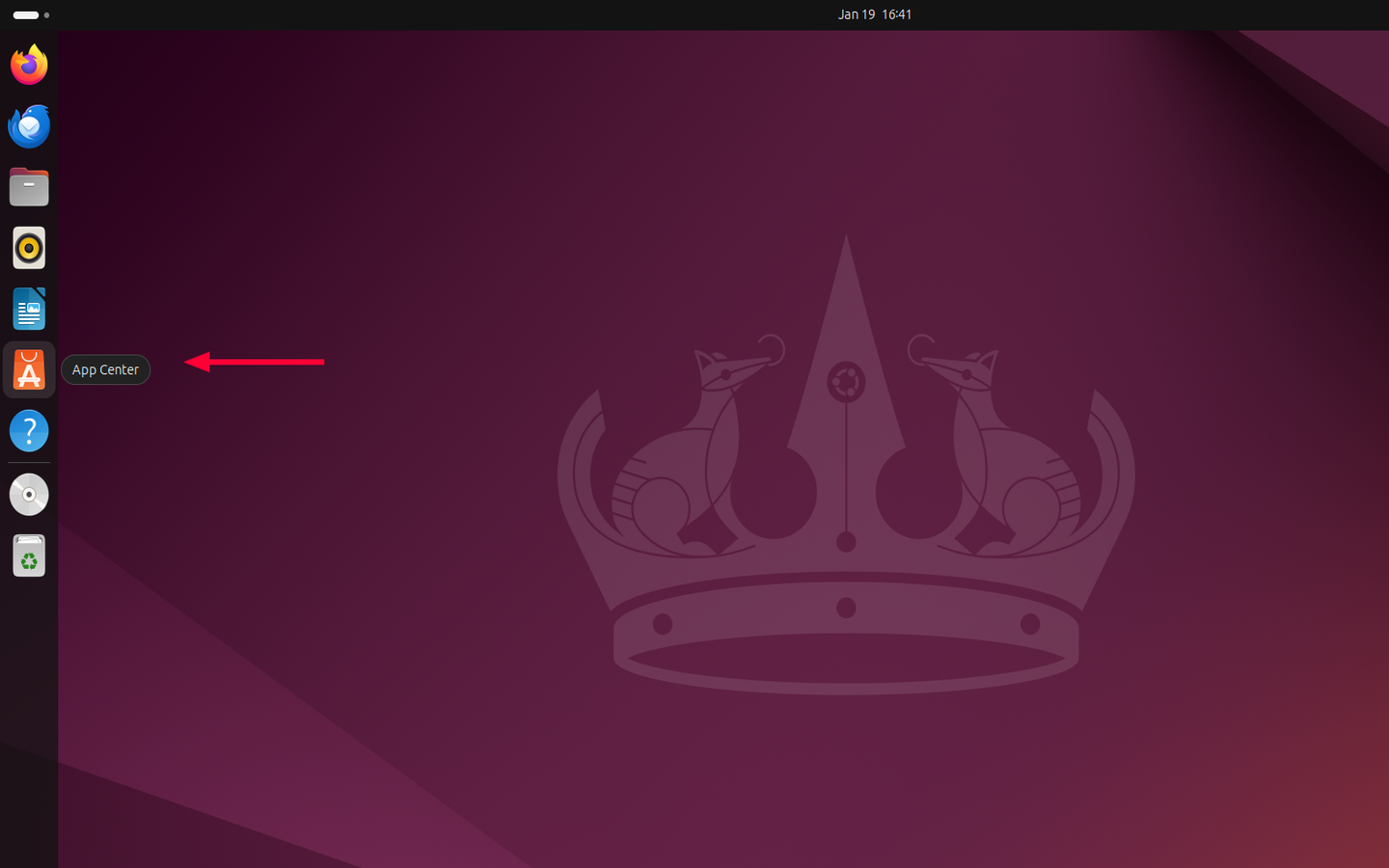
To launch it, click the app icon.
To uninstall a package, simply search for it and hit ENTER. In this example, we have searched for Firefox. Upon clicking the drop-down menu, select the Uninstall option.
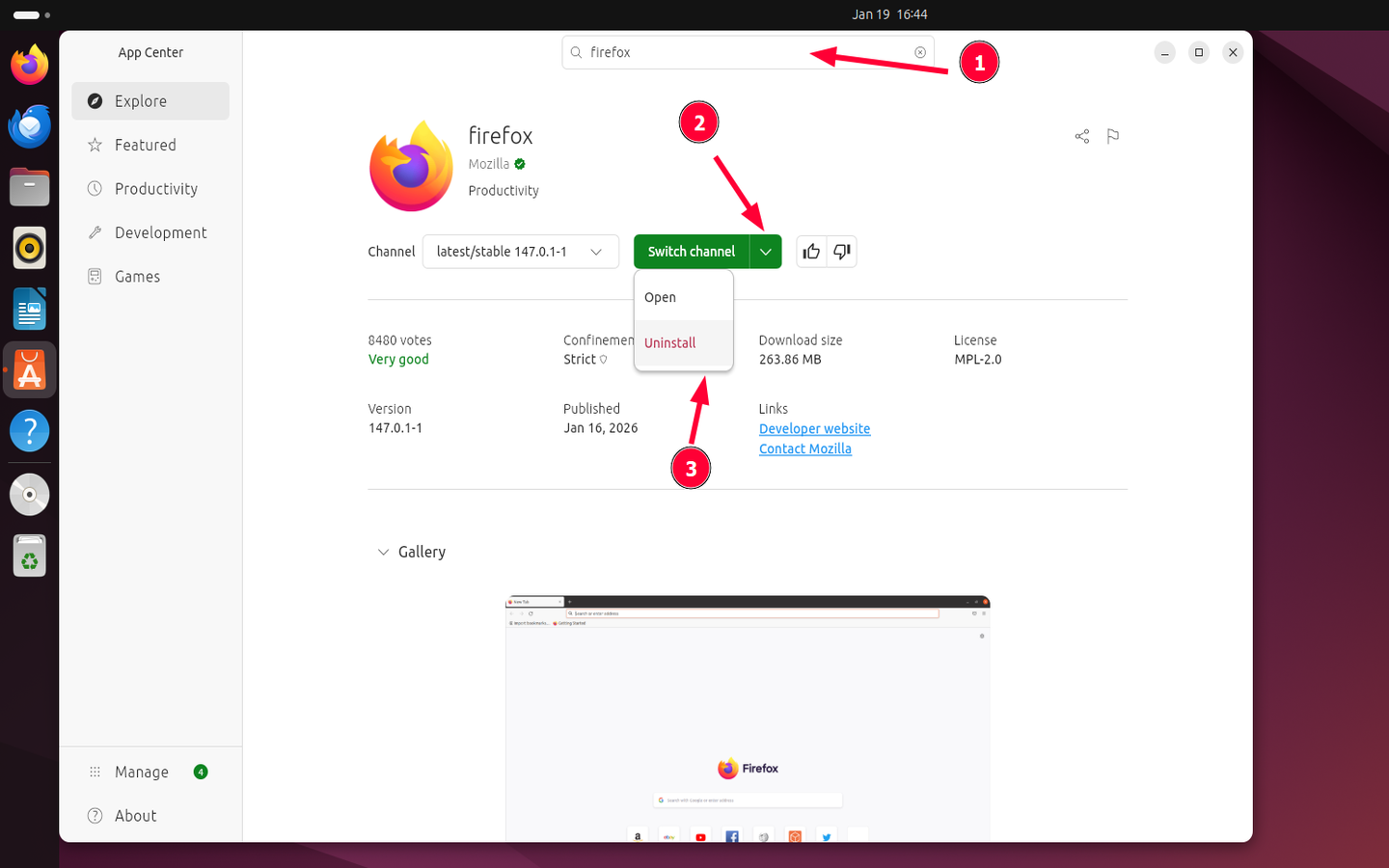
Be sure to provide your user account’s password to continue with the uninstallation.
#Uninstall Flatpak packages
Just like snaps, Flatpak packages are handled differently and are managed using the flatpak utility. To list the Flatpaks on your system, run:
flatpak list
OutputName                                       Application ID                                     Version            Branch             Installation
Bella                                      io.github.josephmawa.Bella                         0.1.6        stable                   system
Resources                            net.nokyan.Resources                                  1.8.0         stable                   system
Mesa                                     org.freedesktop.Platform.GL.default          25.2.2      24.08                    system
Mesa (Extra)                        org.freedesktop.Platform.GL.default          25.2.2      24.08extra           system
openh264                             org.freedesktop.Platform.openh264           2.5.1       2.5.1                     system
GNOME Application Platform version 48      org.gnome.Platform                          48                        system
To remove a flatpak package, use the syntax:
sudo flatpak uninstall flatpak_Application_ID
For example, to uninstall the Bella flatpak, run the command:
sudo flatpak uninstall io.github.josephmawa.Bella
sudo flatpak uninstall io.github.josephmawa.Bella
Press Y when prompted and hit ENTER.
You can use the --delete-data option to remove the Flatpak package along with user data to free up more space. Here's an example.
sudo flatpak uninstall --delete-data net.nokyan.Resources
NOTE
To save up disk space and optimize your system, uninstall any remaining Flatpak runtimes and extensions no longer needed by any installed Flatpak apps.
flatpak uninstall --unused
To simplify the uninstallation and overall management of Flatpaks, you can use Warehouse. This is a Flatpak package that offers a GUI experience in Flatpak management. Just like Ubuntu App Center, it allows you to search, check app details, and install/uninstall flatpaks.
To install warehouse, run the command.
flatpak install flathub io.github.flattool.Warehouse
Upon installation, launch it and select the flatpak to remove. Then click the uninstall option.
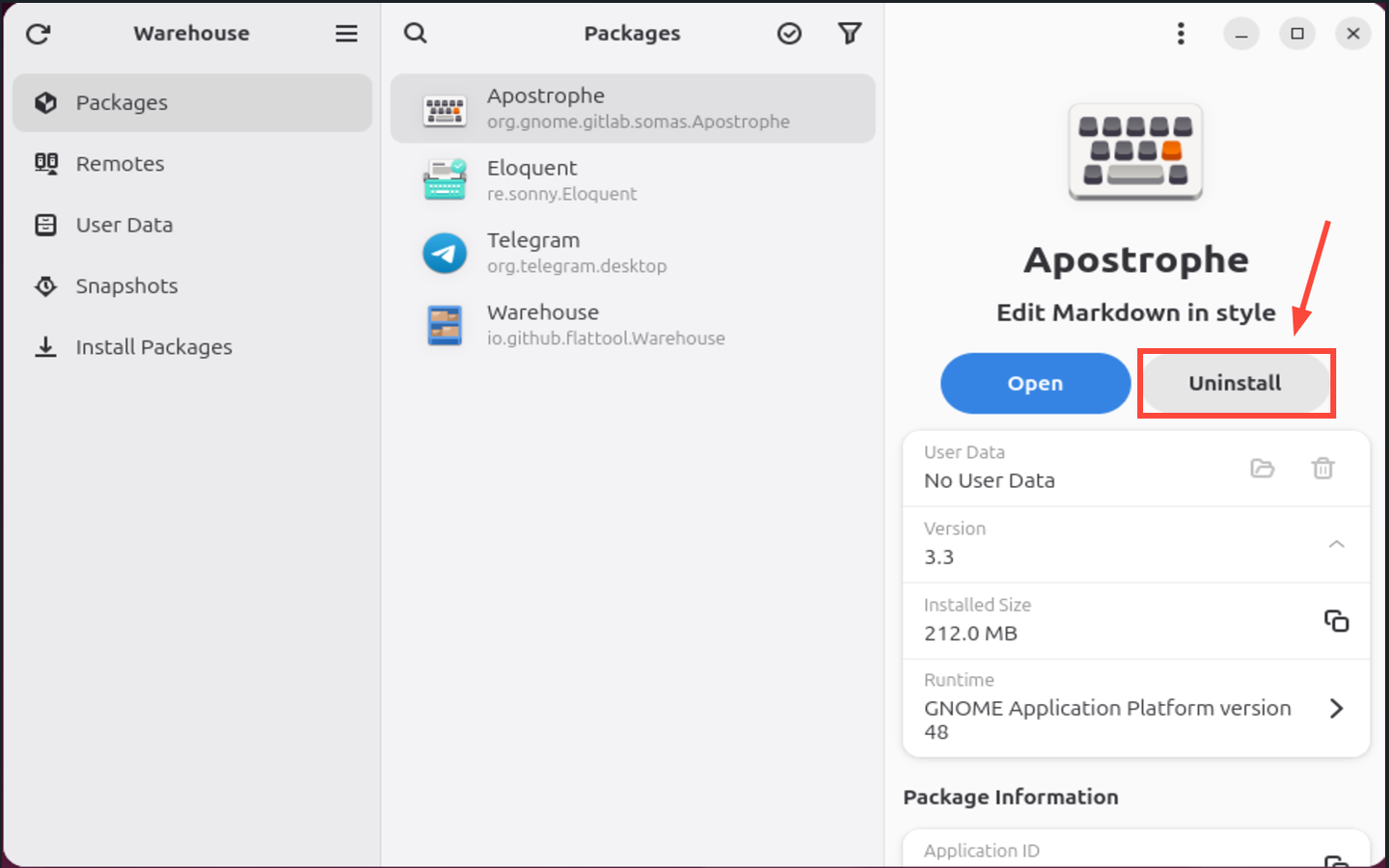
Once uninstalled, the Flatpak will not appear on the list of Flatpak packages.
#Best practices and tips
As a general rule, use the apt tool when removing packages installed from official repositories. It's the most recommended approach, as it automatically handles dependencies, avoiding dependency errors.
The dpkg utility primarily handles downloaded .deb packages and should be limited to uninstalling packages installed manually (using the dpkg -i .deb command).
Lastly, snap and Flatpak packages should be handled separately using the snap and flatpak tools owing to their architecture and how they run.
#Conclusion
That was a summary of various tools and channels to employ when uninstalling software packages in Ubuntu. Software removal is often a routine task, ensuring that applications that are not needed are removed. This keeps the system lean and free from bloat. We trust you now have adequate knowledge of uninstalling software on your system.


