How to Install a GUI on Ubuntu Server: Step-by-Step Guide



Ubuntu Server ships without a graphical interface to conserve CPU, RAM, and disk resources. A GUI adds overhead, but it can make certain tasks easier. For example, managing databases with phpMyAdmin, monitoring systems with Cockpit, or running a graphical IDE on a remote development server. Adding a desktop environment also helps users who are still learning Linux command-line tools.
In this tutorial, you will install a desktop environment on Ubuntu Server, set up a display manager, enable the graphical login screen, and connect remotely. You will also learn how to remove the GUI when you no longer need it.
Important: Running a GUI on a production server increases resource usage and expands the attack surface. Use it only when a graphical interface provides a clear advantage over the command line.
#Prerequisites
Before proceeding with the installation, ensure that you have the following:
-
The latest Ubuntu Server installed. A cloud VPS server from Cherry Servers is used here.
-
A user account with
sudoprivileges. -
An active internet connection.
Minimum hardware recommendations:
-
GNOME: 4 GB RAM minimum (8 GB recommended), 2 CPU cores, 20 GB free disk space
-
Xfce: 1 GB RAM minimum (2 GB recommended), 1 CPU core, 10 GB free disk space
-
LXQt: 512 MB RAM minimum (1 GB recommended), 1 CPU core, 8 GB free disk space
-
KDE Plasma: 2 GB RAM minimum (4 GB recommended), 2 CPU cores, 15 GB free disk space
#Installing a GUI on the Ubuntu server
The steps below walk through the full process from updating packages to connecting remotely. Each step builds on the previous one, so follow them in order.
#Step 1: Update your system
Before installing any software, it's essential to ensure your system is up-to-date. Run the following commands to update your package lists and upgrade any outdated packages:
sudo apt update
sudo apt upgrade -y
This ensures that you have the latest security patches and system updates installed.
#Step 2: Choose a desktop environment
Ubuntu offers various desktop environments to suit different needs and performance preferences. Here are some popular ones:
-
GNOME: The default desktop environment for Ubuntu Desktop.
-
Xfce (Xubuntu): Lightweight and resource-efficient.
-
LXQt (Lubuntu): Very lightweight, ideal for low-spec hardware. Lubuntu switched from LXDE to LXQt starting with version 18.10.
-
KDE (Kubuntu): A feature-rich environment that might use more resources.
The table below compares these desktop environments to help you pick the right one for your server:
| Desktop Environment | RAM Usage (Idle) | Disk Space | Best For |
|---|---|---|---|
| GNOME | ~1.2–1.5 GB | ~4 GB | Full desktop experience, familiar Ubuntu interface |
| Xfce | ~400–500 MB | ~1.5 GB | Servers with limited RAM, remote desktop access |
| LXQt | ~250–350 MB | ~1 GB | Minimal hardware, quick admin tasks |
| KDE Plasma | ~700–900 MB | ~3 GB | Users wanting heavy customization |
For this tutorial, we'll focus on installing GNOME and Xfce, but you can choose any of the others by replacing the package name in the following steps.
Also read:How to check your Ubuntu version
#Step 3: Install the desktop environment
#Installing GNOME
If you prefer the full Ubuntu Desktop experience, you can install the GNOME desktop environment. Run the following command:
sudo apt install ubuntu-desktop -y
This will install the full GNOME desktop, along with all its associated applications, which can be resource-heavy.
Note: On Ubuntu 24.04, ubuntu-desktop installs GNOME 46 with Wayland as the default display server. Wayland offers better security and smoother performance than X11, but some VNC servers do not work with Wayland sessions. The remote access section below covers how to handle this.
#Installing Xfce
If you need a more lightweight option, Xfce is an excellent choice. To install it, run:
sudo apt install xubuntu-core -y
This installs the Xfce desktop environment without unnecessary applications, making it a more minimal and efficient choice for servers.
#Installing other desktops
You can install other desktop environments like LXQt or KDE by running:
# For LXQt (Lubuntu's desktop — very lightweight)
sudo apt install lxqt-y

# For KDE Plasma
sudo apt install kubuntu-desktop -y
Note: The lubuntu-core package installs LXQt, not the older LXDE. Lubuntu transitioned to LXQt in 2018, and all current Lubuntu packages use LXQt as the default desktop.
#Step 4: Install a display manager
A display manager is responsible for starting the desktop environment. Ubuntu uses GDM (GNOME Display Manager) by default for GNOME, but you can install others like LightDM for a lightweight option, especially if you're using Xfce or LXDE.
To install LightDM, run:
sudo apt install lightdm -y
If you installed GNOME, install GDM3:
sudo apt install gdm3 -y
If you installed KDE Plasma, install SDDM:
sudo apt install sddm -y
During the installation, you'll be prompted to select a default display manager. If you're unsure, LightDM is a good choice, especially for lightweight environments like Xfce.
#Which display manager should you pick?
-
GDM3: Best paired with GNOME. Supports Wayland sessions natively. Uses more RAM (~100–150 MB).
-
LightDM: Works with all desktop environments. Lower resource usage (~30–50 MB). Better compatibility with VNC and xrdp.
-
SDDM: The default for KDE Plasma. Lightweight and visually consistent with KDE themes.
If you plan to access the GUI remotely through VNC or RDP, LightDM is the safest choice because it runs X11 sessions by default.
#Step 5: Enable GUI to start automatically
Once the installation is complete, you'll need to configure your system to boot into the GUI automatically.
First, check the system's default target, which determines what services start when the system boots:
systemctl get-default
By default, it should return multi-user.target, which is the non-graphical mode. To switch to graphical mode, run:
sudo systemctl set-default graphical.target
Now, your server will boot into the graphical interface automatically on the next startup.
Also read: How to install NPM on Ubuntu 24.04
#Step 6: Reboot the system
Once you've installed the desktop environment and configured it to start automatically, reboot your system to apply the changes:
sudo reboot
After the reboot, you should be greeted by the login screen of the desktop environment you installed (GNOME, Xfce, etc.).
#Step 7: Connect to the GUI (Optional)
If you're managing your server remotely, you may want to use a remote desktop connection to access the GUI. Here are some popular options:
#Cloud console
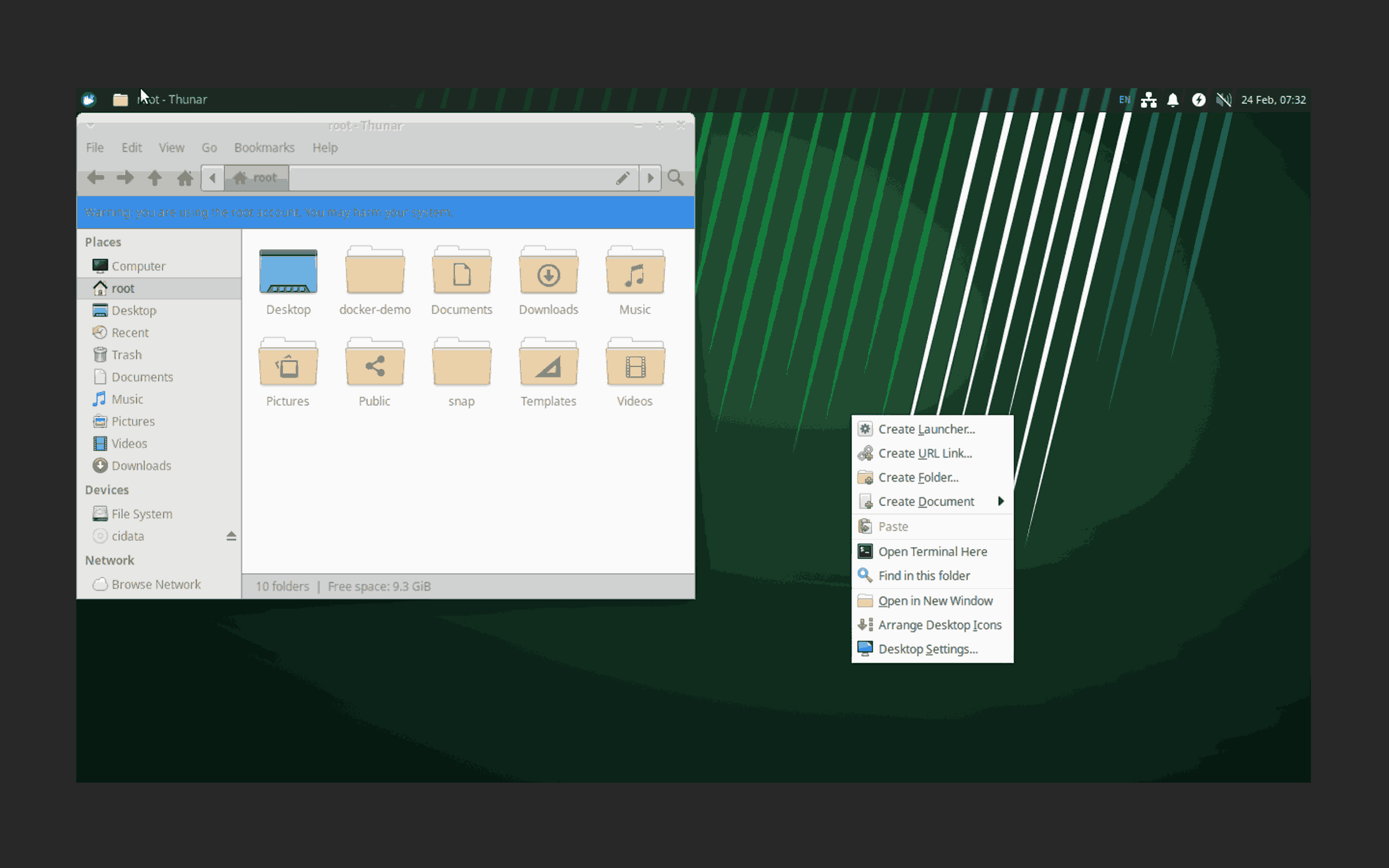
Your cloud provider probably already has a console feature allowing you to connect to your server. If you are using Cherry Servers, select your VM in the client portal and click on Console to access your server console.
You can then log in via the GUI and access your desktop:
#VNC (Virtual Network Computing)
VNC creates a virtual desktop session you can access from any VNC client. TigerVNC is the recommended VNC server for Ubuntu 24.04. It supports TLS encryption, works with compositing window managers, and is actively maintained.
The setup differs slightly depending on your desktop environment because GNOME defaults to Wayland, while Xfce and LXQt use X11.
VNC with GNOME
GNOME on Ubuntu 24.04 defaults to Wayland, which TigerVNC does not support. You need to force an X11 session.
Install TigerVNC:
sudo apt install tigervnc-standalone-server -y
Set a VNC password:
vncpasswd
Create a ~/.vnc/xstartup file that launches GNOME under X11:
mkdir -p ~/.vnc
cat << 'EOF' > ~/.vnc/xstartup
#!/bin/sh
export XDG_SESSION_TYPE=x11
export GDK_BACKEND=x11
dbus-launch --exit-with-session gnome-session &
EOF
chmod +x ~/.vnc/xstartup
Start the VNC server:
vncserver -localhost no -geometry 1280x800 -depth 24 :1
If you prefer to skip VNC configuration for GNOME, use xrdp instead. It handles the X11 session internally and requires less setup. The RDP section below covers this.
VNC with Xfce
Xfce runs on X11 by default, so TigerVNC works without extra session configuration.
Install TigerVNC:
sudo apt install tigervnc-standalone-server -y
Set a VNC password:
vncpasswd
Create the ~/.vnc/xstartup file for Xfce:
mkdir -p ~/.vnc
cat << 'EOF' > ~/.vnc/xstartup
#!/bin/sh
startxfce4 &
EOF
chmod +x ~/.vnc/xstartup
Start the VNC server:
vncserver -localhost no -geometry 1280x800 -depth 24 :1
VNC with LXQt
LXQt also runs on X11. The setup follows the same pattern as Xfce.
Install TigerVNC:
sudo apt install tigervnc-standalone-server -y
Set a VNC password:
vncpasswd
Create the ~/.vnc/xstartup file for LXQt:
mkdir -p ~/.vnc
cat << 'EOF' > ~/.vnc/xstartup
#!/bin/sh
startlxqt &
EOF
chmod +x ~/.vnc/xstartup
Start the VNC server:
vncserver -localhost no -geometry 1280x800 -depth 24 :1
#RDP (Remote Desktop Protocol)
xrdp is a Microsoft-compatible RDP server that works well with all desktop environments. It handles X11/Wayland differences automatically, making it the simplest option for remote GUI access.
Install and enable xrdp:
sudo apt install xrdp -y
sudo systemctl enable xrdp
xrdp launches GNOME by default. If you use Xfce, create an .xsession file so xrdp starts the correct desktop:
echo  "startxfce4" > ~/.xsession
sudo systemctl restart xrdp
For LXQt, use the following instead:
echo  "startlxqt" > ~/.xsession
sudo systemctl restart xrdp
Connect from any RDP client (Windows Remote Desktop, Remmina on Linux, or Microsoft Remote Desktop on macOS) using your server's IP address on port 3389.
#Firewall configuration
If you have ufw enabled, open the necessary ports for remote access:
# For VNC (port 5901)
sudo ufw allow 5901/tcp

# For RDP (port 3389)
sudo ufw allow 3389/tcp

# Verify rules
sudo ufw status
Security tip: Avoid exposing VNC port 5901 directly to the internet. Tunnel VNC through SSH for encrypted access:
ssh -L 5901:localhost:5901 user@your-server-ip
Then connect your VNC client to localhost:5901 on your local machine.
#Step 8: Managing the GUI
If you ever want to return to a non-graphical environment, you can change the default target back to multi-user.target:
sudo systemctl set-default multi-user.target
This will ensure that your server boots into the command-line interface (CLI) by default.
#How to remove the GUI from Ubuntu Server
If you no longer need the graphical interface, removing it frees up disk space and reduces resource usage. The steps differ depending on which desktop environment you installed.
Remove GNOME:
sudo apt remove --purge ubuntu-desktop gnome-shell -y
sudo apt autoremove --purge -y
Remove Xfce:
sudo apt remove --purge xubuntu-core xfce4 -y
sudo apt autoremove --purge -y
Remove LXQt:
sudo apt remove --purge lubuntu-core lxqt -y
sudo apt autoremove --purge -y
Remove the display manager:
# Remove LightDM
sudo apt remove --purge lightdm -y

# Or remove GDM3
sudo apt remove --purge gdm3 -y
After removing the packages, set the boot target back to CLI mode and reboot:
sudo systemctl set-default multi-user.target
sudo reboot
Run sudo apt autoremove --purge -y one more time after the reboot to clean up any remaining orphaned packages.
#Conclusion
You now have a working GUI on your Ubuntu Server. You updated the system, picked a desktop environment, set up a display manager, and connected remotely through VNC or RDP.
Keep in mind that a graphical interface adds overhead. Monitor your server's resource usage after installation, and remove the GUI if you no longer need it. For lightweight remote tasks, Xfce with xrdp offers the best balance between usability and performance.
For Ubuntu servers running on dedicated hardware, explore Cherry Servers' bare metal and virtual server options.
FAQs
Does installing a GUI affect server performance?
Yes. A desktop environment consumes CPU, RAM, and disk resources even when idle. GNOME uses roughly 1.2–1.5 GB of RAM at idle, while Xfce uses around 400–500 MB. On production servers, this overhead can impact application performance. Use a GUI only when the graphical tools provide a clear benefit over CLI alternatives.
Which desktop environment is best for a remote server?
Xfce is the most popular choice for remote Ubuntu servers. It uses fewer resources than GNOME or KDE, renders well over VNC and RDP connections, and remains responsive on slower network links. LXQt is even lighter but offers fewer graphical tools out of the box.
Can I switch between desktop environments after installation?
Yes. Install multiple desktop environments using the commands in Step 3, then select your preferred environment from the display manager login screen. LightDM lets you cycle between installed desktops using a session selector before you log in.
Do I need a display manager to use a GUI?
A display manager provides the graphical login screen and starts your desktop session. You can skip it and start a desktop session manually with `startx` or launch the display server directly from the command line, but a display manager is the standard approach for automatic GUI startup on boot.
Is it safe to run a GUI on a production server?
A GUI increases the attack surface by introducing hundreds of packages, background services, and open ports. Avoid running a GUI on public-facing production servers unless you have a specific need. If you must use one, restrict remote desktop access through firewall rules and SSH tunneling.
How do I access the Ubuntu Server GUI remotely?
Use xrdp for RDP-based access or TigerVNC for VNC-based access. xrdp is the easier option. Install it with `sudo apt install xrdp -y`, then connect from any RDP client. For VNC, install TigerVNC and tunnel the connection through SSH for security. Cherry Servers users can also use the built-in console feature in the client portal.