Grep Command in Linux: Syntax, Examples & Options Guide




The grep command is one of the best CLI tools for searching & matching strings/patterns. It is a utility specifically designed to search for and retrieve patterns in plain text files, logs, and configuration files. It prints any lines that contain the search strings, highlighting the queried strings for ease of identification. It comes included in every Linux distribution, hence no installation is needed.
In this article, we explore various ways of using the grep command to use its powerful filtering and search capabilities. We will begin with the most basic use cases and then shift our focus to more complex examples.
#What is the grep command in Linux?
Short for "Global regular expression print", grep is a CLI tool for searching and matching text patterns in files. It displays lines that contain the specified string/pattern, and prints only those lines. This enables users to extract relevant information seamlessly, thus saving time and energy, especially when handling large sets of text data.
#Key features of the grep command
The grep command can perform various operations depending on the options used. Here is a breakdown of key operations you can run with grep
-
Search for a string, word, or phrase in files
-
Search for multiple patterns at a go
-
You can choose to search for whole words only, not constituents of a word
-
Search recursively through directories
-
Display line numbers of search results
-
Count the occurrence of the search pattern
-
Invert search results
-
Filter output using pipes
-
Exclude certain files and directories from search results
We will deep-dive into the above-mentioned use cases with practical examples.
#Syntax
The grep command uses the following syntax:
grep [options] keyword filename
#Grep command use cases
Let’s now take a closer look at the above-mentioned use cases with practical command-line examples.
#Basic search with grep
In its basic form, the grep command takes a search pattern as an argument, followed by the name of the file.
For example, to filter out and view successful SSH logins (captured in the auth.log file), execute:
grep 'Accepted' /var/log/auth.log
The keyword Accepted indicates a successful user login. The output also provides crucial information that matches the search keyword, including the login timestamp, nature of remote connections (such as SSH or public-key authentication), and the remote IP address.
Output2026-01-20T18:43:21.148935+02:00 ubuntu sshd[1388649]: Accepted password for root from 41.139.130.173 port 19048 ssh2
2026-01-20T18:43:23.770134+02:00 ubuntu sshd[1388819]: Accepted password for root from 41.139.130.173 port 19049 ssh2
2026-01-21T00:27:52.865938+02:00 ubuntu sshd[1466519]: Accepted password for root from 82.34.59.46 port 38677 ssh2
2026-01-21T00:27:55.351364+02:00 ubuntu sshd[1466587]: Accepted password for root from 82.34.59.46 port 38678 ssh2
#Colorize the specified search pattern
If you are running grep as a non-root user, or using an SSH client like PuTTY, the specified pattern will not be highlighted in color (usually red by default). To colorize the search string, use the --color option.
grep --color=always 'Accepted' /var/log/auth.log

#Ignore case sensitivity
The grep command operates with case sensitivity enabled by default. It probes the case of the search string and only returns exact matches. This means 'Paul, 'paul', and PAUL` are considered three different entities, just like variables in programming languages.
To turn off case checking, use the -i option. This is convenient when searching for a string/pattern, and you are unsure of its case format.
In this example, we are looking for the possibility of the existence of a user named' Alexander' in the passwd file. We are not yet certain about the username case.
grep Alexander /etc/passwd
This yields no result because grep doesn’t match the pattern provided.
The reason for this is that the actual name is in all lowercase characters, hence no output as alexanderand Alexander are recognized as different entities. However, using the -i option bypasses case sensitivity and provides a more accurate output, regardless of the case of the search pattern.
grep -i Alexander /etc/passwd
Outputalexander:x:1001:1001:alexander,,,:/home/alexander:/bin/bash
#Include line numbers
To conduct a more thorough and focused audit, you may show the line number(s) that contain the search pattern/keyword. Here, we added the -n flag to display the line number.
grep -i -n Alexander /etc/passwd
The line number prefixes the line containing the search word. In this case, we can see that the search pattern is located on line 35.
Output35 alexander:x:1001:1001:alexander,,,:/home/alexander:/bin/bash
The following command highlights the search keyword (ssh) and prints all the line numbers with the search pattern in the /etc/ssh/sshd_config file.
grep -i -n 'ssh' /etc/ssh/sshd_config
Output2:# This is the sshd server system-wide configuration file.  See
3:# sshd_config(5) for more information.
5:# This sshd was compiled with PATH=/usr/local/sbin:/usr/local/bin:/usr/sbin:/usr/bin:/sbin:/bin:/usr/games
7:# The strategy used for options in the default sshd_config shipped with
8:# OpenSSH is to specify options with their default value where
12:Include /etc/ssh/sshd_config.d/*.conf
21:#   systemctl restart ssh.socket
28:#HostKey /etc/ssh/ssh_host_rsa_key
29:#HostKey /etc/ssh/ssh_host_ecdsa_key
30:#HostKey /etc/ssh/ssh_host_ed25519_key
49:# Expect .ssh/authorized_keys2 to be disregarded by default in future.
50:#AuthorizedKeysFile  .ssh/authorized_keys .ssh/authorized_keys2
57:# For this to work you will also need host keys in /etc/ssh/ssh_known_hosts
59:# Change to yes if you don't trust ~/.ssh/known_hosts for
111:#PidFile /run/sshd.pid
124:Subsystem   sftp    /usr/lib/openssh/sftp-server
#Display exact keywords only
Grep, by default, matches all occurrences of the provided search pattern, whether as a whole word or a part of a word. To demonstrate this, we have a sample file called cats.txt with the following lines.
Cats are cute creatures.
My cat is called Poppy. A rolling furball of energy.
Explore the catalogue of cat breeds and get yourself one!
Remember, every cat is unique, each with its quirks.
The following command matches all occurrences of the string cat, regardless of the case.
grep -i 'cat' cats.txt
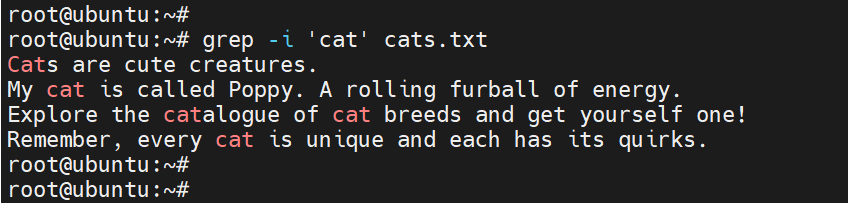
To match the string cat as an exact whole word ( including the case) and not a constituent of another word, include the -w option.
grep -i -w 'cat' cats.txt
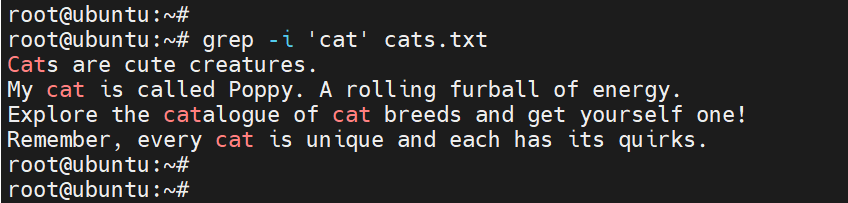
This time around, cat does not appear in the catalogue string.
#Search for multiple matching patterns
Sometimes, you may need to search for more than one keyword in a file. To achieve this, pass the -E option. The option allows for extended REGEX expressions. For example, to match all entries matching cat and catalogue in the cats.txt file, run the command:
grep -E 'cat|catalogue' cats.txt
Note that the -E option searches for complete or exact keyword searches.
In a security audit, you might need to view all successful SSH login attempts, including those from a specific IP address. Let’s take an example:
grep -E 'Accepted|196.96.28.125' /var/log/auth.log
The command matches all successful SSH logins (defined by the keyword Accepted), including those from the IP address 196.96.28.125.
#Count lines matching the search pattern
To count the lines containing the keyword or pattern matches, simply pass the -c option. For example, to count the number of lines containing the string cat in the cats.txt file, run:
grep -i -c 'cat' cats.txt
4
#Combining grep with pipes
Due to its excellent text search and filtering capabilities, grep is often used as a text processing tool to refine the output from other commands.
In the following ss command, grep refines the output and only prints information related to the CUPS printing service—if it is running and is in a ‘LISTENING’ state.
ss -pnltu | grep -i 'cups'
You get output similar to what we have:
tcp   LISTEN 0      4096       127.0.0.1:631        0.0.0.0:*    users:(("cupsd",pid=104541,fd=7))
tcp   LISTEN 0      4096           [::1]:631           [::]:*    users:(("cupsd",pid=104541,fd=6))
The command below prints out all the files ending with the .conf extension in the /etc directory.
ls /etc/ | grep ".conf"
In addition, you can have a combination of multiple grep commands. Here is an example of chained grep commands. The command searches for successful login attempts for a login user called cherry.
cat /var/log/auth.log | grep -i 'Accepted' | grep -i 'cherry'
Sample Output
Output2025-12-03T12:02:59.583897+00:00 ubuntu sshd[98673]: Accepted password for cherry from 196.96.28.125 port 3527 ssh2
2025-12-03T12:03:01.747683+00:00 ubuntu sshd[98704]: Accepted password for cherry from 196.96.28.125 port 3545 ssh2
2025-12-03T12:07:06.056317+00:00 ubuntu sudo:   cherry : TTY=pts/1 ; PWD=/home/cherry ; USER=root ; COMMAND=/usr/bin/grep Accepted\\|196.96.28.125 /var/log/auth.log
2025-12-03T12:07:44.382666+00:00 ubuntu sudo:   cherry : TTY=pts/1 ; PWD=/home/cherry ; USER=root ; COMMAND=/usr/bin/grep Accepted /var/log/auth.log
#Invert matches (Display non-matching lines)
The grep command also enables you to search for everything other than the specified search pattern. You can achieve this using the -v option.
For example, to display lines that do not contain the word ERROR in the /var/log/syslog file, run the command:
grep -i -v 'ERROR' /var/log/syslog
#Search recursively through directories
So far, we’ve been using grep to search for matching patterns in specific files. You can search recursively through directories for the pattern with the -r option. In this example, we are searching recursively for the string password in the /etc directory.
The output provides all possible matches of the specified keyword within various files across different subdirectories.
grep -r "password" /etc/

#Exclude directories from the search
As you have seen, the recursive search includes all the subdirectories in your present directory. You can omit or leave out one or multiple directories from the search using the --exclude-dir=directory_name directive.
For example, to exclude the apparmor.d directory from the list of directories to be searched, run the command:
grep -r "password" /etc --exclude-dir=apparmor.d
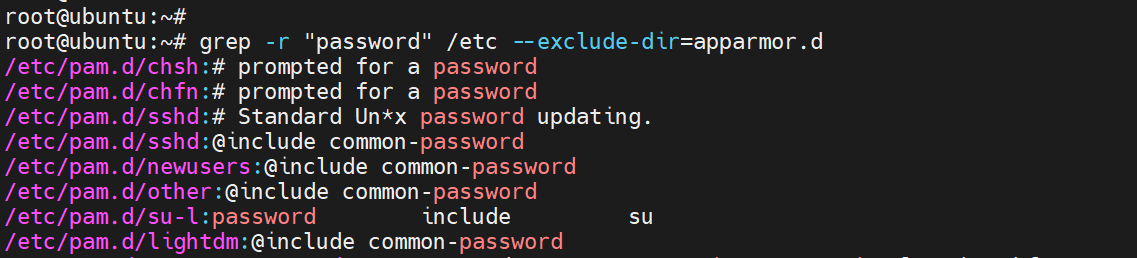
To exclude multiple directories, separate them inside curly braces as shown. In this example, we are excluding apparmor.d, pam.d, and ppp subdirectories from the search.
grep -r "password" /etc --exclude-dir={apparmor.d,pam.d,ppp}

#Combine grep with pipes AND regular expressions (Regex)
You can include regular expressions (shortened as ‘regex’) to refine search results further. For example, to search for an entry in the /etc/passwd file starting with the word alexander, use the caret (^) symbol as shown in the following command:
cat /etc/passwd | grep -i '^alexander'
Outputalexander:x:1001:1001:alexander,,,:/home/alexander:/bin/bash
To search for all lines in the default Apache configuration file starting with ‘KeepAlive` keyword and print out line numbers, run:
cat /etc/apache2/apache2.conf | grep -i -n '^KeepAlive'
Output98:KeepAlive On
111:KeepAliveTimeout 5
The converse is to search lines ending with a string. To do so, suffix the search pattern with a dollar sign ($). For example, to search for login users only, run the command.
cat /etc/passwd | grep "bash$"
The dollar sign ($) symbol matches all entries ending with bash, denoting login users. Here’s some sample output.
Outputroot:x:0:0:root:/root:/bin/bash
cherry:x:1000:1000:cherry,,,:/home/cherry:/bin/bash
alexander:x:1001:1001:alexander,,,:/home/alexander:/bin/bash
You can use the pipe (|) operator to perform an OR operation. For example, to display lines in the /var/log/auth.log file containing either Invalid user or authentication failure words, run the command:
cat /var/log/auth.log | grep -Ei "Invalid user|authentication failure"
#Grep command-line options
Here’s a summary of the commonly used command-line options you can use with grep:
| Command Options | Description |
|---|---|
--color=always |
Highlights the search pattern (for non-root users) |
-n |
Displays the line number of the matches |
-i |
Ignores case sensitivity |
-E |
Allows the use of extended REGEX expressions |
-r |
Recursive searching |
-c |
Counts the number of lines with the search pattern |
-w |
Matches whole strings or words only |
-v |
Inverted search. Shows NON-matching lines only |
--exclude-dir=DIR |
Skips a directory from a search |
#Conclusion
Grep command continues to solidify its reputation as an excellent search and filtering CLI tool in the Linux ecosystem. It does so efficiently, saving effort and time, especially when dealing with large text logs or configuration files. By mastering its core command-line options, you can search and retrieve relevant information tailored to your specific needs.
In this article, you have learned how to use the grep command in Linux and make the most of the various command options to carry out a wide array of search and filtering operations. You can now use the command more effectively to search and filter text, retrieving relevant information.


