How to Install Wine on Ubuntu 24.04: Step-by-Step Guide




Wine lets you run Windows applications on Linux without a virtual machine or dual-boot setup. It translates Windows API calls into POSIX-compatible calls in real time, so Windows programs run alongside native Linux applications with near-native performance.
If you need Microsoft Office, Notepad++, or a Windows-only business tool on your Ubuntu workstation, Wine bridges that gap. Developers also use it to test Windows builds directly on their Linux machines.
This guide walks you through installing Wine on Ubuntu 24.04 from the official WineHQ repository, configuring it for first use, and running a Windows application. You will also learn how to install additional Windows runtime libraries with Winetricks and how to remove Wine cleanly when you no longer need it.
#Prerequisites
You need to have installed Ubuntu 24.04. In addition, make sure your machine supports the 32-bit architecture and has graphics drivers that will be used to run graphics-intensive software when using Wine.
-
A user account with
sudoprivileges. -
An active internet connection to download packages from the WineHQ repository.
-
At least 2 GB of free disk space. Wine pulls in a large number of 32-bit library dependencies during the install.
#What is Wine?
Wine (Wine Is Not an Emulator) is an open-source compatibility layer that runs Windows applications on Linux, macOS, and BSD. Rather than emulating an entire Windows operating system as a virtual machine would, Wine translates Windows API calls into POSIX system calls at runtime.
Programs execute directly on the host hardware, which avoids the overhead of full OS emulation.
Wine allows you to enjoy both worlds: Linux-based applications and Windows-based applications, without having to buy a Windows machine. Wine helps users transition from Windows to Linux without losing access to their favorite Windows applications, such as Microsoft Excel. That's a cost saver. This enables you to:
-
Test Windows applications.
-
Collaborate with developers who use Windows applications.
-
Use Windows tools and utilities.
You can check whether a specific Windows program works with Wine before installing it. The Wine Application Database (AppDB) rates programs on a scale from Platinum (works perfectly) to Garbage (does not run). Searching AppDB first saves time and avoids dead-end troubleshooting.
#How to install Wine on Ubuntu 24.04
Follow the steps below to install Wine on Ubuntu 24.04 successfully.
#1. Update and upgrade the Ubuntu package list
Before installing Wine, update and refresh the Ubuntu package list using the following command. In Linux, packages can be system libraries that provide basic functionalities such as handling input and output, file systems, or networking. Not updating packages before installing Wine can cause compatibility and performance issues.
sudo apt update
Next, upgrade all packages using the following command.
sudo apt upgrade -y
#2. Enable the 32-bit architecture to support 32-bit Windows applications
Most Windows applications, especially older ones, are compiled as 32-bit binaries. Wine needs the i386 architecture enabled on your 64-bit Ubuntu system to load and run these programs. Without it, Wine can only handle 64-bit Windows executables, and you will get dependency errors during installation.
Run the following command to enable 32-bit support:
sudo dpkg --add-architecture i386
#3. Create a keyring and download the Wine repository key
Wine has a repository key that verifies the integrity of the packages retrieved from the Wine repository. This repository key has to be stored in a keyring. In Linux, keyrings are used to store sensitive data safely. Use the following command to create a keyring for the Wine repository key.
sudo mkdir -pm755 /etc/apt/keyrings
Next, download the repository key and store it in the previous keyring you created.
sudo wget -O /etc/apt/keyrings/winehq-archive.key https://dl.winehq.org/wine-builds/winehq.key
#4. Add the Wine repository source file to Ubuntu
Add the official WineHQ repository for Ubuntu 24.04 (codename noble). The WineHQ repository provides the latest stable, development, and staging builds of Wine, typically newer than what ships in Ubuntu's default repositories.
sudo wget -NP /etc/apt/sources.list.d/ https://dl.winehq.org/wine-builds/ubuntu/dists/noble/winehq-noble.sources
#5. Synchronize the Ubuntu system to apply changes
Next, synchronize your Ubuntu system using the following command to apply the previous changes you made.
sudo apt update
#6. Install the stable version of Wine
Finally, use the following command to install Wine:
sudo apt install --install-recommends winehq-stable -y
If winehq-stable is not yet available for your Ubuntu version (this can happen shortly after a new Ubuntu release), install the development branch instead:
sudo apt install --install-recommends winehq-devel -y
The development branch receives more frequent updates and is typically stable enough for everyday use.
#7. Confirm if the Wine installation was a success by checking the version
To confirm that Wine has been installed successfully, run the following command:
wine --version
You will get the following similar output that shows the installed Wine version:
OutputWine-11.0
#How to use Wine on Ubuntu
To configure Wine, execute the following command on the Ubuntu terminal.
winecfg
Once you run the command, a configuration environment will be set up in your home directory.
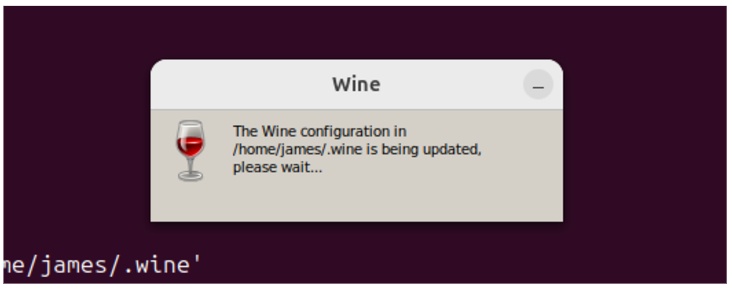
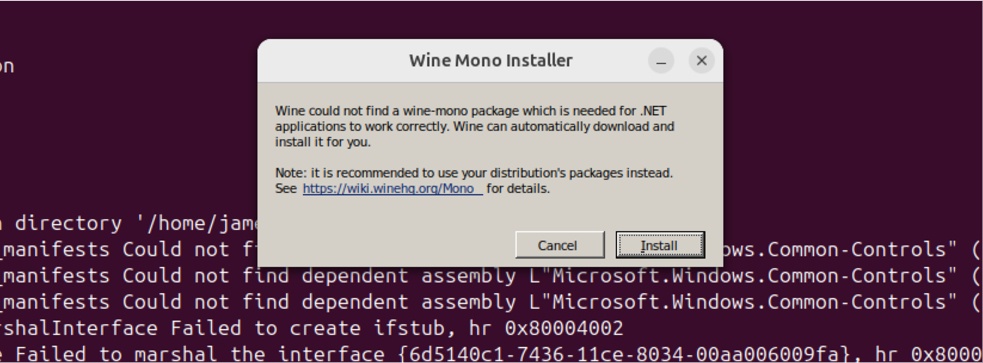
Next, you will get the following output: a Wine GUI prompting you to install the Wine-mono package needed for running applications. Click on the install button.
After Mono finishes, Wine may prompt you to install Wine Gecko. Gecko provides an embedded HTML rendering engine that certain Windows applications need for displaying web content and help pages. Click "Install" when prompted.
Skipping Gecko will not break Wine itself, but applications that rely on embedded browser components (like help viewers or in-app web panels) will not render correctly.
Next, the Wine configuration GUI will be displayed as shown below. This configuration setup allows you to add Windows applications.
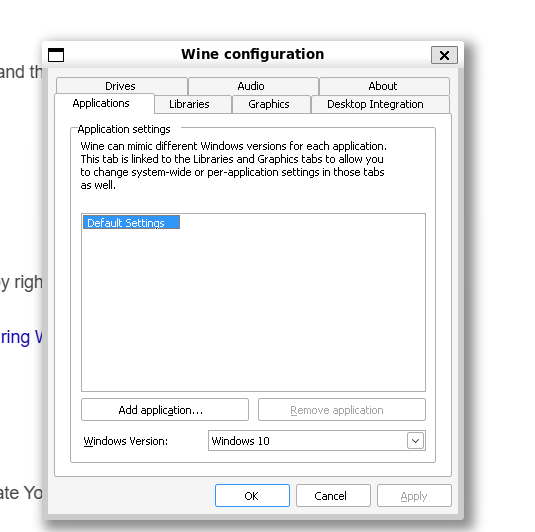
Since Wine emulates the Windows layer on top of Linux, its configuration setup allows you to change graphics settings such as screen resolution. You can also add drives and audio specifications using this configuration setup.
The default settings will work just fine, and you will be able to install Windows applications straight from the command line, as you will see shortly.
#How to install a Windows application with Wine
In this section, you will learn how to install a Windows application in Ubuntu using Wine. There are two ways to do this: the CLI and the Wine Virtual Desktop. We will explore both of these avenues.
#Install a Windows application from the CLI using Wine
To demonstrate installing a Windows application with Wine, we will install the VLC media player, a free and open-source cross-platform media player.
So, head to the VLC media player Downloads page and download the Windows.exe installation file.
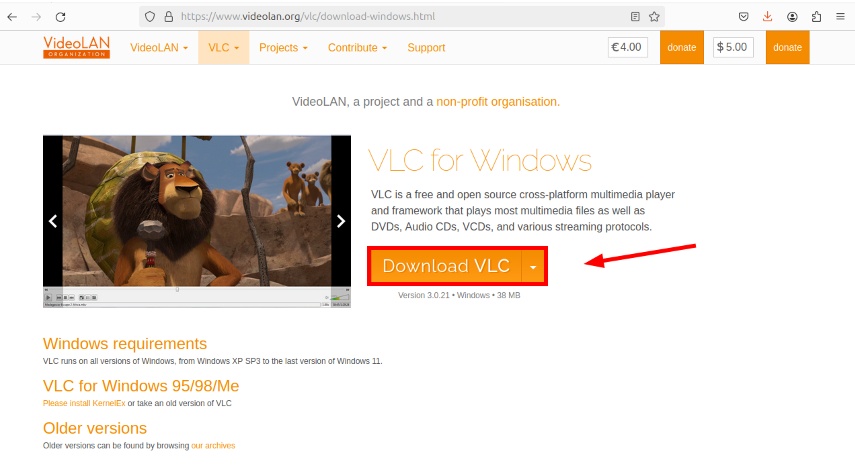
By default, this goes to the Downloads directory.
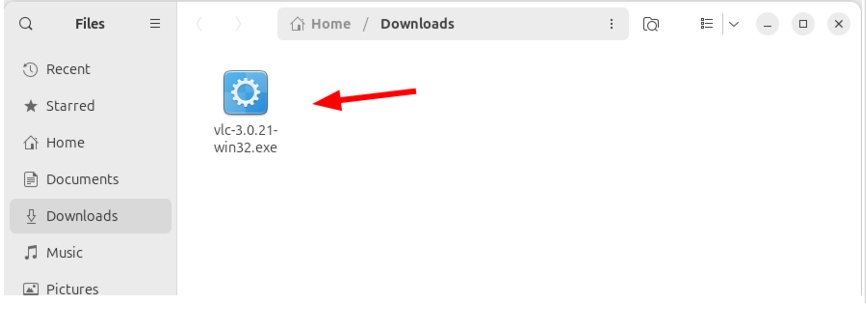
To install VLC from the downloaded .exe file, use the following syntax:
wine /path/to/exe/file
In this case, the command will be:
wine ~/Downloads/vlc-3.0.21-win32.exe
The command launches the VLC installer and you will be prompted to select the installation language.
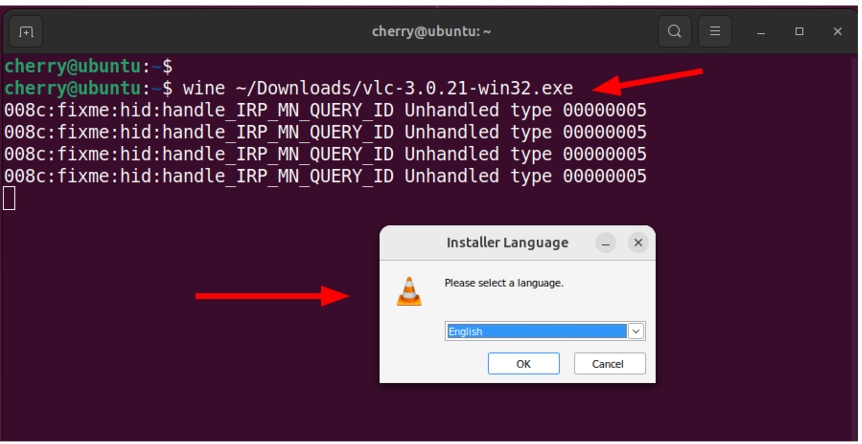
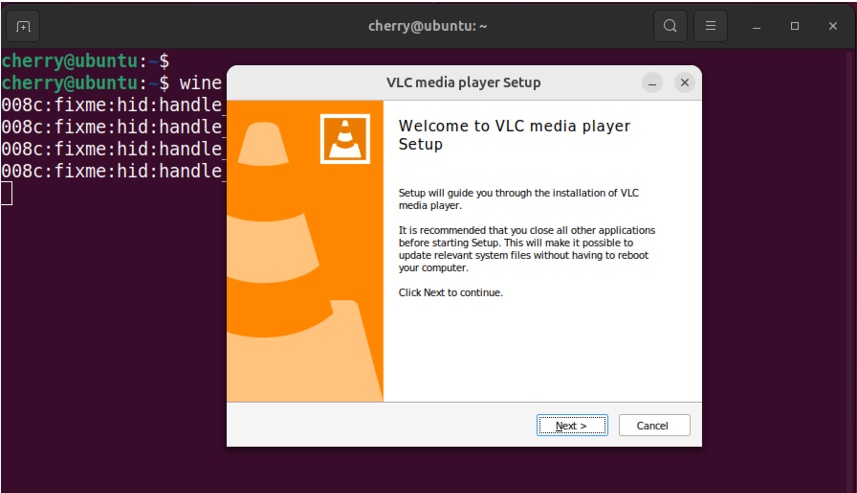
From here, the installation wizard will walk you through the installation to the very end. Simply accept the defaults by clicking "Next" right to the last step to complete the installation.
#Install a Windows application using the Wine virtual desktop
The Wine virtual desktop provides a convenient way of installing a Windows application using the GUI. Before launching an application, you need to enable the virtual desktop feature first.
Open the Wine configuration window:
winecfg
Select the Graphics tab then check the Emulate a virtual desktop option. Next, specify the resolution size. In our case, we have specified the resolution as 640 * 600.
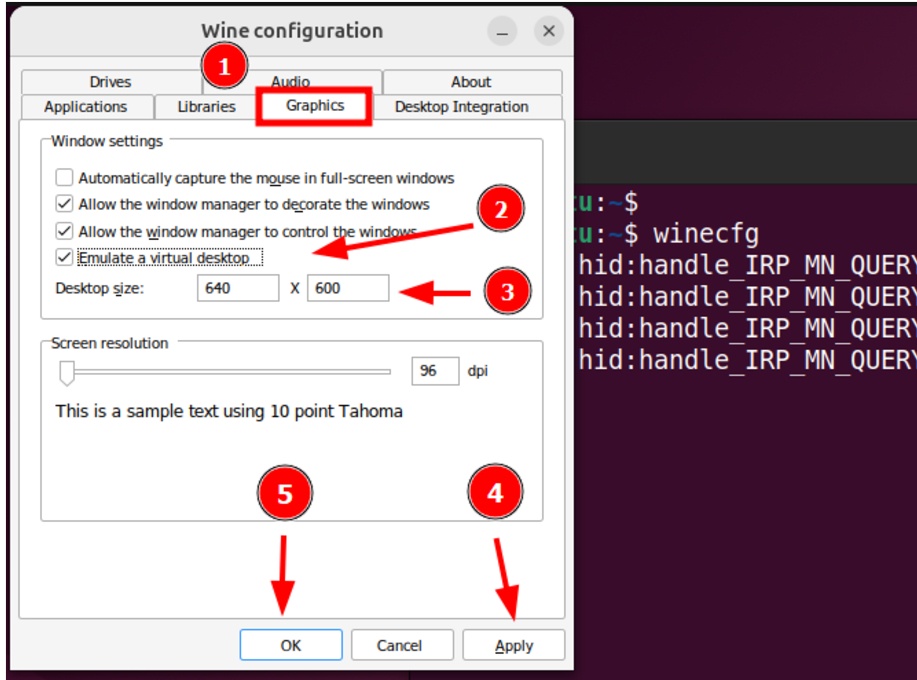
Adding an inappropriate Desktop size will cause the Wine home GUI to crash and fail to pop up.
After adding the new changes, make sure you click on the "apply" button to add the changes. Close the Wine configuration GUI and execute the wineboot command to initiate the new changes.
wineboot
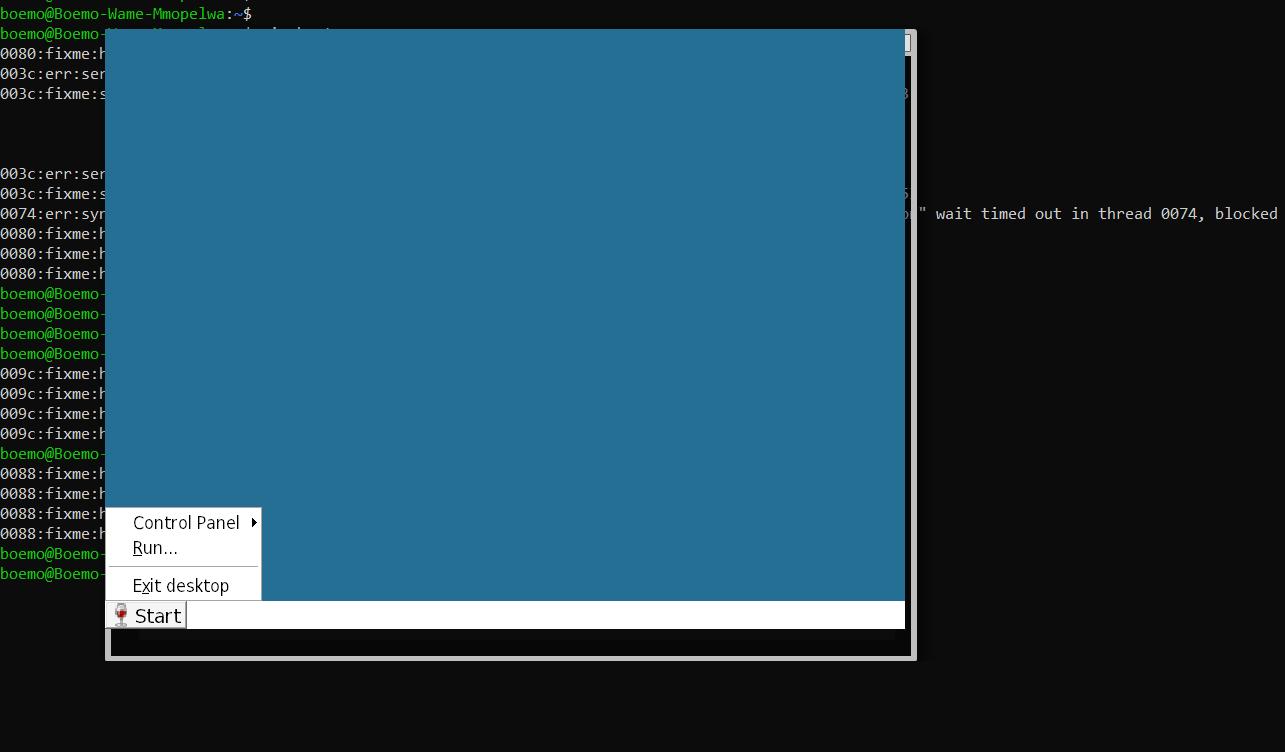
The default Wine GUI does not include any Windows applications. As you can see from the screenshot below, the GUI only shows the "start" button.
Note on resource usage: Wine itself is lightweight. It uses very little RAM or CPU on its own. The resource demands depend entirely on the Windows application you run through it. A simple utility like Notepad needs almost nothing.
A heavy application like Adobe Photoshop or a 3D game may require several gigabytes of RAM and a capable GPU. Check the specific requirements of the Windows software you plan to use.
This section assumes you have already downloaded the .exe file. For consistency, we will go with the VLC .exe file from the previous step.
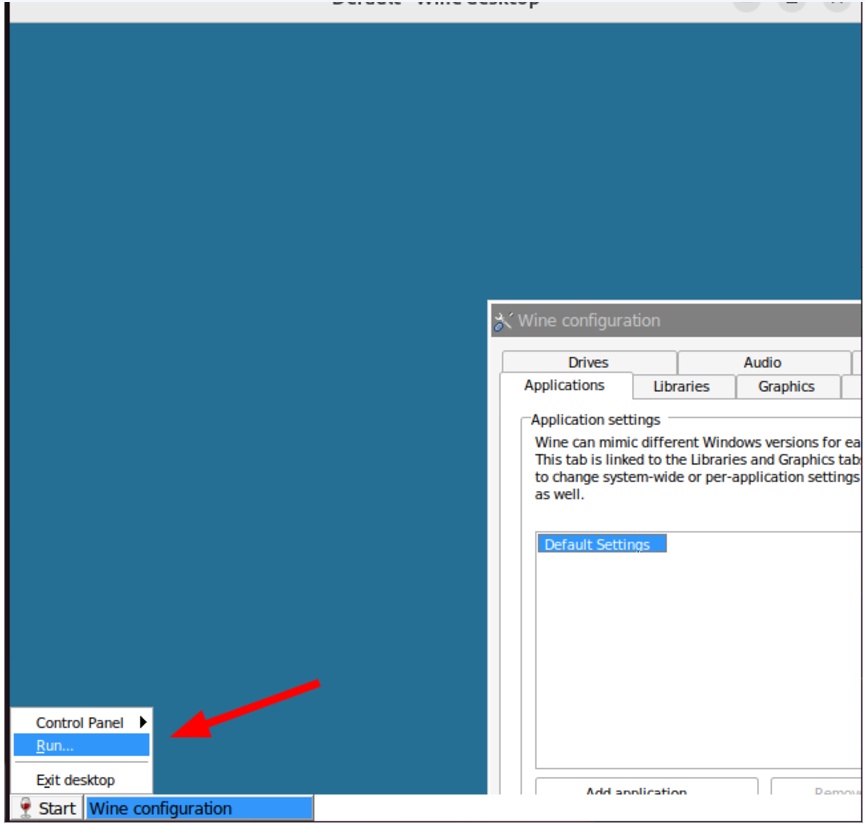
On the Wine virtual desktop, click Start > Run.
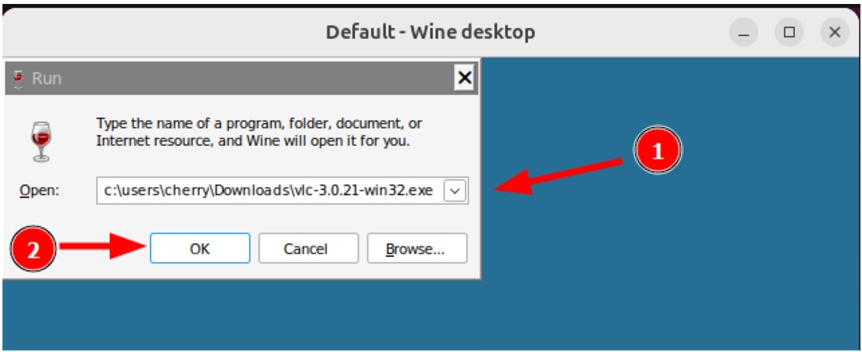
On the Run dialogue box, type in the full path of the VLC .exe file. The path should mimic the Windows path to the Downloads folder, in which the .exe resides. In our case, this will be c:\users\cherry\Downloads\vlc-3.0.21-win32.exe.
Then click OK to launch the installation Wizard.
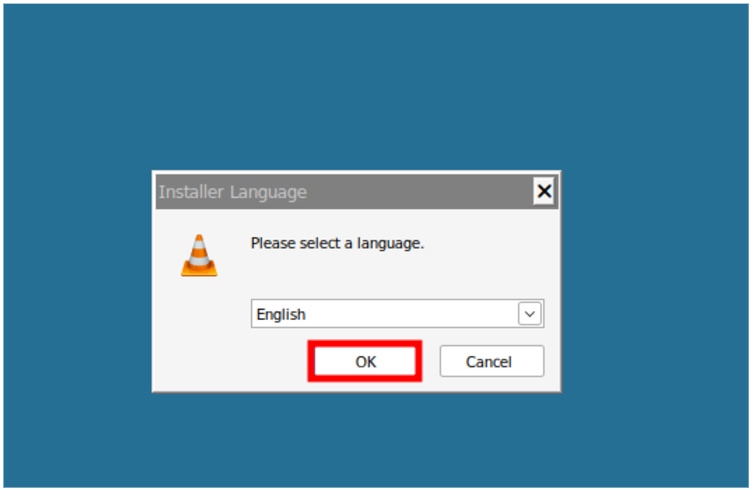
The installation Wizard will pop open, and, as in the previous subheading, you will be required to select the installation language.
Proceed with the installation by clicking Next and accepting the default selections.
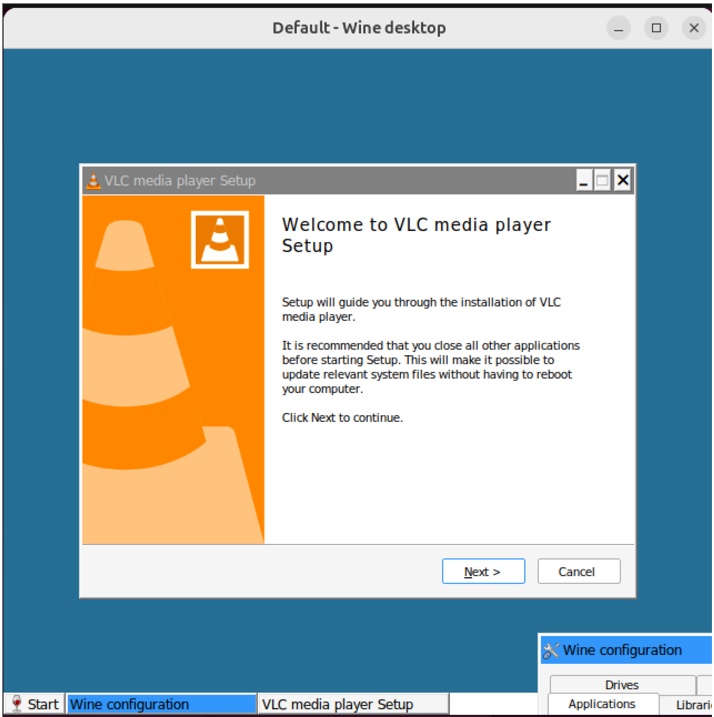
And that's how you go about installing a Windows application using Wine.
#How to install Windows runtime libraries with Winetricks
Many Windows applications depend on runtime components that Wine does not include by default. For example, Visual C++ redistributables, .NET Framework versions, DirectX libraries, and common Windows fonts. Winetricks is a helper script that automates the download and installation of these components into your Wine prefix.
#Install Winetricks
sudo apt install winetricks -y
#Install common runtime libraries
Use the following commands to install frequently needed components:
# Install core Microsoft fonts (Times New Roman, Arial, Courier New)
winetricks corefonts

# Install Visual C++ 2015-2022 redistributable
winetricks vcrun2022

# Install .NET Framework 4.8
winetricks dotnet48
You can also launch the Winetricks GUI to browse available packages:
winetricks --gui
The GUI groups packages into categories such as DLLs, fonts, settings, and apps, making it easy to find what you need.
Common Winetricks packages:
| Package | What it provides |
|---|---|
corefonts |
Microsoft core fonts (Arial, Times New Roman, etc.) |
vcrun2022 |
Visual C++ 2015-2022 runtime |
dotnet48 |
.NET Framework 4.8 |
d3dx9 |
DirectX 9 shader libraries |
dxvk |
Vulkan-based DirectX 9/10/11 translation (improves game performance) |
If an application fails to launch or shows missing DLL errors, check its AppDB page on WineHQ. The community notes usually list exactly which Winetricks packages fix the issue.
#How to remove Wine from Ubuntu 24.04
If you no longer need Wine, remove it along with its dependencies and configuration files.
#Remove Wine packages
For the stable version:
sudo apt remove --purge winehq-stable -y
For the development version (if you installed winehq-devel instead):
sudo apt remove --purge winehq-devel -y
Clean up unused dependencies:
sudo apt autoremove -y
#Remove the Wine prefix and user data
Wine stores its configuration, and all installed Windows applications in a hidden directory called ~/.wine. Remove it to clean up completely:
rm -rf ~/.wine
#Remove the WineHQ repository (optional)
If you also want to remove the WineHQ repository and its signing key:
sudo rm /etc/apt/sources.list.d/winehq-noble.sources
sudo rm /etc/apt/keyrings/winehq-archive.key
sudo apt update
#Conclusion
Wine translates Windows API calls into Linux-compatible calls, letting you run Windows applications on Ubuntu 24.04 without a virtual machine. In this guide, you installed Wine from the official WineHQ repository, configured it with winecfg and wineboot, and ran a Windows application through both the command line and the Wine virtual desktop.
For applications that require additional runtime libraries, Winetricks installs Visual C++ redistributables, the .NET Framework, DirectX components, and fonts. And when you no longer need Wine, the removal steps clean up packages, the Wine prefix, and repository configuration.
You can explore additional Cherry Servers guides on setting up a GUI on Ubuntu Server and checking your Ubuntu version.
FAQs
Does Wine slow down my Linux system?
Wine itself uses minimal resources. Performance depends on the Windows application you run. Lightweight tools like Notepad or WinSCP add almost no overhead. Resource-heavy applications like Photoshop or games consume RAM and CPU resources in proportion to their Windows requirements.
Can Wine run every Windows application?
No. Programs that depend on kernel-level drivers (like anti-cheat software in games), hardware-specific DRM, or the very latest Windows APIs may not work. Check the [Wine Application Database](https://appdb.winehq.org/) for compatibility ratings before installing.
What is the difference between Wine stable, development, and staging?
The stable branch receives thorough testing and annual releases (Wine 10.0, 11.0, etc.). The development branch ships bi-weekly with the latest features and bug fixes. The staging branch adds experimental patches on top of the development branch. Most users should start with stable.
How do I update Wine to a newer version?
If you installed from the WineHQ repository, standard system updates pull in new Wine versions automatically. Run `sudo apt update && sudo apt upgrade` to update. Your Wine prefix and installed Windows applications carry over to the new version without reinstallation.
Can I run Wine on Ubuntu Server (no GUI)?
Wine requires a display server for graphical applications. On a headless server, you can use Xvfb (X Virtual Framebuffer) to create a virtual display. However, Wine works best on desktop installations. For server environments, a virtual machine or container running Windows may be more practical.
What is a Wine prefix?
A Wine prefix (default location: `~/.wine`) is a directory that mimics a Windows filesystem structure. It contains `drive_c`, the registry files, and all installed Windows applications. You can create separate prefixes for different applications using the `WINEPREFIX` environment variable: `WINEPREFIX=~/myapp wine setup.exe`.




