How to Enable Microphone on Remote Desktop for Windows
In situations where your server’s use case necessitates the use of microphone capabilities, you may find that the functionality is unavailable. Through Remote Desktop Connection, this guide explains how to enable microphone for your Windows server.
#Instructions to Enable Microphone on RDP for Windows
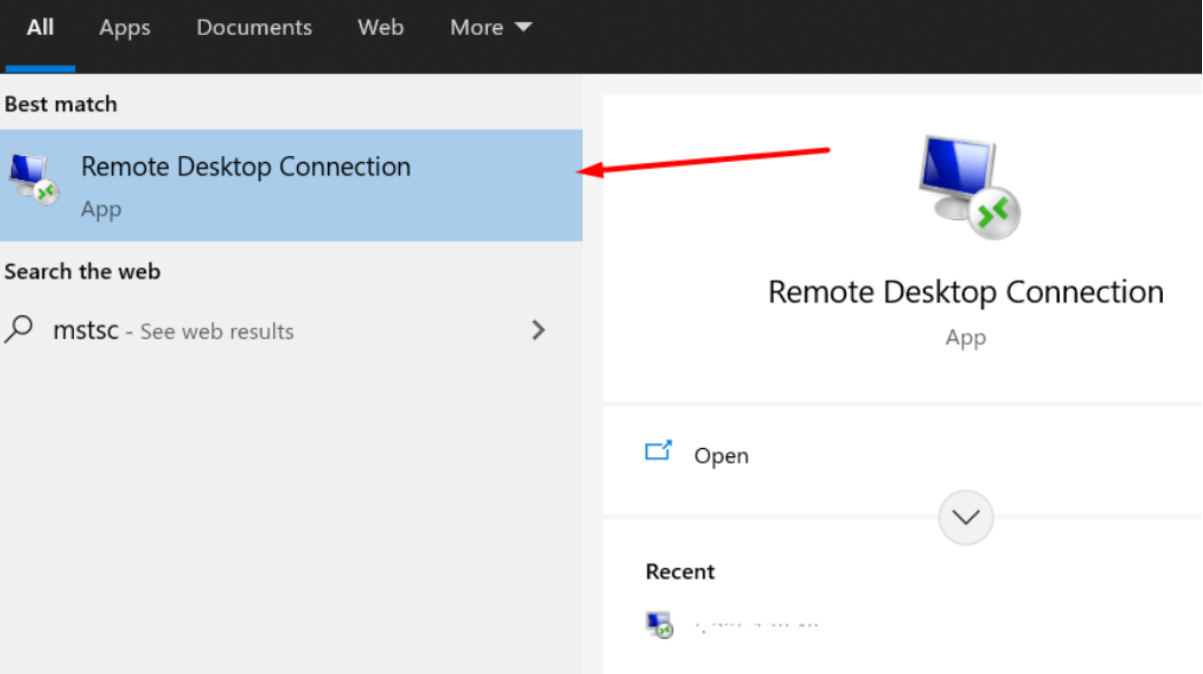
- On the Windows menu, search “Remote Desktop Connection” or “mstsc”, and click the result.

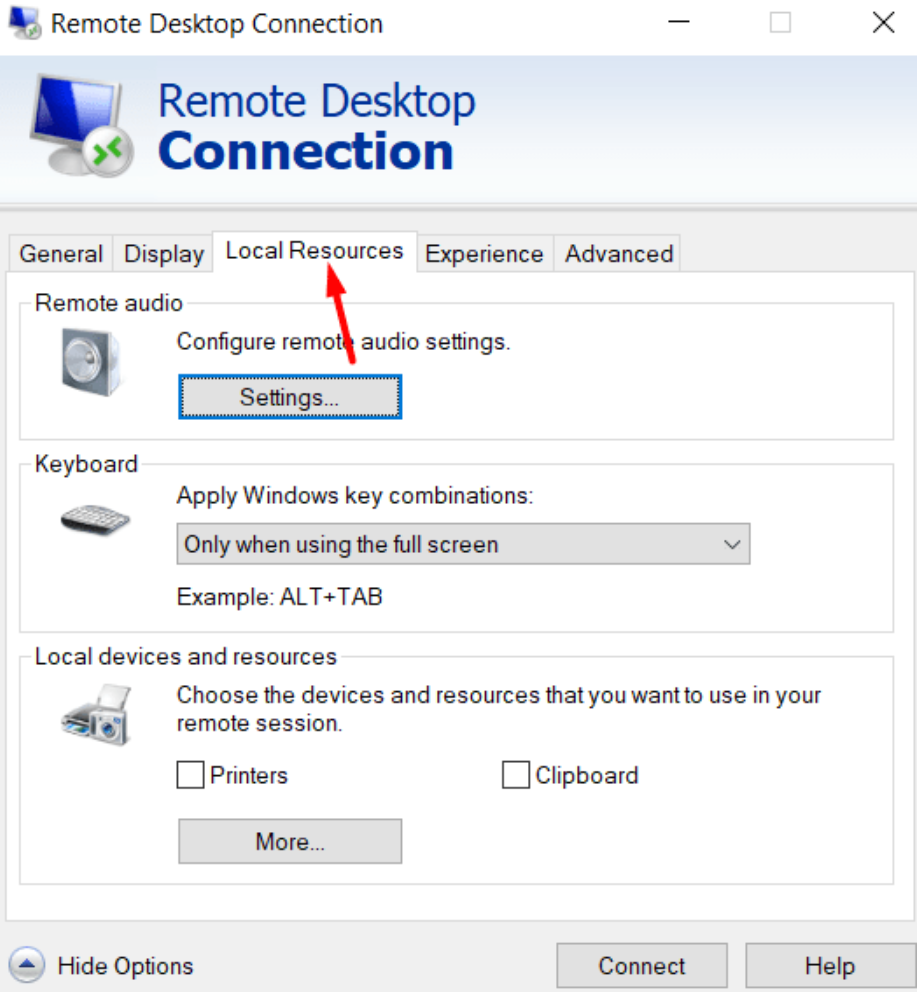
- Click on "Show Options", and navigate to the "Local Resources" tab.

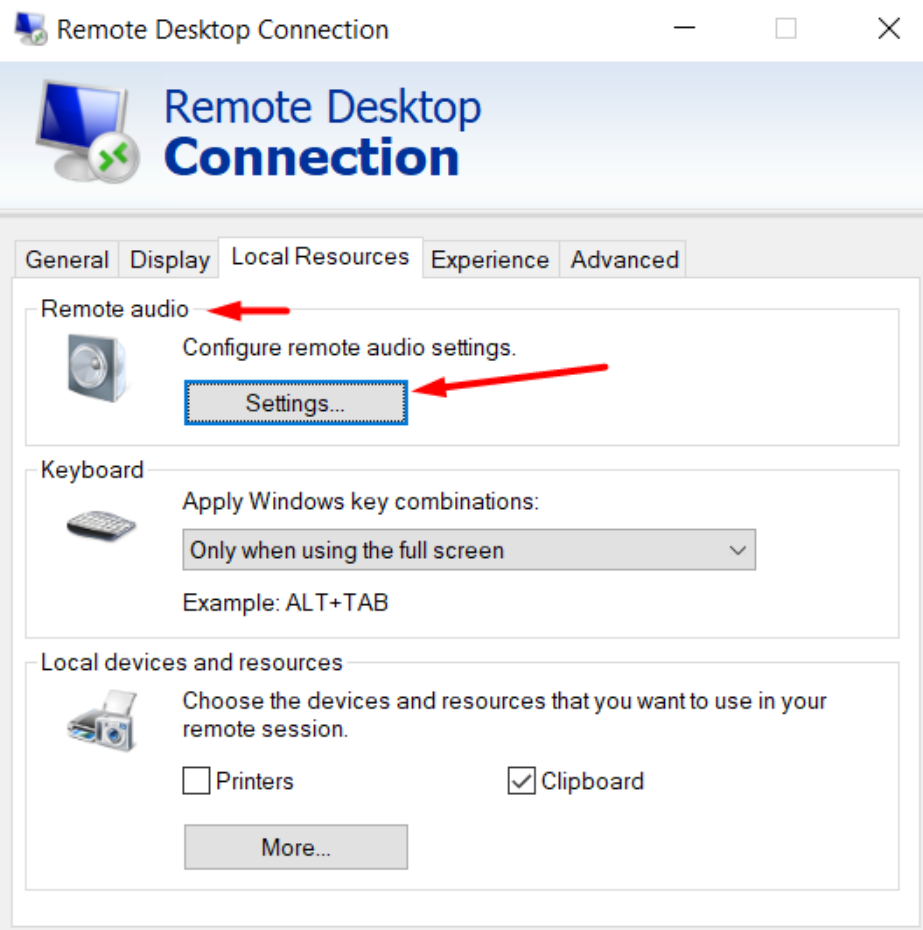
- Select “Remote audio” and click on “Settings”.

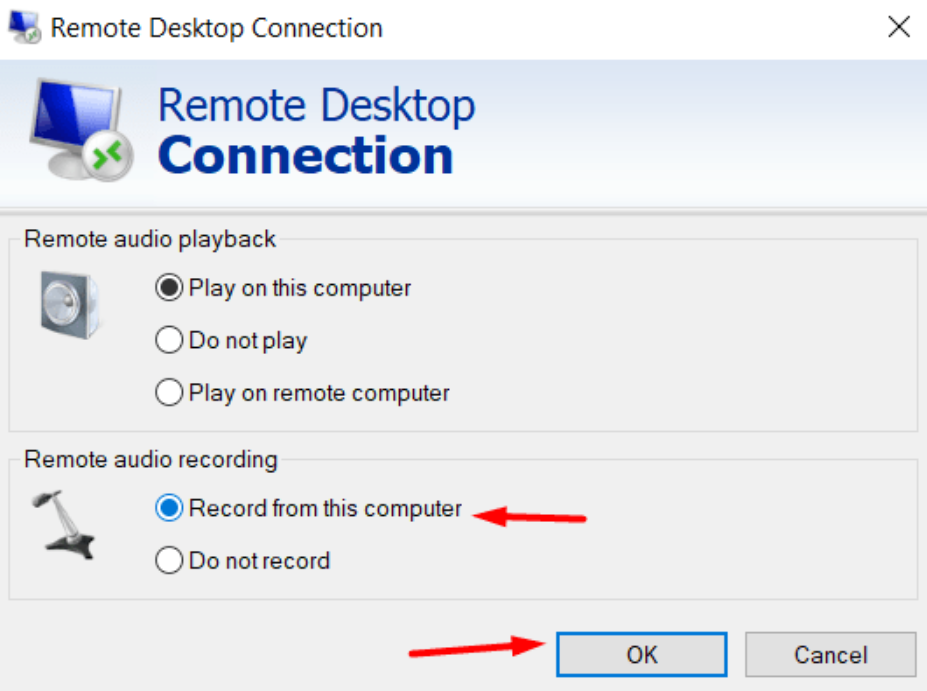
- Enable the “Record from this computer” and click on “OK”, then connect to the remote desktop.

Remote microphone is now active for use with your Windows server.
Was this article helpful?
Thanks for the feedback!