How to Reboot a Server via Client Portal, Linux, and Windows
If for any reason you find yourself in need of a server reboot, this guide will teach you everything you need to know to perform the operation safely and with no data loss. During a reboot, remote connections may become unavailable.
Restarting a server should primarily be done through the operating system using SSH for Linux, or RDP for Windows. This method is highly recommended in order to ensure a clean shutdown of services and avoid any potential data corruption.
It is also possible to perform a forces shutdown through the Client Portal, but this should only be used as a last resort if the server is unresponsive as it may lead to data loss.
If standard reboot methods fail, you can restart the server via the BMC console in the Cherry Servers Client Portal for a more controlled restart.
#Instructions to Reboot a Server via Linux
First you will need to connect to your server via SSH. For instructions on how to do this, please refer to our dedicated guide on connecting to a Linux server using SSH.
#Step 1: Restart the Server
- To safely restart the server, run the following command:
sudo reboot - If the server is unresponsive and requires an immediate reboot, use:
sudo reboot -f
#Step 2: Confirm the Reboot
- Your SSH session will be disconnected during the reboot process.
- Wait a few minutes and reconnect to confirm the server is online.
#Instruction to Restart a Server via Windows
First, you will need to connect to your server via RDP. For instructions on how to do this, please refer to our dedicated guide on connecting to a Windows server via RDP.
#Step 1: Initiate a Restart from the Windows Interface
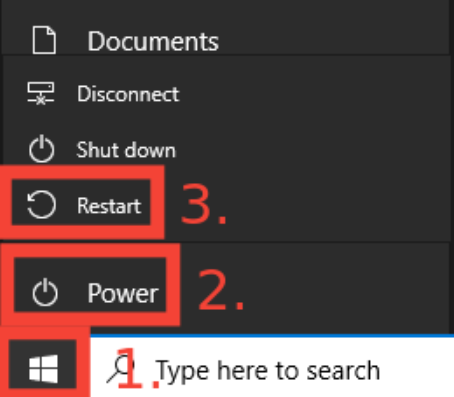
- Click the Start Menu, select Power, and then choose Restart.

- Alternatively, open a command prompt as an administrator and run.
shutdown /r /t 0
#Step 2: Monitor the Restart
- Your RDP session will disconnect during the reboot.
- Wait a few minutes and reconnect to verify that the server runs normally.
#Instructions to Restart the Server via Cherry Servers Client Portal
#Step 1: Log in to the Client Portal
- Open a web browser and navigate to the Cherry Servers Client Portal.
- Enter your login credentials and access your account.
#Step 2: Select Your Server
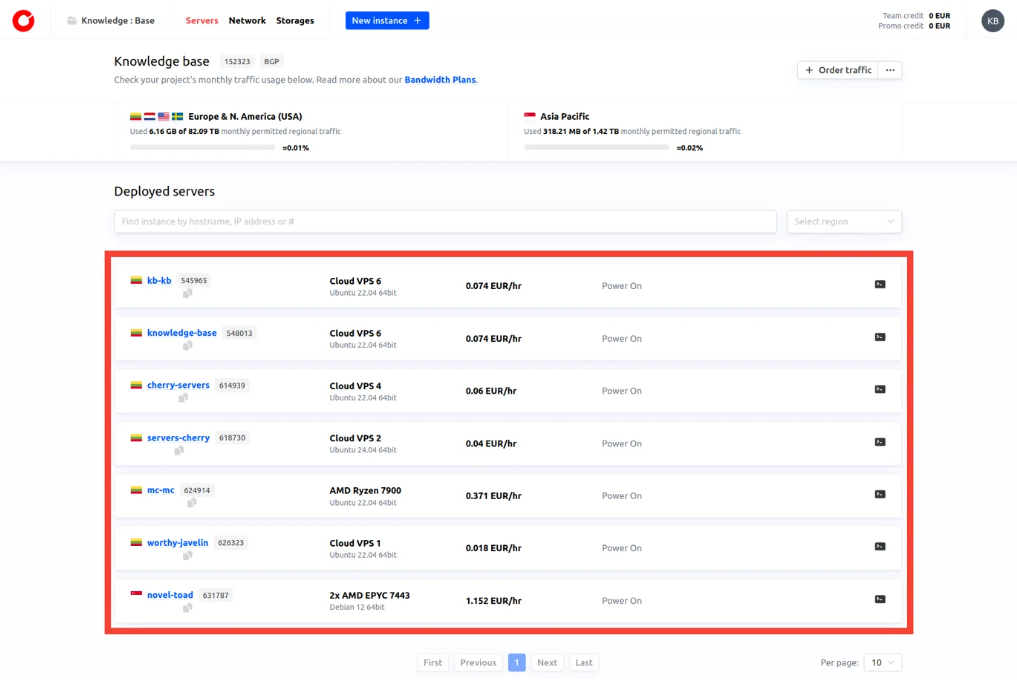
- From the dashboard, locate and click on the server you want to reboot.

#Step 3: Initiate the Power off Action
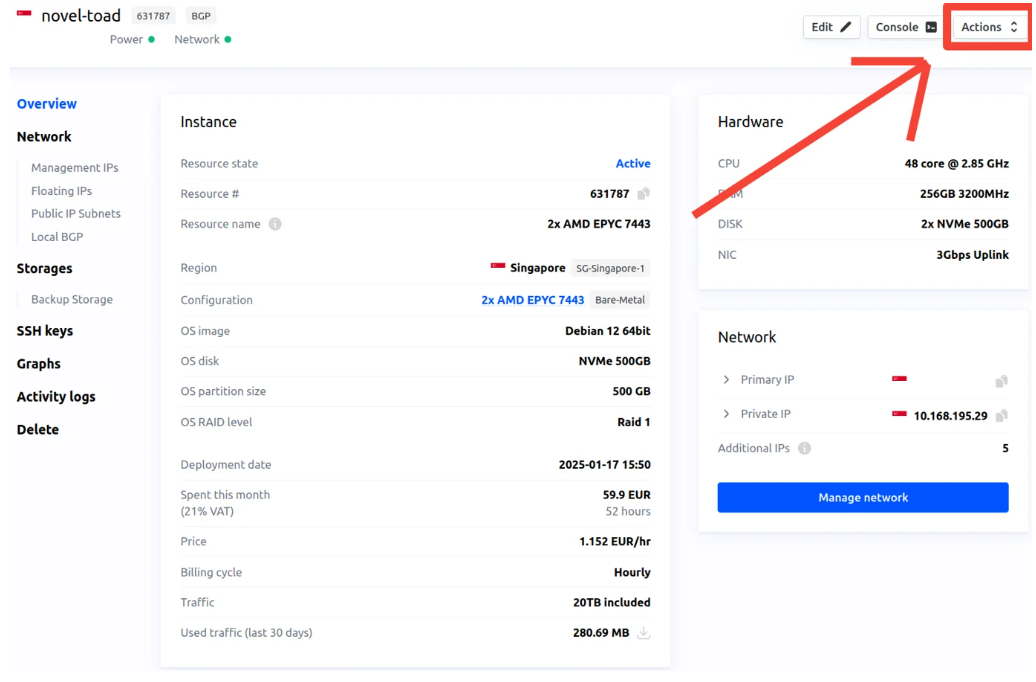
- Click the "Actions" button at the top-right of the server details page.

- Select "Power off" from the dropdown menu.
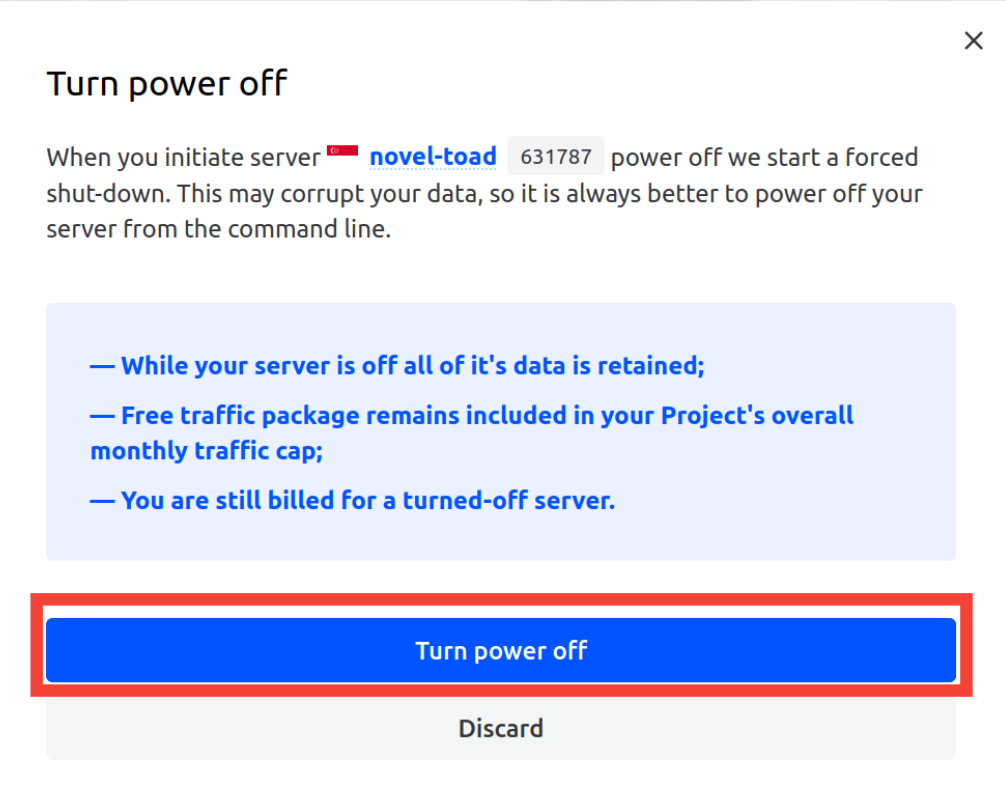
- A confirmation pop-up will appear with important information about the power-off process. Review the details and click the "Turn power off" button to proceed.

- Once the shutdown process is initiated, a notification will appear confirming that the server is turning off.
- The server status will show a message reading "Turning the power off," indicating that the shutdown is in progress.


#Step 4: Initiate a Power-on Action
- Click the "Actions" button at the top-right of the server details page.
- Select "Power-On" from the dropdown menu.
- Once the power-on action is initiated, a notification will confirm that the server is turning on.
- The server status will show "Turning the power on," indicating the power on is in progress.

- Monitor the Server Status.
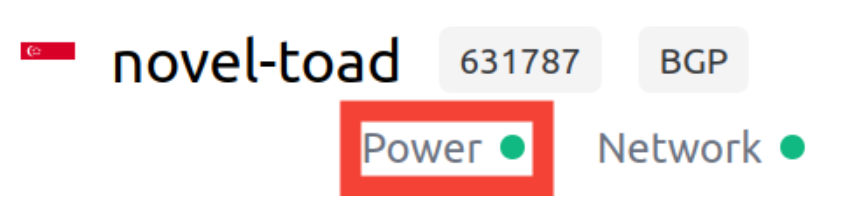
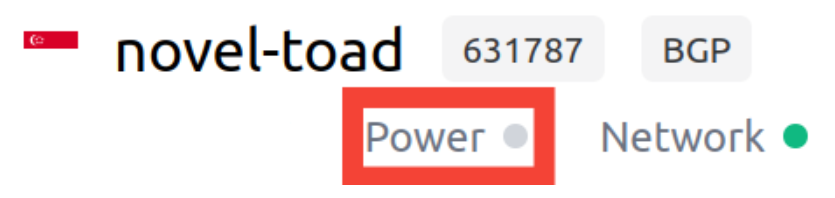
- After performing the power on/off actions, check the server status by observing the circle near the "Power" label.
- A green circle indicates the server is powered on.

- A gray circle indicates the server is powered off.
 If the server appears to be ON but you are unable to log in, please access the server via the console for further troubleshooting. For instructions on how to do this, please refer to our dedicated guide on accessing your server console.
- A green circle indicates the server is powered on.

If power options are unavailable or login issues persist, contact the Cherry Servers technical support team for assistance at: support@cherryservers.com.