How to Connect to Your Server and Troubleshoot Access Issues
Remote Desktop Protocol (RDP) and Secure Shell (SSH) are indispensable tools for accessing and managing your servers remotely. They provide seamless control over server environments without requiring physical access.
This guide provides instructions for connecting to Linux and Windows servers using SSH or RDP, offering support for users on various operating systems, troubleshooting techniques, such as resetting passwords using "Rescue Mode" and accessing IP KVM.
Before proceeding, please ensure that you have your credentials, such as
- The server IP,
- Your Username,
- Your Password.
Additionally, verify that your server is online and set up for remote access. This includes ensuring that SSH or RDP services are active and firewalls are correctly configured to permit remote connections.
#Instructions to Connect to a Linux Server
Remote management of Linux servers is typically done using SSH, a secure protocol to provide encrypted communication between devices. The following methods are intended to meet users' needs working on both Linux and Windows operating systems.
#Connecting to a Linux Server Using SSH on Linux
You'll use the terminal application available by default in most distributions to connect to a Linux server from another Linux system.
- Open a terminal and execute the following command. Replace username with the username of the server account (the default is usually "root"), and replace “IPAddress” with your server’s public IP address.
$ ssh username@IPAddress - If the server is online, you’ll be prompted to enter your password. After logging in, you'll gain complete command line access to your Linux server. This access is especially valuable for executing administrative tasks such as installing packages, configuring settings, and performing updates.
Output
08:10:46 ugnius@CherryServers ~ > ssh root@5.199.169.239 root@5.199.169.239's password:
#Connecting to a Linux Server Using SSH on Windows
For Windows users, SSH access requires a client like "PuTTY".
- Download and install "PuTTY" from its official website.
- Launch "PuTTY" and input your server’s IP address into the "Host Name" field.
- Click Open to establish the connection.
- A terminal window will open, prompting you to input your username and password.
- Type your credentials and press Enter. You will now have full SSH access to your server. The field will remain blank for security reasons when entering your password, but your input is being recorded accurately.
 If you require a more detailed explanation, you can view our dedicated guide on connecting to a Linux server using SSH.

#Instructions to Connect to a Windows Server
Windows servers are typically accessed via RDP, a user-friendly protocol allowing a graphical server management interface. Below are detailed instructions for connecting from both Windows and Linux clients.
#Connecting to a Windows Server Using RDP on Windows
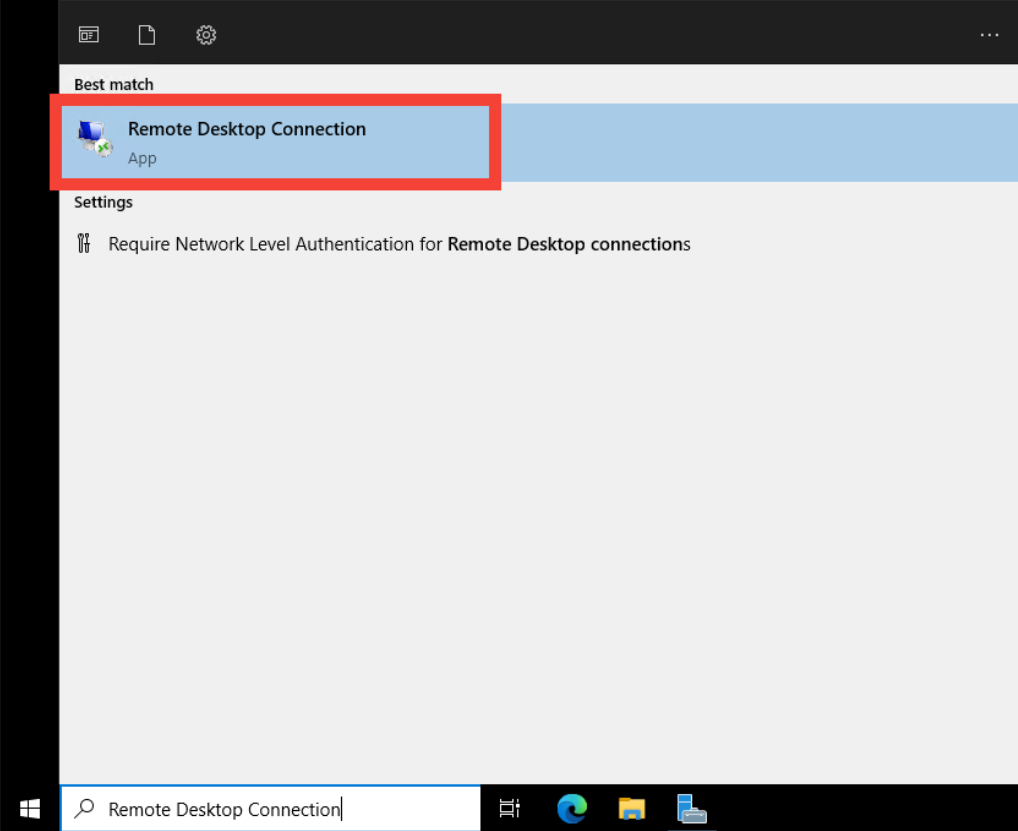
Windows systems come preinstalled with the Remote Desktop connection tool, which we'll use to connect to the server.
- Establish a connection.
Open the tool by typing "Remote Desktop Connection" into the Start menu and pressing Enter.

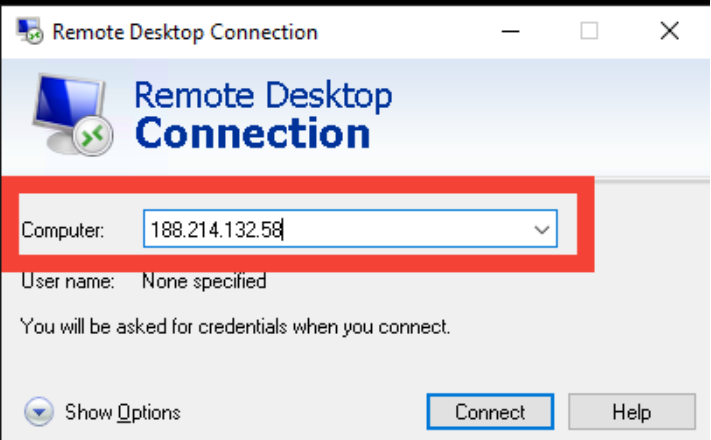
- Enter your server’s IP address into the provided field and click Connect.
 If the server is online, a login window will appear.
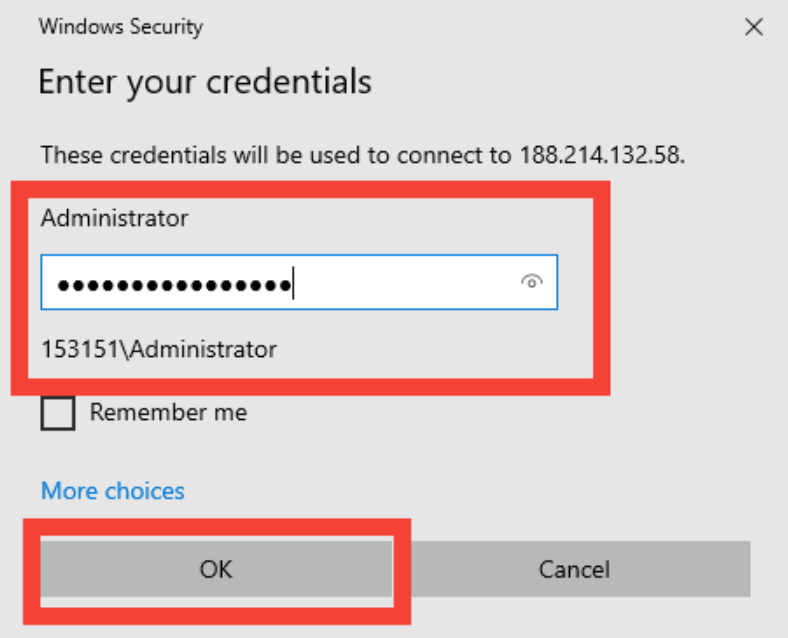
 - Input your username and password, then click OK.

- You now have full graphical access to your server. This is particularly useful for software installations, file management, and administrative configurations.
#Connecting to a Windows Server Using RDP on Linux
Linux users can rely on "Remmina", a powerful remote desktop client, to establish RDP connections.
- Install "Remmina" using the the command that matches your Linux distribution from the list below:
- On Ubuntu/Debian, install using:
$ sudo apt install remmina remmina-plugin-rdp- On Fedora:
$ sudo dnf install remmina- On Arch Linux:
$ sudo pacman -S remmina - Once installed, launch "Remmina" and select RDP as the protocol.
- Enter your server’s IP address and press Enter.
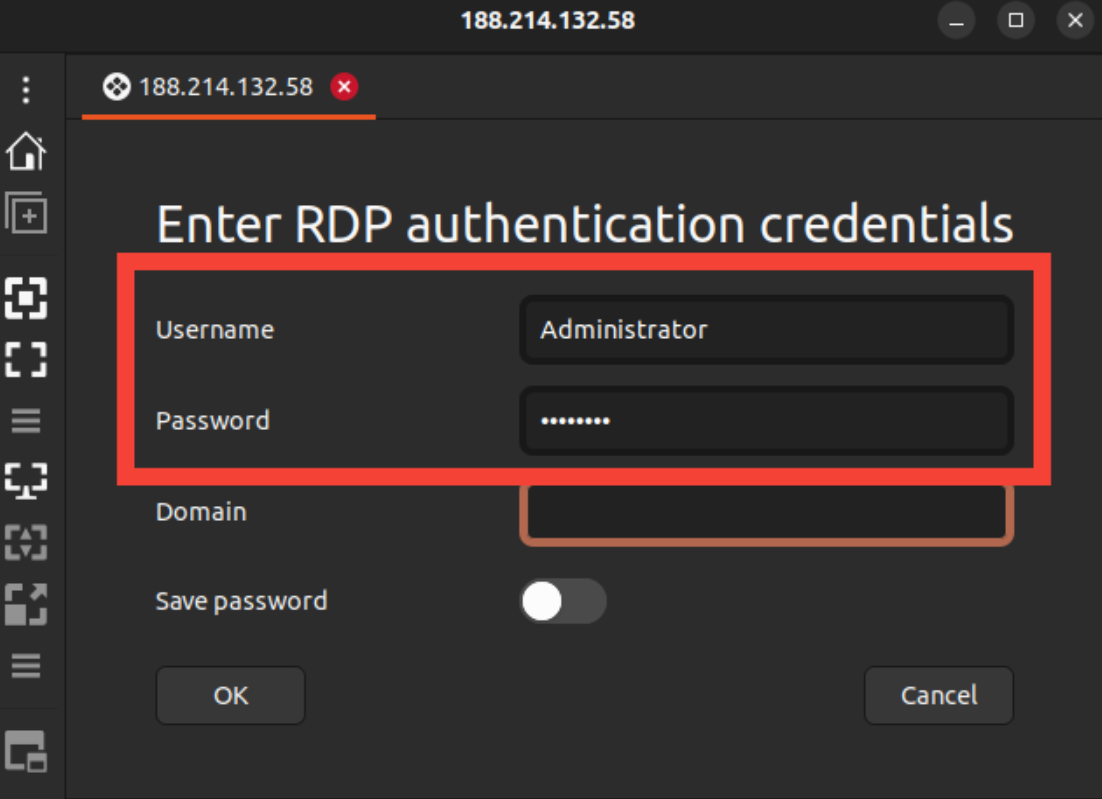
- When prompted, input your credentials to access the server.

If you require more detailed instructions, you can view our dedicated guide on connecting to a Windows server using RDP.
#Troubleshooting Common Access Issues
If you encounter connectivity issues, try using the following methods to resolve them. If none of these options works, please contact out technical support team, who will be happy to help you.
#Access Your Server via IP KVM
IP KVM provides direct access to your server’s hardware-level interface, bypassing SSH or RDP restrictions. This is especially useful for diagnosing hardware issues or managing servers not responding to remote protocols.
To connect via IP KVM, please visit our dedicated guide for instructions to access your server console.
#Reset the Root Password
If you have forgotten your password, you can boot your server into "Rescue Mode" to securely reset it. "Rescue Mode" allows you to perform critical recovery tasks without booting into the main operating system.
Please visit our dedicated guide to reset the Root password using “Rescue Mode”.
#Change User Passwords
- For Linux: Use the “passwd” command in an SSH session to update user credentials.
- For Windows: Use the Local User Manager or PowerShell for password changes.
The following steps differ depending on which system you are using. Please refer to our dedicated guides for more detailed instructions:
- How to change a user password on a Linux server.
- Accessing a Windows Server from Windows and Linux, and changing user passwords.
#Using "Rescue Mode" for Troubleshooting
"Rescue Mode" is a diagnostic environment designed for resolving server issues such as corrupted filesystems or boot-loader failures. It is a powerful tool for recovery and repair.
For detailed instructions on how to do this, please visit our dedicated guide on using "Rescue mode" to troubleshoot your server.
#Mount an ISO Using the JAVA Console
Mounting an ISO file is essential for installations, live recovery, or running diagnostic tools on your server, particularly when troubleshooting operating system issues.
Please visit our dedicated guide for instructions to mount an ISO image on dedicated servers.
#Technical Support
If you are still encountering issues with your server's availability or functionality, please feel free to contact the Cherry Servers technical support team at support@cherryservers.com. Our team will be happy to assist you in resolving the issue in a time efficient manner.