How to Set up rDNS (PTR) on Cherry Servers
Reverse DNS (rDNS) or PTR records are essential for verifying the authenticity of your server and enhancing its reliability across various services. This guide provides a detailed, step-by-step process for setting up rDNS (PTR) on Cherry Servers. Setting up rDNS (PTR) helps map your IP address back to your domain name, which is crucial for enhancing email deliverability, and improving network diagnostics.
This guide will provide a detailed, step-by-step process for setting up rDNS (PTR) on all Cherry Servers dedicated and virtual servers.
#Instructions to Set up rDNS
#Step 1: Log in to Cherry Servers Client Portal
- Open a web browser.
- Navigate to the Cherry Servers client portal login page.
- Enter your username and password to log in.
#Step 2: Select Your Server
- In the dashboard, find and select the server you want to manage.
- Click on the server to open its details page.
#Step 3: Access the Server's Network Management
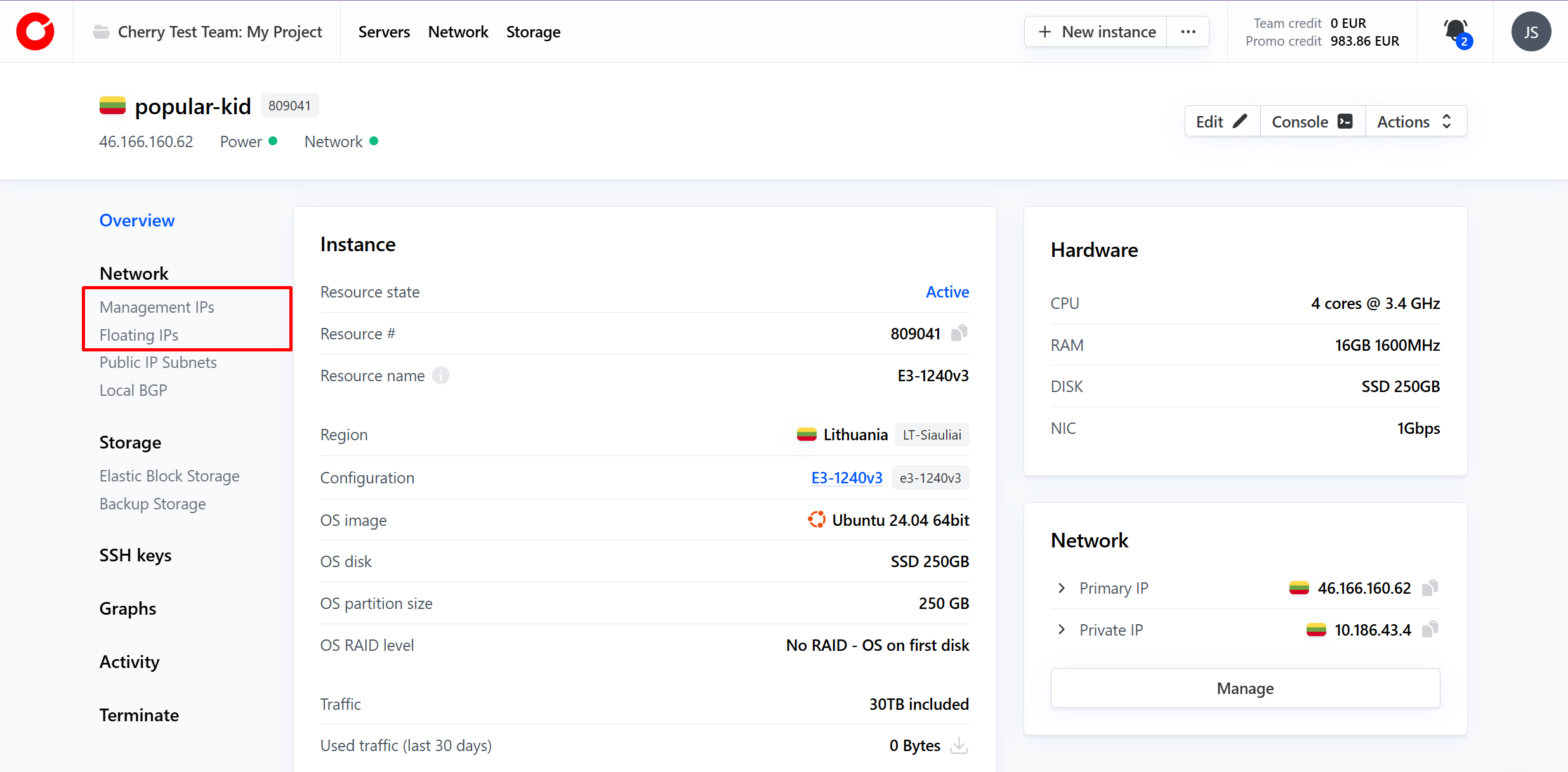
- On the left side of your client portal, click "Management IPs" or "Floating IPs" depending on your configuration.

#Step 4 Edit IP Address Settings
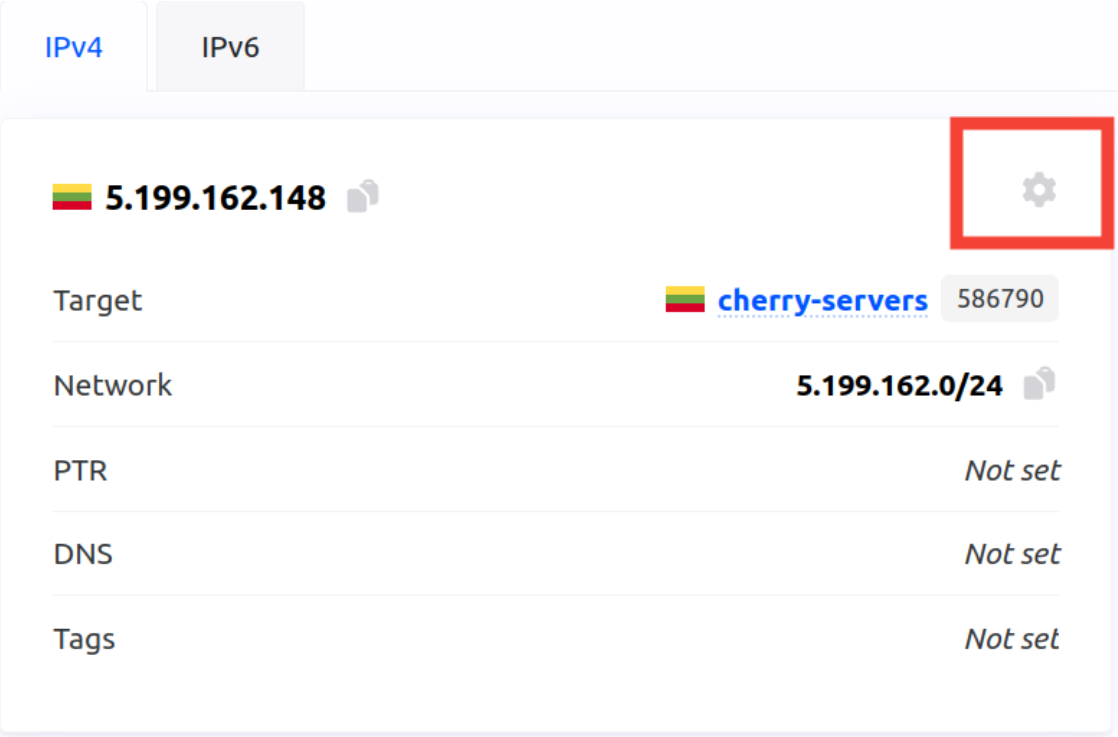
- In the "Management IPs" or "Floating IPs" section, locate the box containing your IP address.
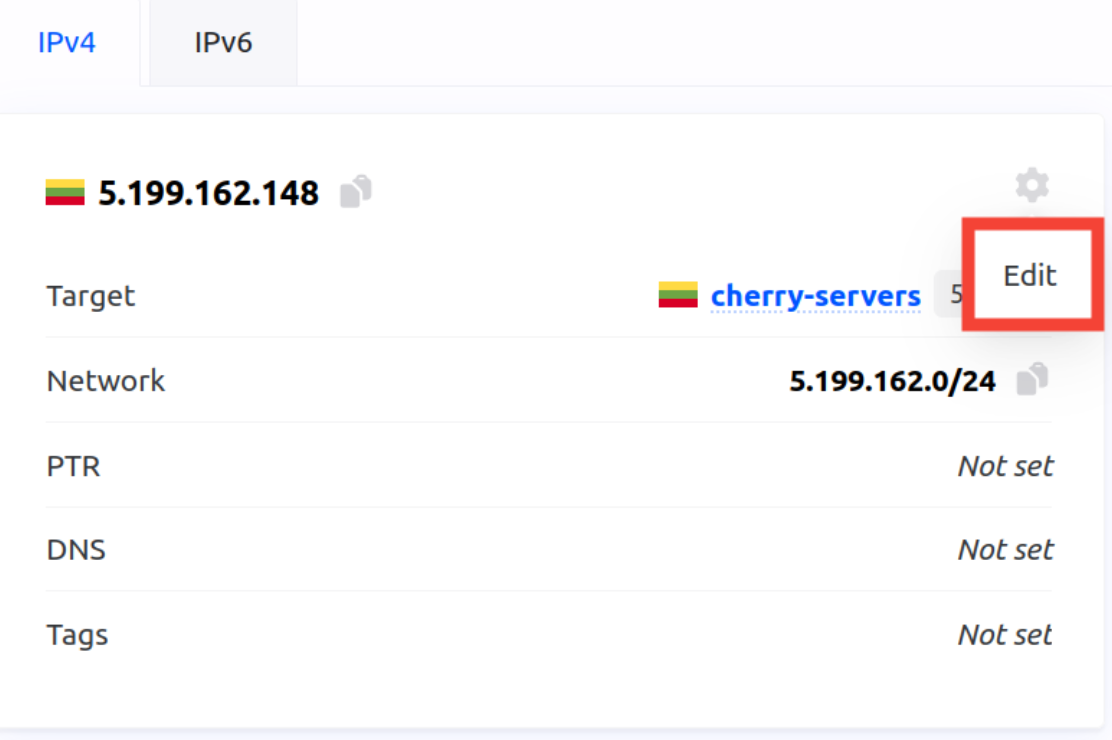
- Click on the gear icon in the top-right corner on the server panel.

- From the drop-down menu, select "Edit".

#Step 5: Enter the rDNS (PTR) Record
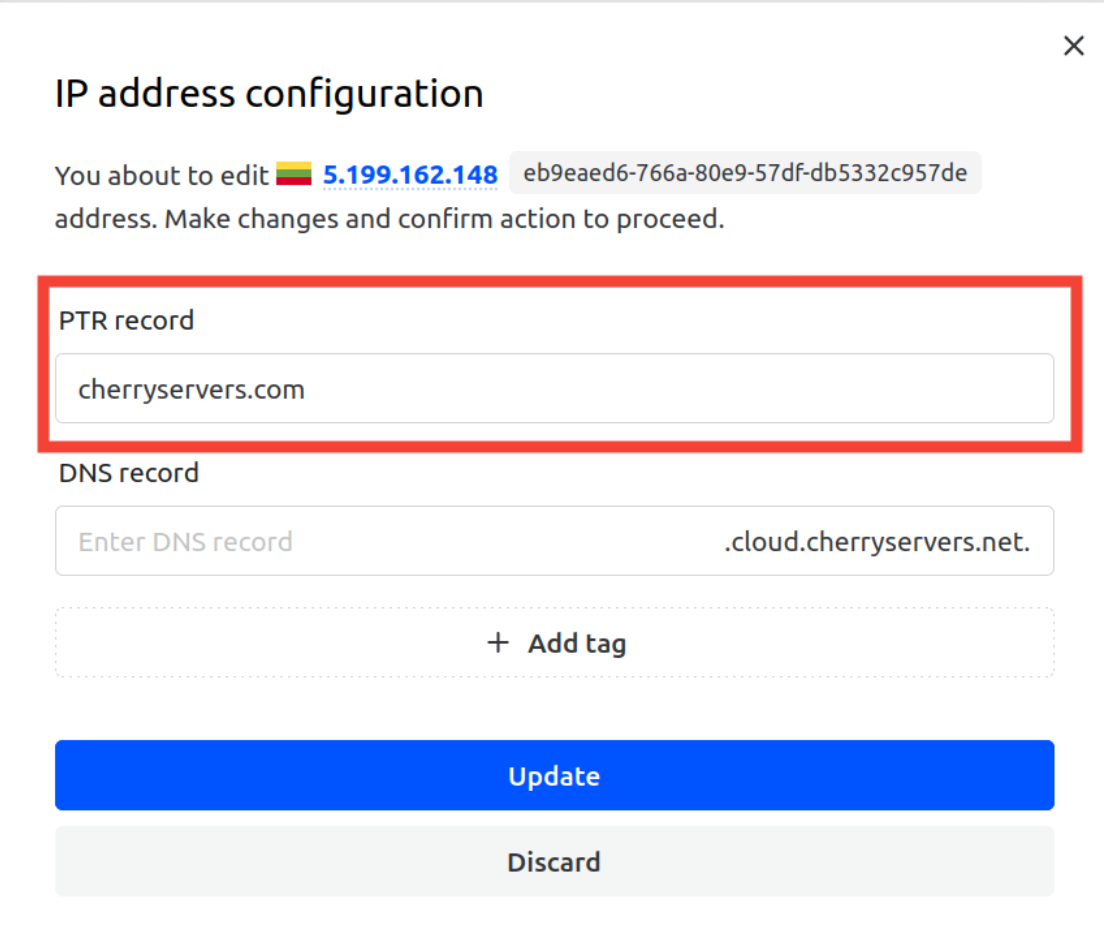
- A new window will appear, allowing you to edit the IP address settings.
- In the "PTR record" field, enter your domain name (rDNS).

-
- Ensure the domain name is correctly entered to avoid any resolution issues.
#Step 6: Update the PTR Record
- After entering your domain name, click on the "Update" button to save your changes.
- After pressing "Update" you will see a message at the top of your client portal indicating that the IP address has been successfully updated.
- Wait for a few minutes to allow the changes to propagate.
#Step 7: Verify the PTR Record
- After updating the PTR record, it's crucial to verify that the record has been set correctly.
- You can use online tools like "MXToolbox" or the "dig" command in the terminal to verify the PTR record.
dig -x your_server_ip - The output should display your domain name associated with the IP address, confirming that the PTR record is correctly set.
Now you have successfully set the rDNS (PTR) record on your Cherry Servers. Properly configured PTR records improve the reliability of your server’s overall internet presence, including crucial functions like email delivery.