Custom Partitioning Layout
Cherry Servers deployments dedicate all disk or RAID storage space to the operating system by default. The custom partitioning layout allows you to adjust the default operating system (OS) partition size upon server deployment or rebuild, to a minimum of 10GB.
For example: If you choose a custom OS partition size of 40GB with 250GB Raid 1 disks, the remaining disk space will be available for manual configuration after the server is deployed, as shown below.
Outputroot@engaging-llama:~# lsblk
NAME   MAJ:MIN RM   SIZE RO TYPE  MOUNTPOINT
loop0    7:0   0    55M  1 loop  /snap/core18/1754
loop1    7:1   0  69.3M  1 loop  /snap/lxd/15067
loop2    7:2   0  27.1M  1 loop  /snap/snapd/7264
sda      8:0   0 232.9G  0 disk
├─sda1   8:1   0    40G  0 part
│ └─md0  9:0   0    40G  0 raid1 /
sdb      8:16  0 232.9G  0 disk
├─sdb1   8:17  0     1M  0 part
└─sdb2   8:18  0    40G  0 part
  └─md0  9:0   0    40G  0 raid1 /
#Use Cases
After changing the default OS partition size you may use spare disk space for use cases such as:
- Using two different file systems on the same server;
- Applying two different RAID configurations on the same server (e.g. using RAID 1 for the OS partition, but RAID 0 for storage);
- Logical volumes for your own virtual machines;
- Network-attached storage (e.g. CEPH);
- Kubernetes persistent storage;
- Server data persistence upon server rebuild actions.
#How to Order
Custom partitioning layout options are available for all dedicated bare metal servers in every region. This does not apply for Windows operating systems.
You may arrange a custom partitioning layout in one of two ways.
During Server Deployment
-
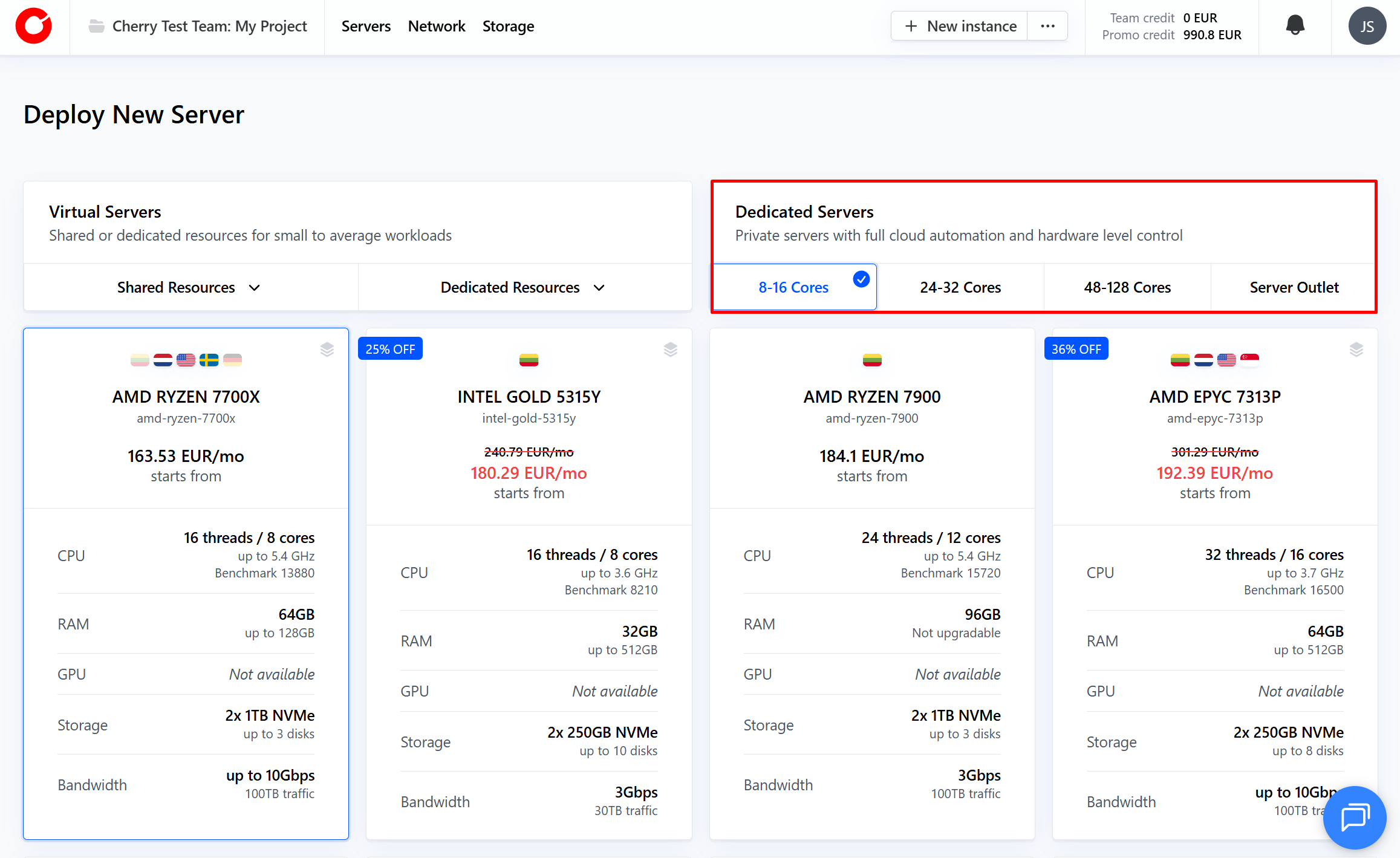
Select the dedicated bare metal server that best suits your needs.

-
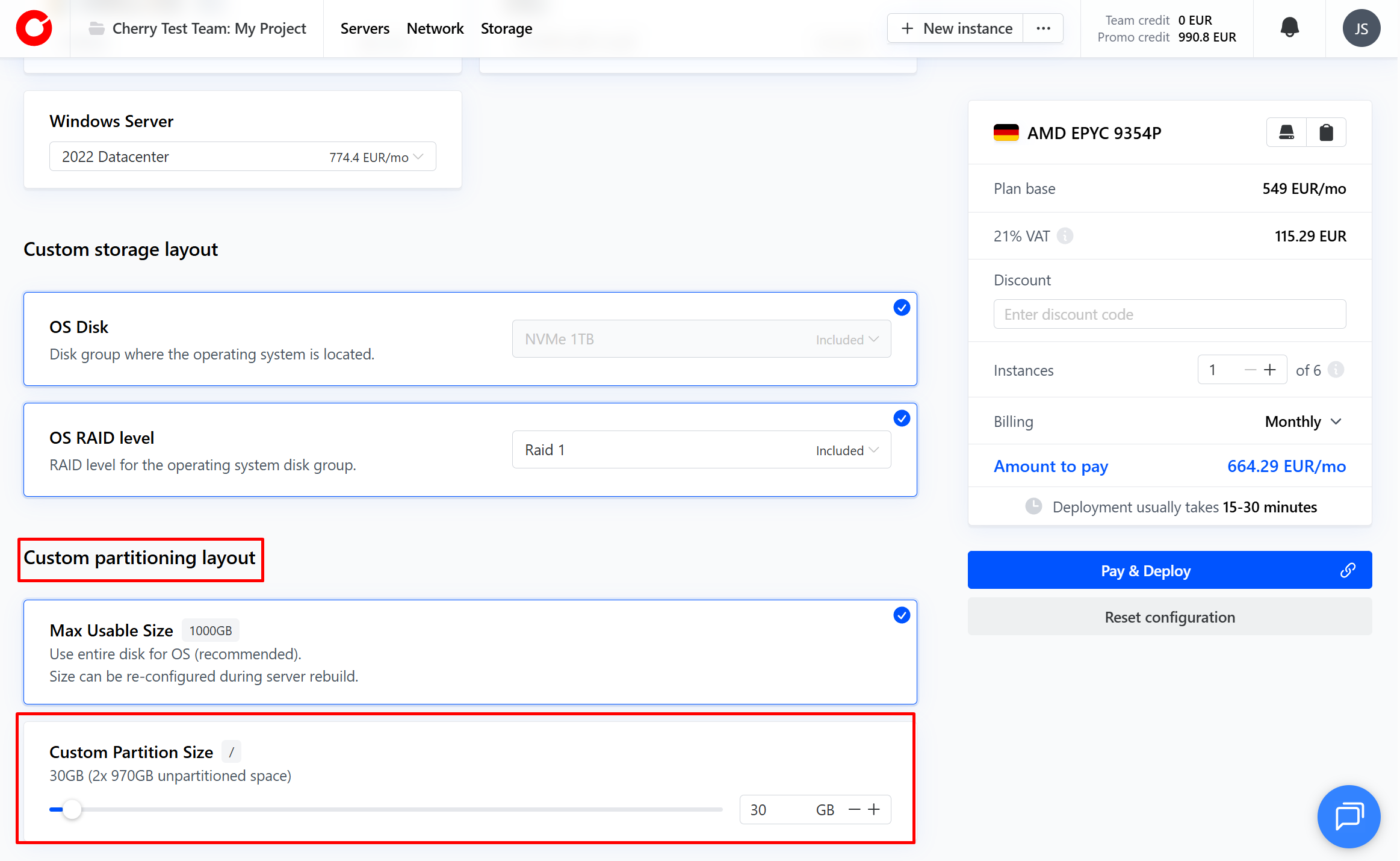
You will be automatically directed to the configuration step. Scroll down until you reach the “Custom storage layout” section. Click the “Custom Partition Size” box, and adjust the slider, or type the partition’s intended size to indicate your preferred partition size.

-
Your server will be deployed with the custom partitioning layout requested.
During Server Rebuild
-
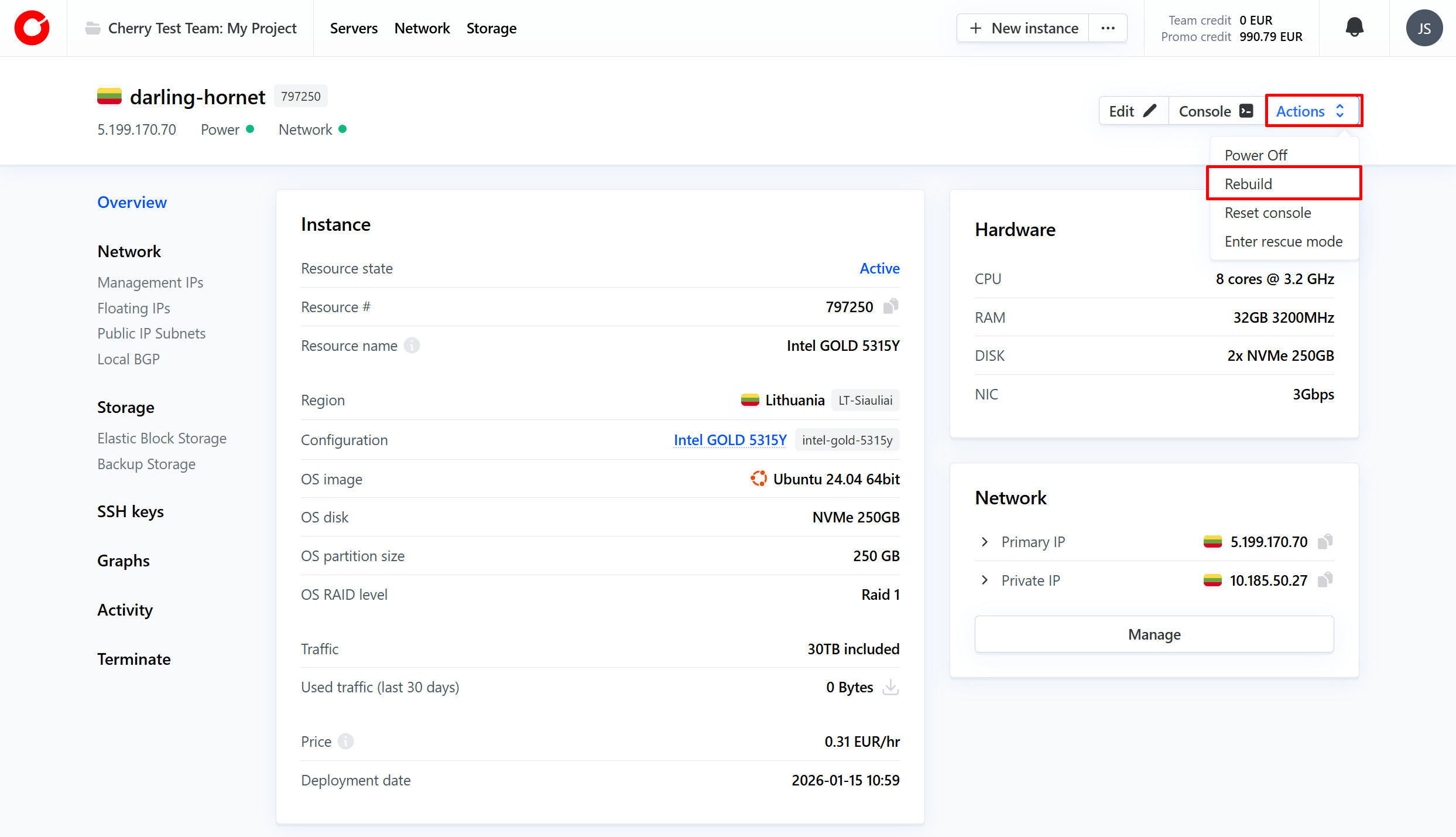
Select the server you would like to rebuild. In the top right hand corner, click “Actions” and select “Rebuild”.

-
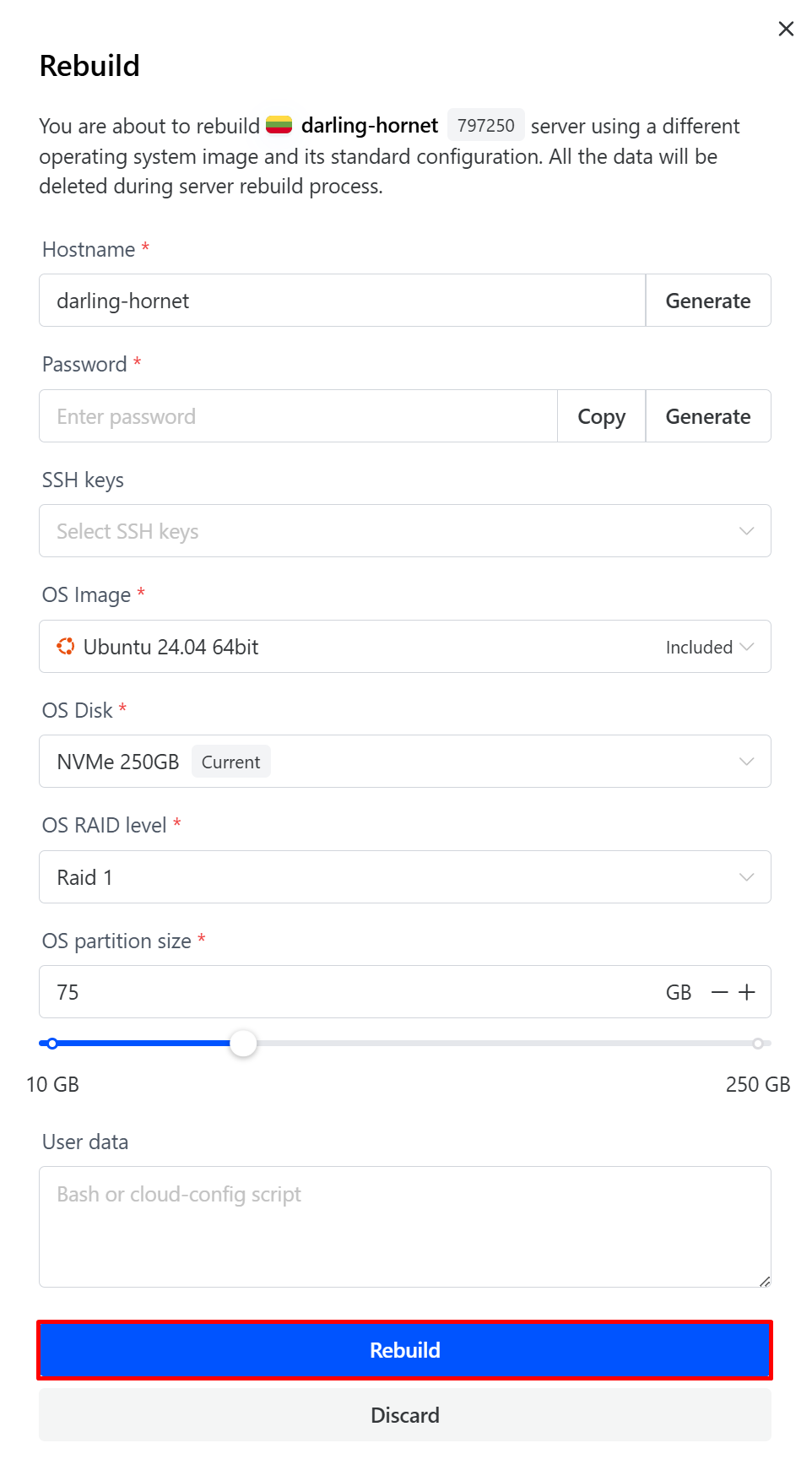
Under the “OS partition size” box, adjust the slider, or type the partition’s intended size to indicate your preferred partition size, then click the “Rebuild” button.

-
Your server will be re-deployed with the custom partitioning layout requested.