#What Is a Floating IP Address?
A floating IP address is a public IPv4 address that is independent from any single server or network interface and can be dynamically assigned to servers within the same project and region. Unlike a standard public IP address, a floating IP can be detached from one server and reassigned to another, making it useful for high availability, fail-over scenarios, and service migration with minimal downtime. Floating IP addresses are available for all server types in every region. They can also be attached to Cherry Servers Load Balancer and Local BGP services, allowing you to route traffic through these networking features when required.
You may order up to 4 floating IP addresses per server deployment, and all floating IP addresses within the same project belong to a shared pool. For example, if you deploy 5 servers and order 4 floating IP addresses for each, you will have a total pool of 20 floating IP addresses that can be assigned across those servers. Each project can place up to 24 Floating IP orders within a rolling 24 hour period. Once this limit is reached, additional Floating IP orders are temporarily blocked until the rolling 24 hour window expires.
#How Does a Floating IP Work?
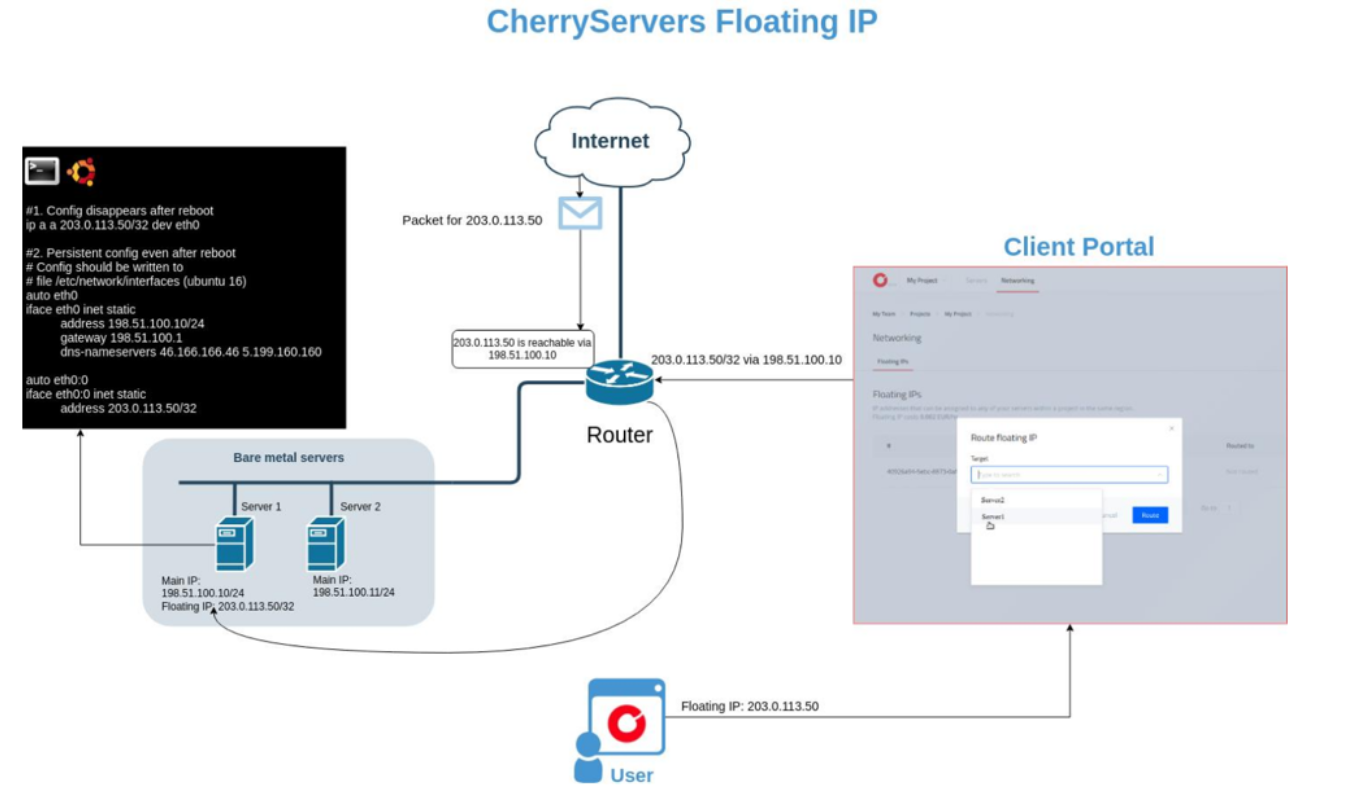
A floating IP address directly receives public traffic and routes it to a selected attached server. For example, you have a floating IP address, 203.0.113.50, and you have decided to attach it to a dedicated bare-metal server, which has management IP 198.51.100.10. You also have a second server with management IP 198.51.100.11, which does not have an attached floating IP address.
If you receive a packet to your floating IP address (203.0.113.50), the router will automatically pass it forward to the server to which your floating IP is attached (198.51.100.10). See the illustration below for a visual representation.
#How to Order Floating IP Addresses
You may order floating IP addresses in two ways. The first way is during server deployment, at which point the floating IP address will be automatically attached to the server. To do this:
-
Select the server you would like to deploy from the deployment menu.
-
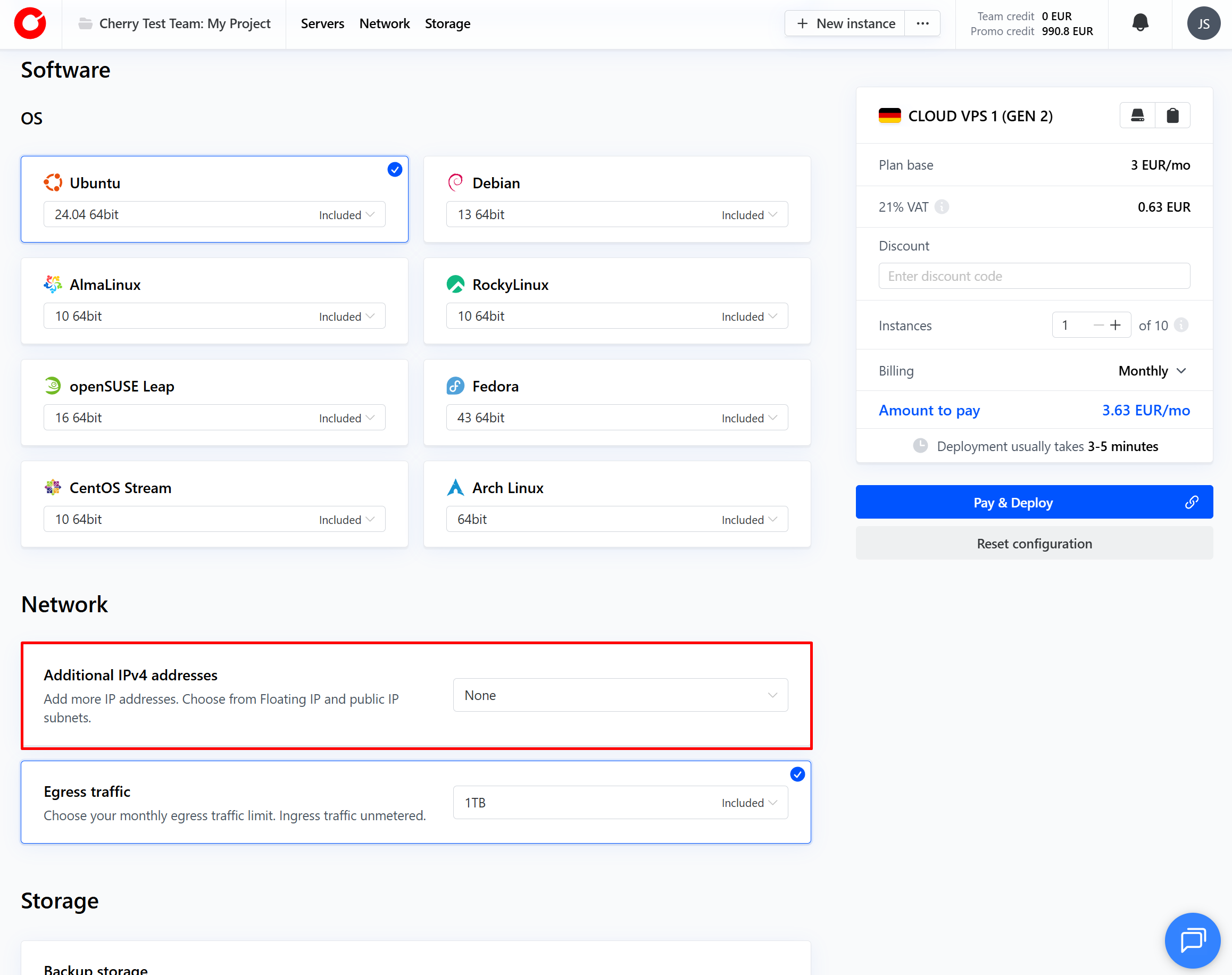
Once you have selected your server type, you will be automatically directed to the setup portion of the page. In the “Additional IPv4 Addresses” box, select the number of floating IP addresses you would like to deploy from the dropdown menu.

-
Your IP addresses will be immediately available upon server deployment. You may detach and reassign these at will.
Alternatively, you may obtain floating IP addresses independently unattached from any server. To do this:
-
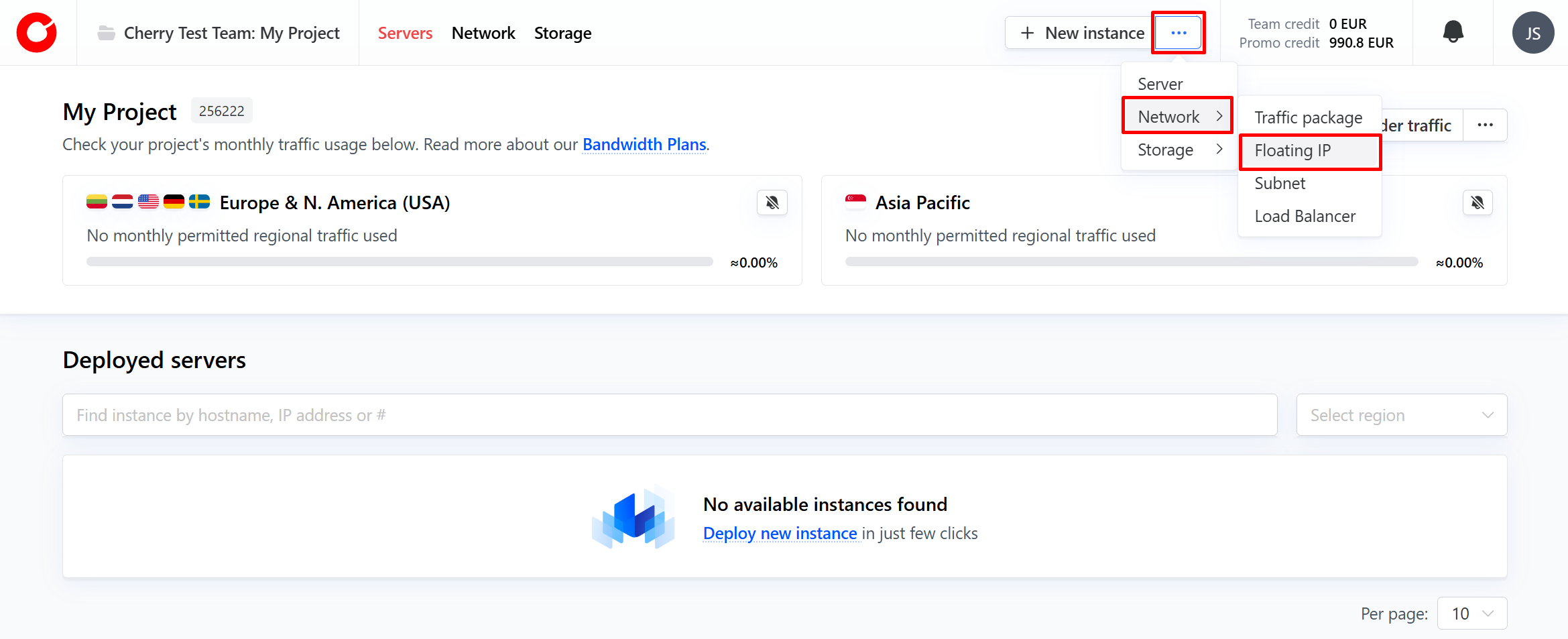
On the client portal home page, click the three dots next to the “New Instance” button in the top right-hand corner of the screen, select “Network” from the dropdown menu, and click “Floating IP”.

-
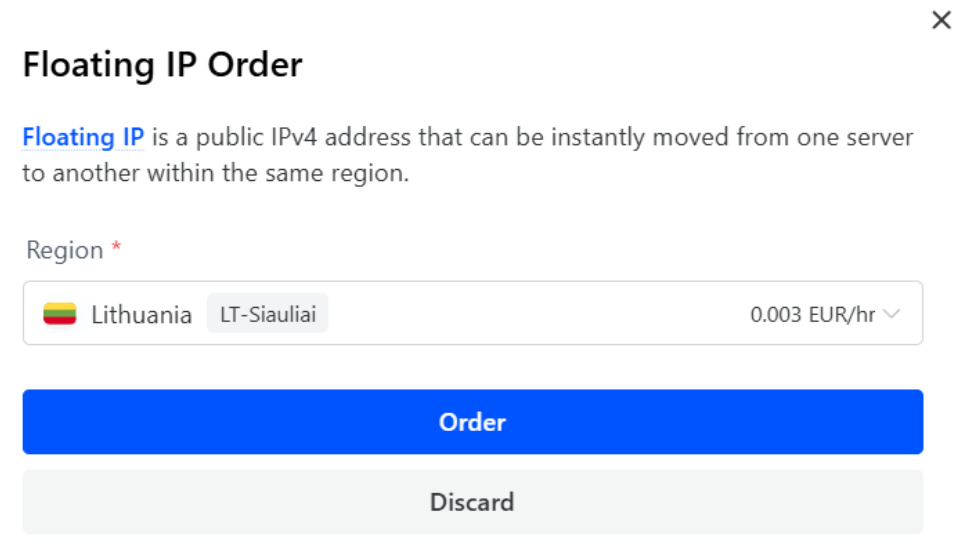
In the pop-up box, select the region you would like the floating IP address to operate in, and click “Order”.

You may view all currently active floating IP addresses in the “Network” section of the client portal, under the “Floating IP” tab. You may also order additional floating IP addresses here by clicking the “Order” button in the right-hand corner of the tab.

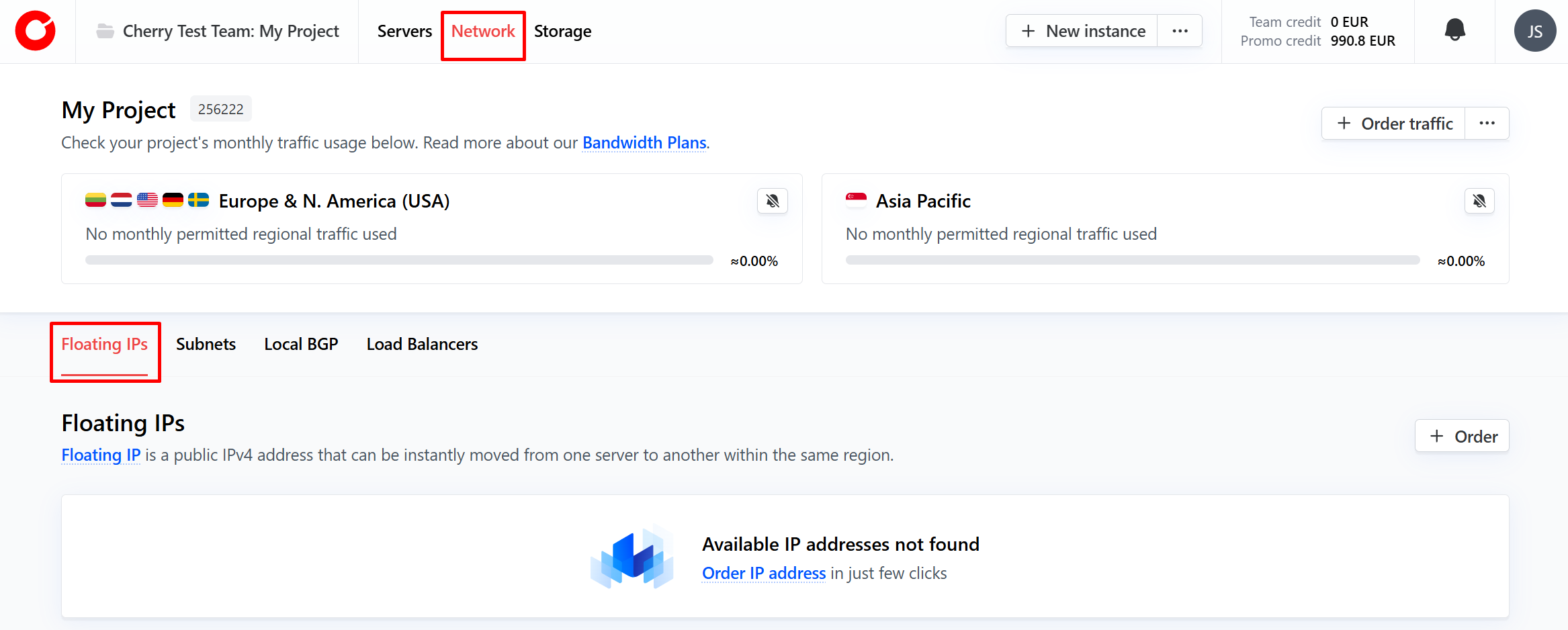
Information on how to manage and attach your floating IP addresses can be found below.
#How to Manage a Floating IP.
In the floating IP overview on the client portal, you will see basic information and statuses of each floating IP address you own.
- Target - the server the floating IP address is currently attached to and will route traffic upon receiving requests;
- Network;
- DNS;
- Tags - custom tags to help manage your floating IP address.
You may also carry about simple operations to configure your floating IP addresses by clicking the cog in the top right-hand corner of each floating IP address information box.
- Attach - attach your floating IP address to a server, indicating that it should route traffic there. (Can be performed instantly);
- Detach - detach your floating IP address from a server, so that it will no longer route traffic there. (Can be performed instantly);
- Edit - change characteristics of your Floating IP address;
- PTR record - used for reverse DNS lookups. This will be assigned by default;
- DNS record;
- Tags - a metadata label to help organize and manage your floating IP addresses;
- Terminate - Remove your floating IP address from circulation. This action can only be performed when the address is not attached to a server.
If you wish to attach a floating IP address to a Cherry Servers local BGP service, please visit our dedicated Local BGP page.