Out-of-Band Management Console
#What Is an Out-of-Bound Management (OOBM) Console?
Out-of-band management (OOBM) Console is a remote server management technology that plugs into keyboard, video and mouse ports (KVM), and transmits input/output through the Internet Protocol (IP). OOBM is available for all dedicated bare metal servers.
KVM over IP is a server management technology intended to support user inputs and outputs on a remote server via the internet, as if using a remote monitor accessed over the internet.
In technical terms, KVM switches over IP devices utilize a dedicated micro-controller and specialized video capture hardware to capture, compress and convert video, keyboard, and mouse input signals into packets, and send them over an Ethernet link to a remote console application that unpacks and reconstitutes the dynamic graphical image.
The KVM over IP subsystem is typically connected to a system's standby power plane to ensure availability throughout the BIOS boot process. These devices allow multiple computers to be controlled locally or globally with the use of an IP connection.
Servers at Cherry Servers come with a dedicated network port solely for IP KVM and it is not visible from the operating system.
#How to Use Cherry Servers OOBM Console
An individual server’s OOBM console at Cherry Servers is accessed through the client portal. Depending on your server’s motherboard configuration, you may be able to use HTML5 via web browser to access the OOBM console, while other cases will require JAVA. As such, there may be a few additional steps before you are able to fully access the control window of a server:
The instructions to access the OOBM console below are for the extended JAVA configuration version.
-
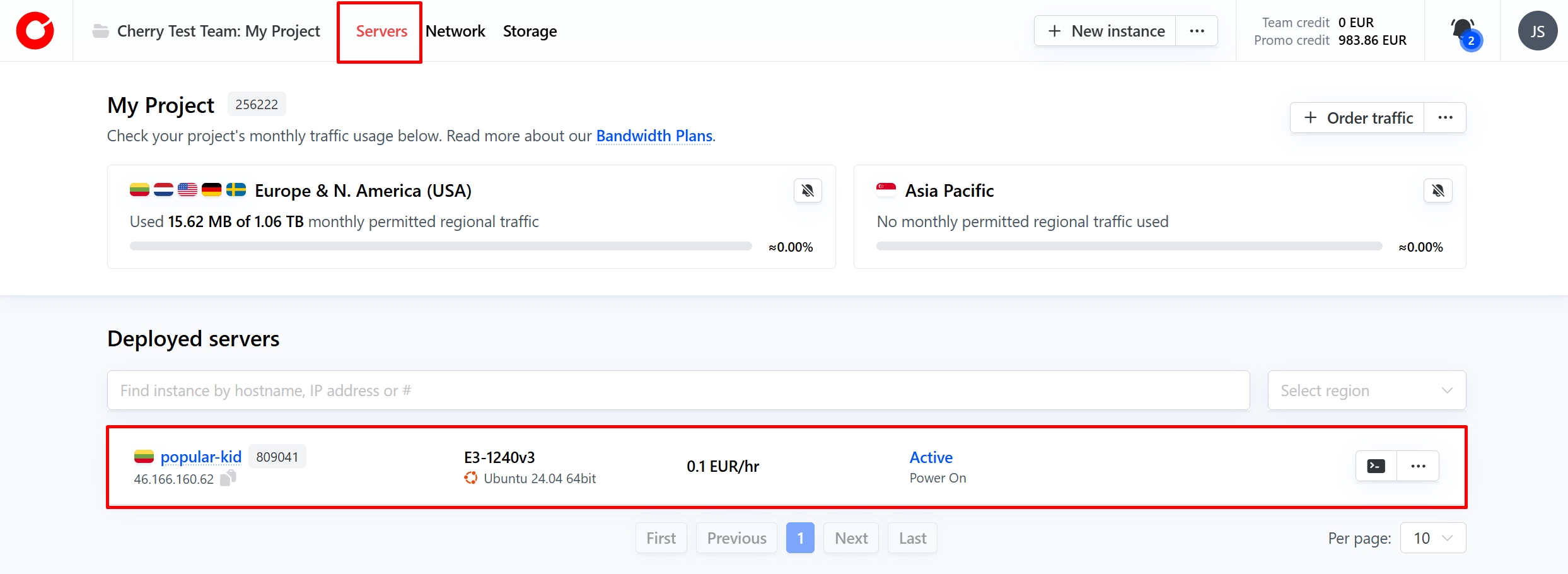
From the client portal home page, click the “Servers” button at the top of the page, and select which server you would like to access from the Deployed Servers.

-
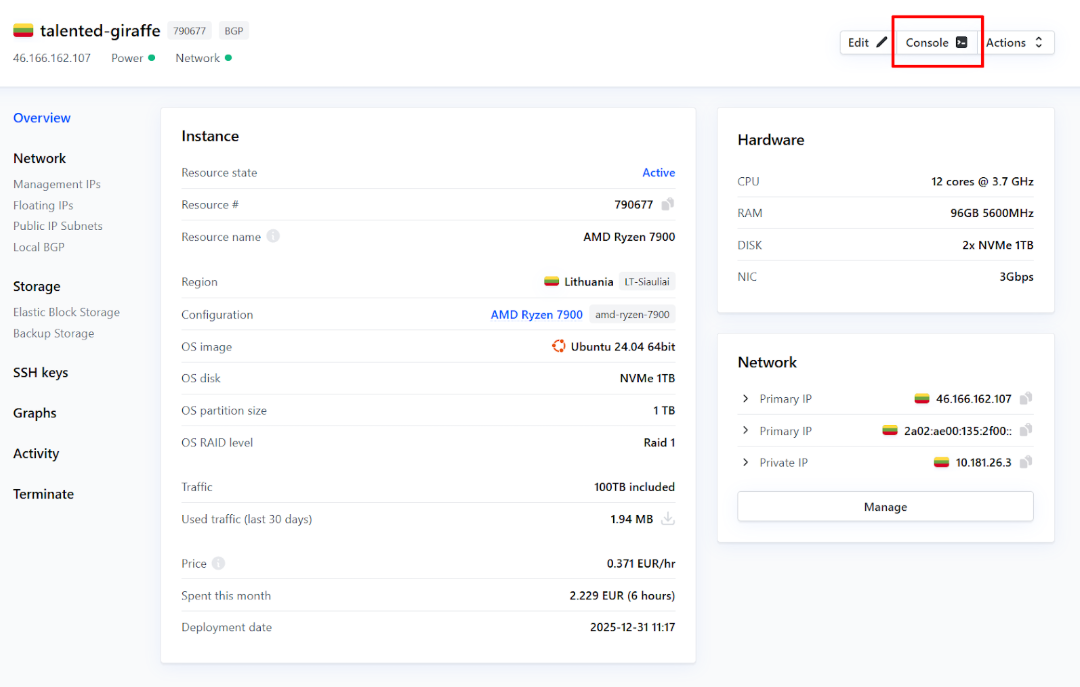
In the top right-hand corner of your server overview, click the “Console” button.

-
A pop-up window will open for the OOBM, and you will be prompted to input your user login credentials.
-
Once you have logged in, you will either be greeted with a small window preview of your server which upon clicked will launch JAVA configuration file download, or;
-
Navigate to the “Remote Control” section and press the config download button there.
3.2.a. Please be aware that, due to the variety of server motherboards, there might be more than one type of IP KVM used across different servers, and navigation may differ.
-
-
Once you have JAVA installed on your system, you may launch it, and a window to your server will open.
- JAVA may present you with the “Blocked” status when attempting to launch the console. If this happens, you may need to add the “IP KVM” IP address to the JAVA whitelist.
-
You may now perform keyboard and mouse inputs to manage your server.
Once the IP KVM application has been launched you will be able to mount ISO files by navigating through the top menu of the console.
#Security
A dedicated server’s IP KVM at Cherry Servers is totally inaccessible through the internet until the client launches the console button from the client portal.
Once launched, remote access for the server’s IP KVM will be available for a maximum of 24 hours after that initial action for that session. In this way, your servers are kept secure from all forms of brute force attack on IP KVM management access during periods when no access to the IP KVM has been requested.