#What Is Local BGP?
Cherry Servers Local BGP service is a way to automatically manage and control your local network IP routing for servers located in a single region through the Border Gateway Protocol (BGP).
BGP can be enabled for projects with two or more servers to provide high availability and stability. If your main server becomes unreachable for any reason, the floating IP will be automatically redirected to another server that is currently available, ensuring stability and smooth operations while your main server is down.
Local BGP is available to use for servers in all regions, and can be enabled on all dedicated servers, Cloud VDS, Cloud VPS and Storage VPS servers.
#Recommendations
If you are using, or intend to use our local BGP service, we recommend that you obtain Floating IP and Public Subnet IP addresses as separate orders from your servers and configure them as part of your local BGP service. This is because IP addresses ordered as part of a server are automatically assigned and may interfere with local BGP functionality.
Similarly, we further advise that you do not manually assign or configure Floating IP and Public Subnet IP addresses directly to your servers as you would typically do. When local BGP is enabled, these IP addresses are automatically pointed to Cherry Servers’ BGP reflectors, and therefore any manual assignments you perform would override this routing, preventing local BGP from working as intended.
When Local BGP is enabled your Floating IP and Public Subnet IP addresses are configured on the default network interface that is later scanned by the BIRD daemon. If you manually configure IP addresses on a different network interface BIRD daemon will not be able to detect them as per our recommended configuration.
#How to Order Local BGP
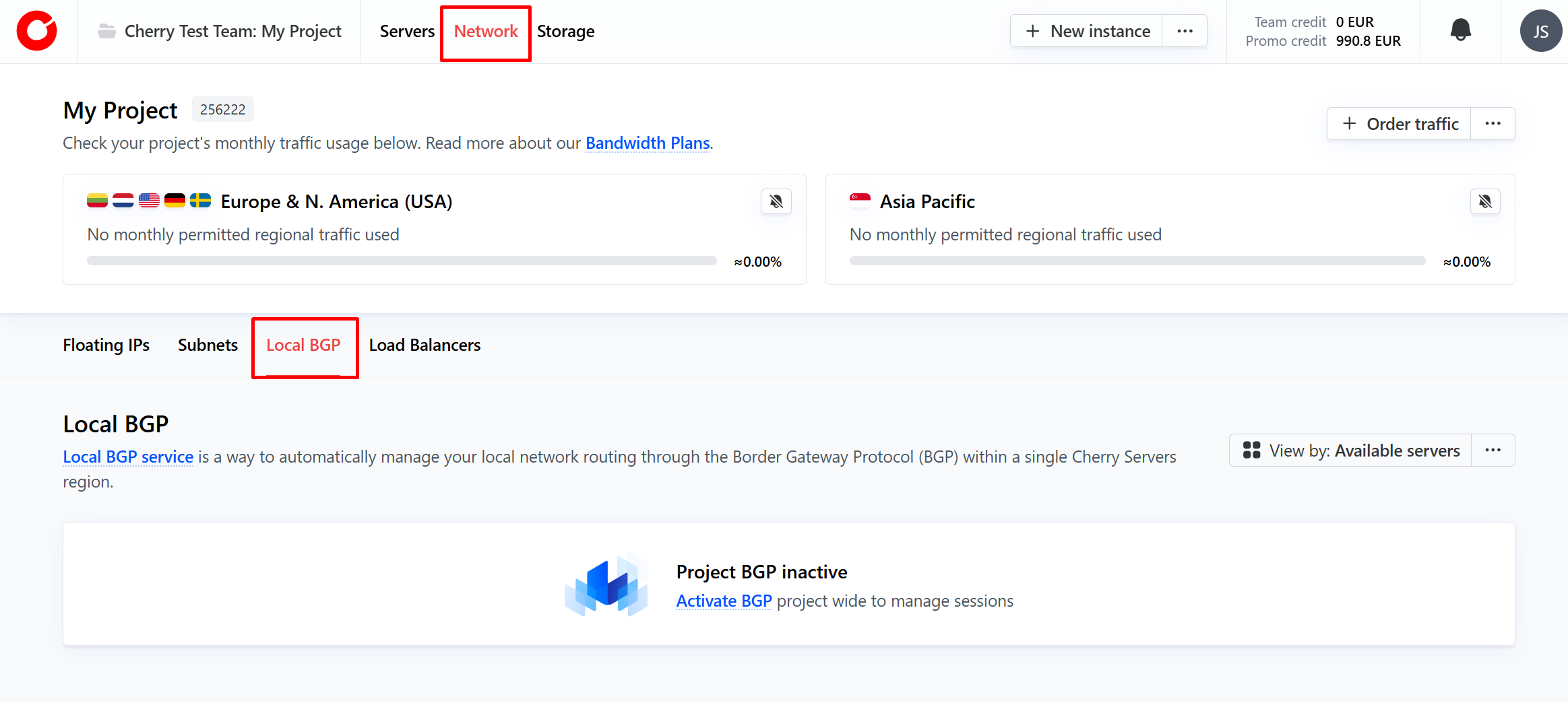
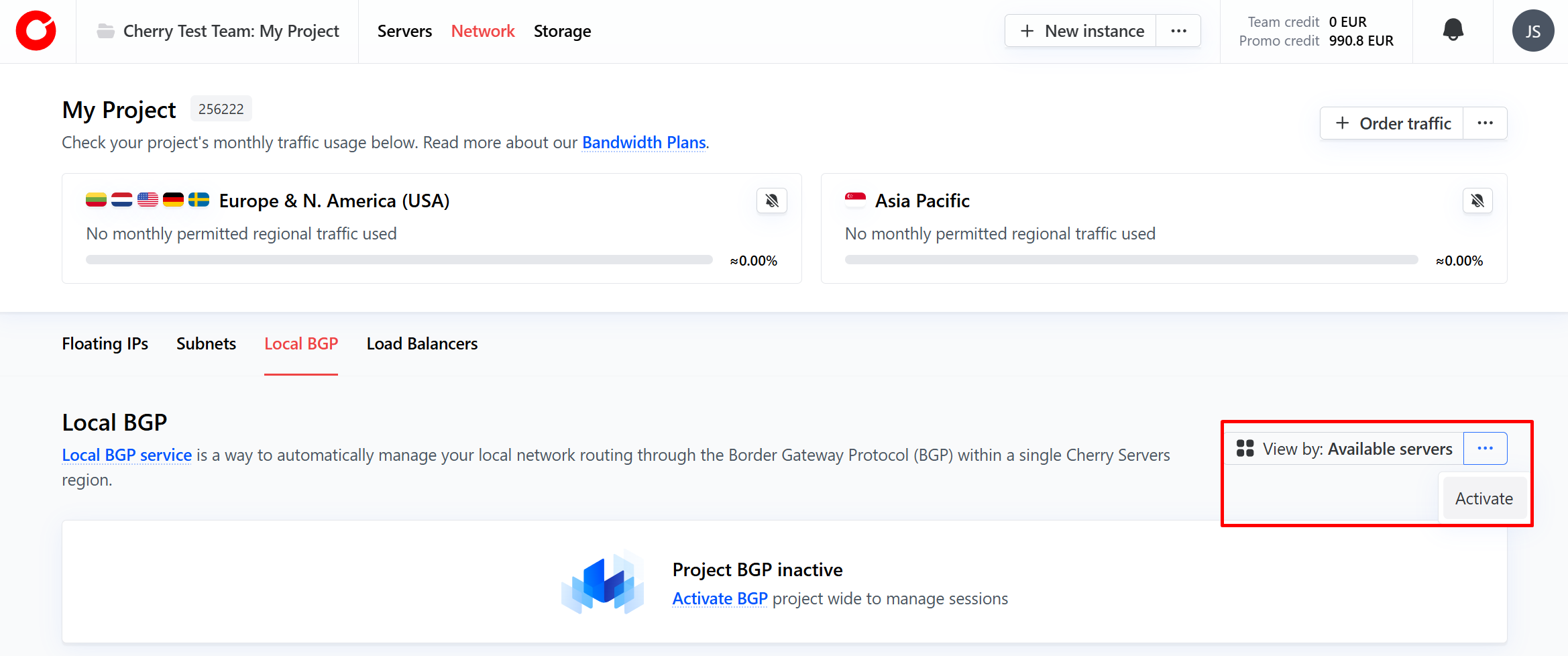
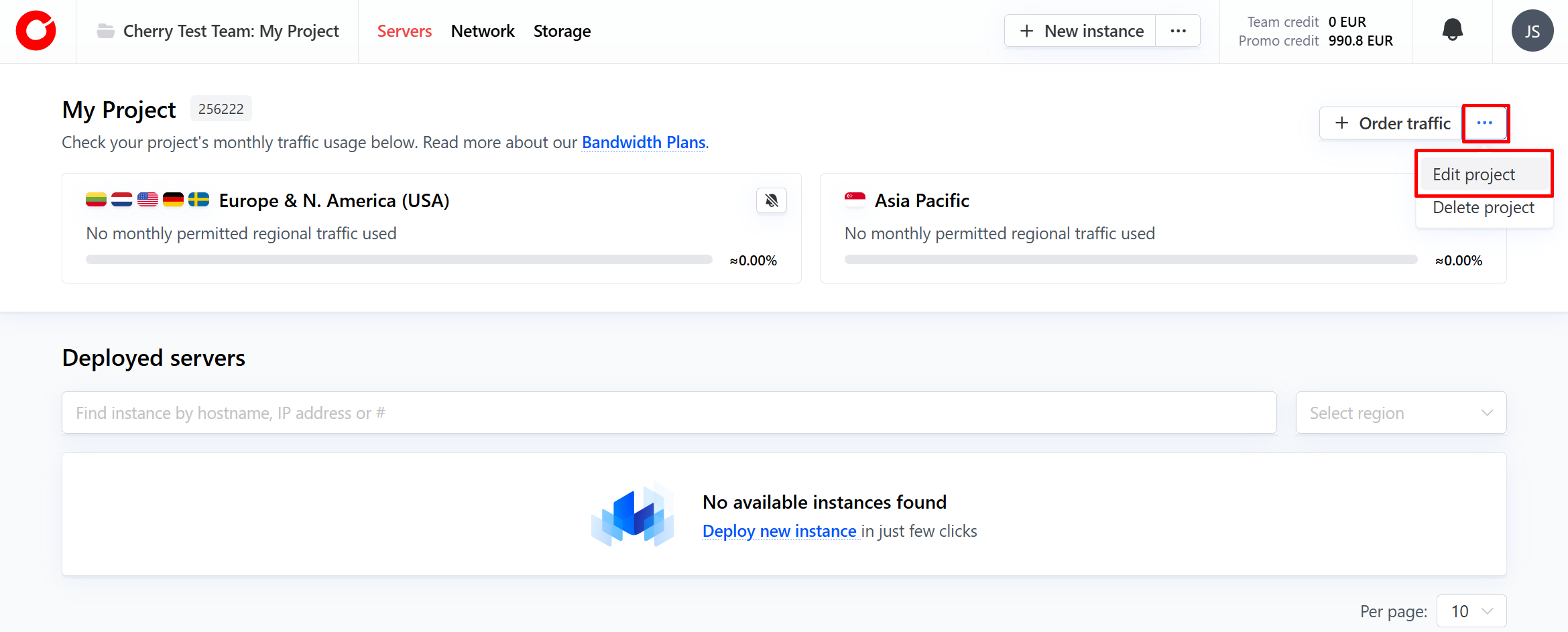
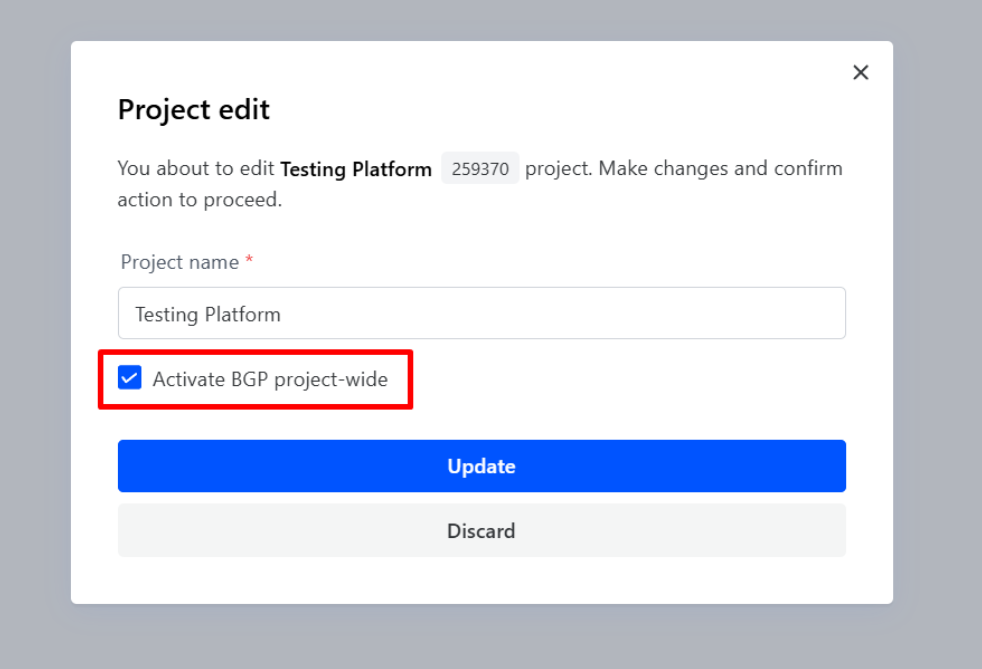
Local BGP is activated at a project level and provides service to all servers in the same region once configured. The service can be enabled for both new and existing projects on the client portal in one of two ways:
-
On the client portal home page, navigate to “Network” at the top of the page and select the “Local BGP” tab.

On the right side of the tab, click the three dots next to “Available Servers” and press “Activate”

-
On the client portal project home page, click the three dots next to the “Order Traffic” button and select “Edit Project”
In the pop up window that appears, tick the “Activate BGP project-wide” box.

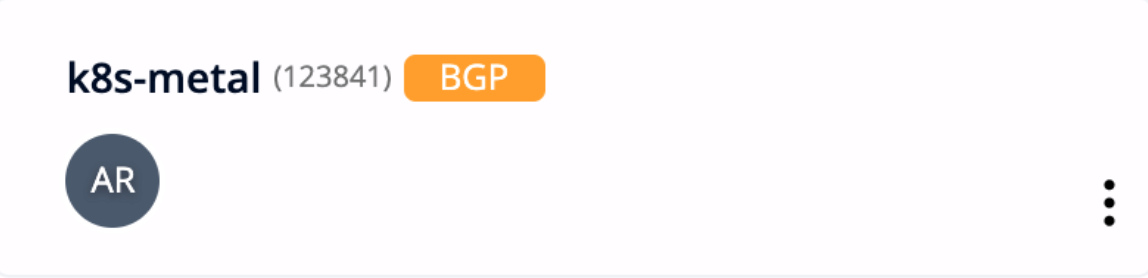
A project with local BGP enabled will be marked with an orange BGP sticker, as shown below.

#How to Configure Local BGP
To configure your local BGP to your servers, begin by navigating to the “Servers” section of the client portal and choose the server you would like to configure.
-
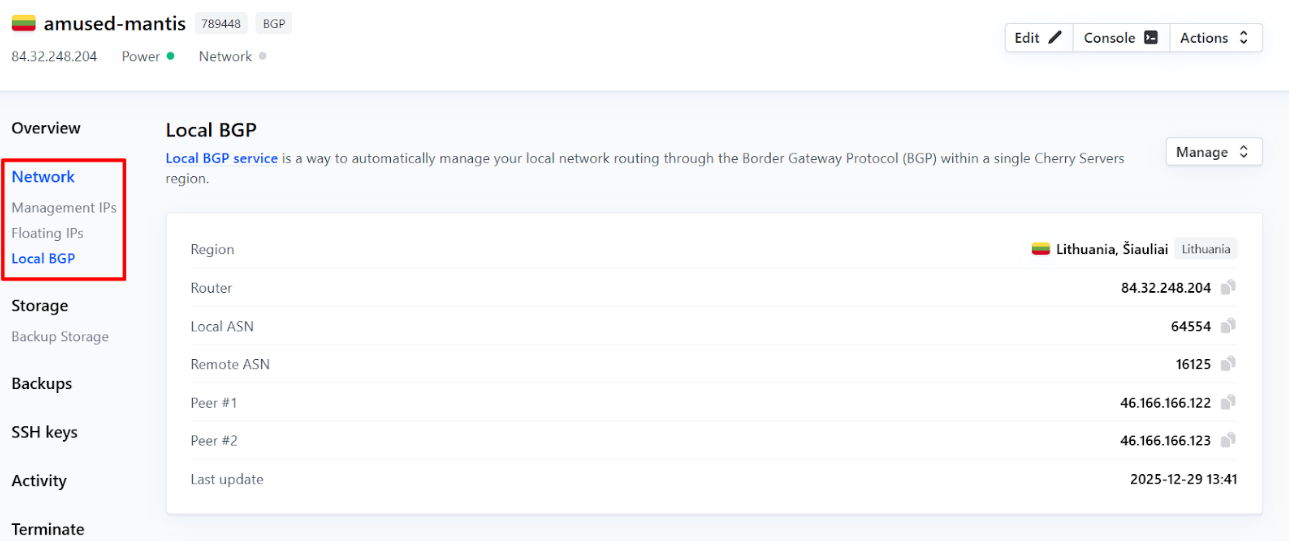
From the server overview, select the “Network” option from the list on the left-hand side, and “Local BGP”.

-
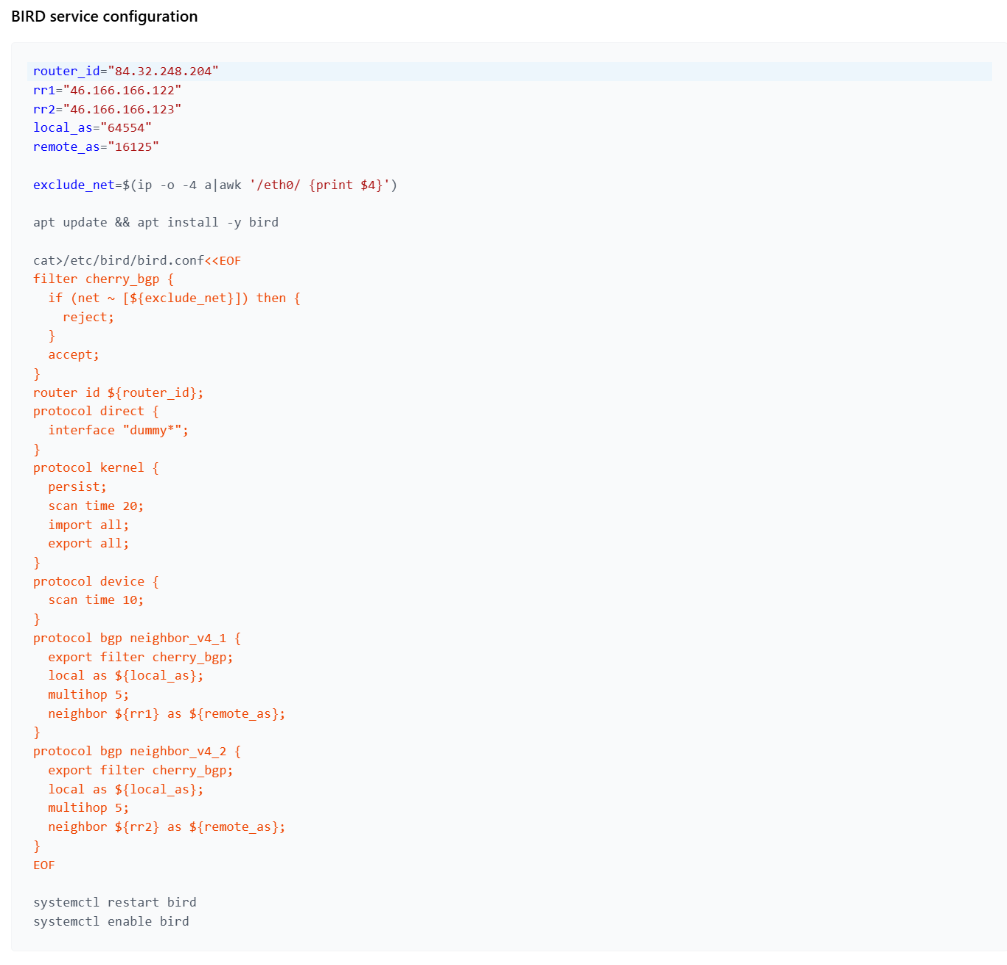
On this page, you will see three tables. For setup, scroll down to the second and third tables. In the second table you will find “Bird service configuration”.
These instructions are specific to your selected operating system. Copy these commands and execute them in your selected server to install and configure BIRD service with the necessary variables.

-
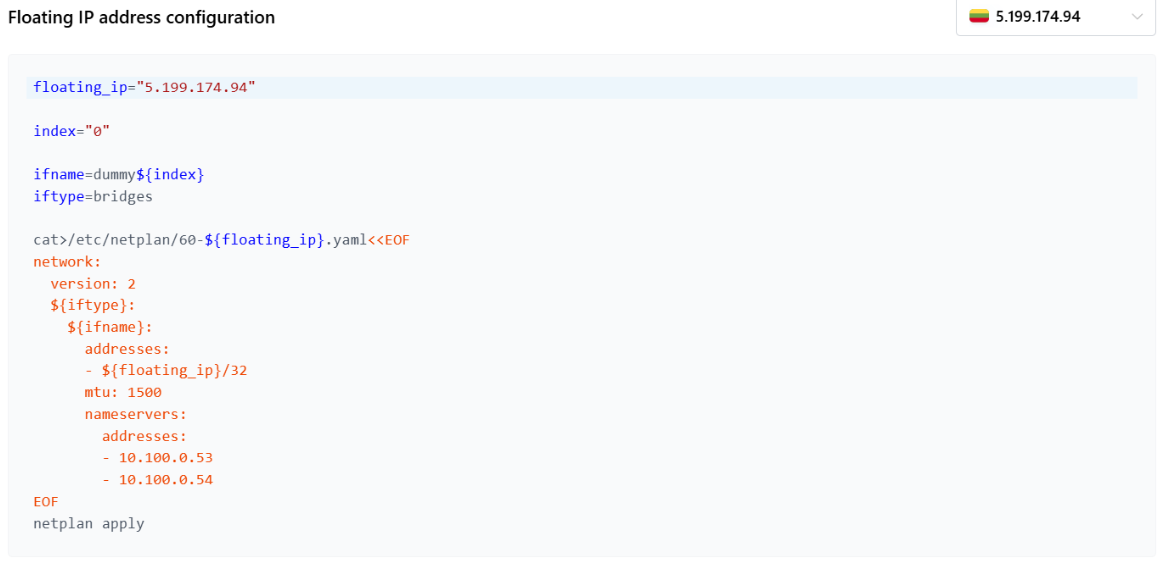
The third table contains “Floating IP address configuration” commands. These instructions are specific to your selected operating system, and you may select which Floating IP to configure from the dropdown menu. Copy these commands and execute them in your selected server to install and configure BIRD service with the necessary variables.
-
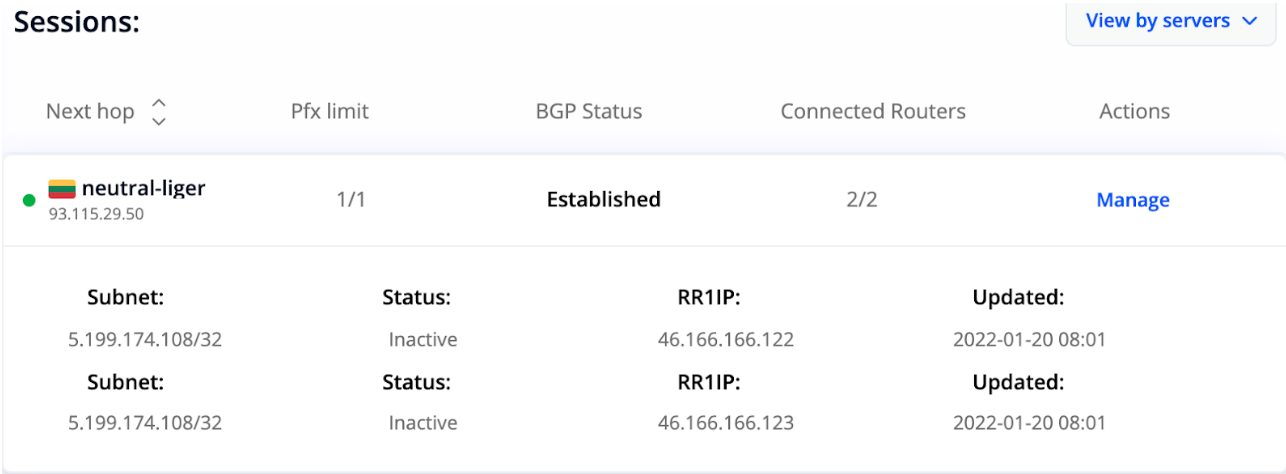
After successfully configuring Floating IP address for your selected server, its Pfx limit value should change from “0/1” to “1/1”. This means that one Floating IP address has been successfully configured.
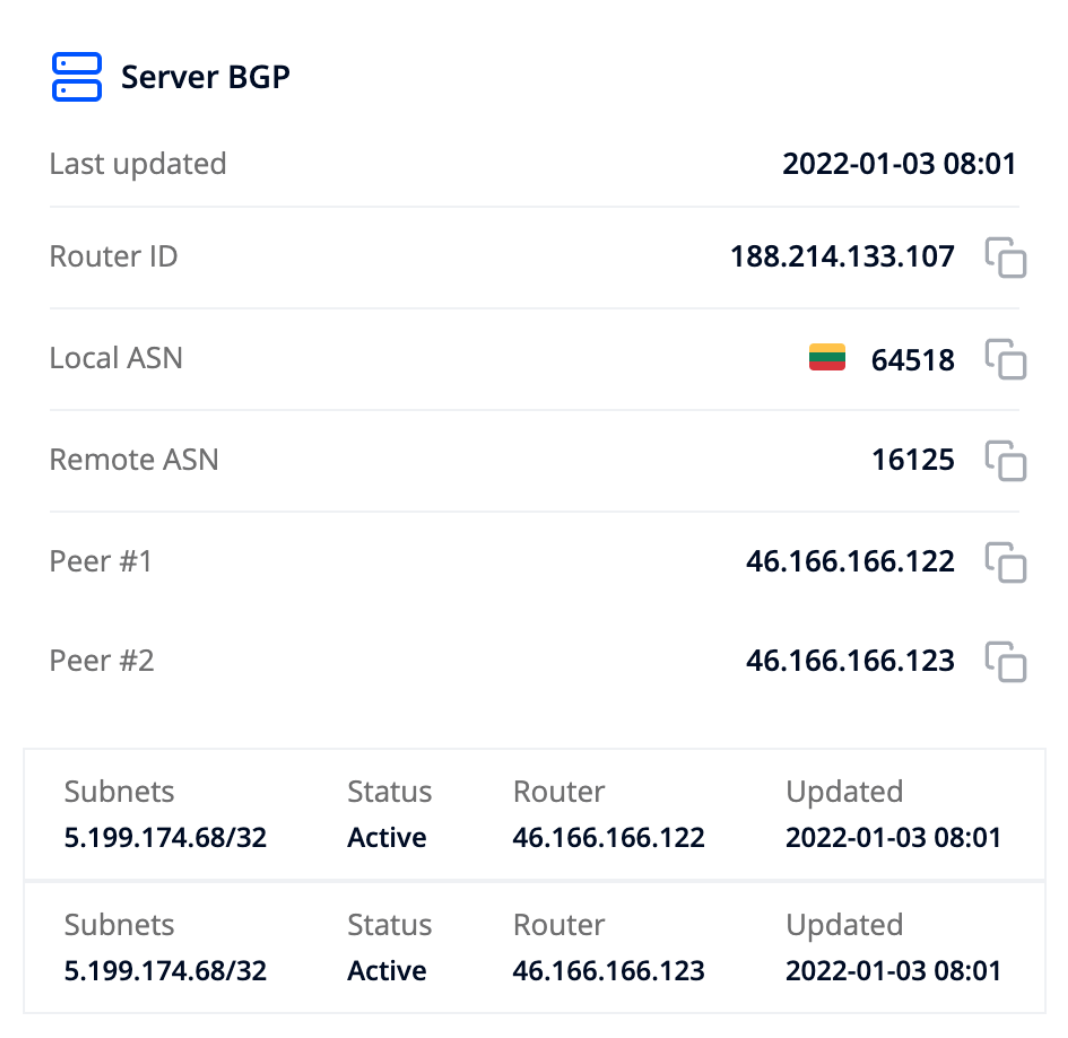
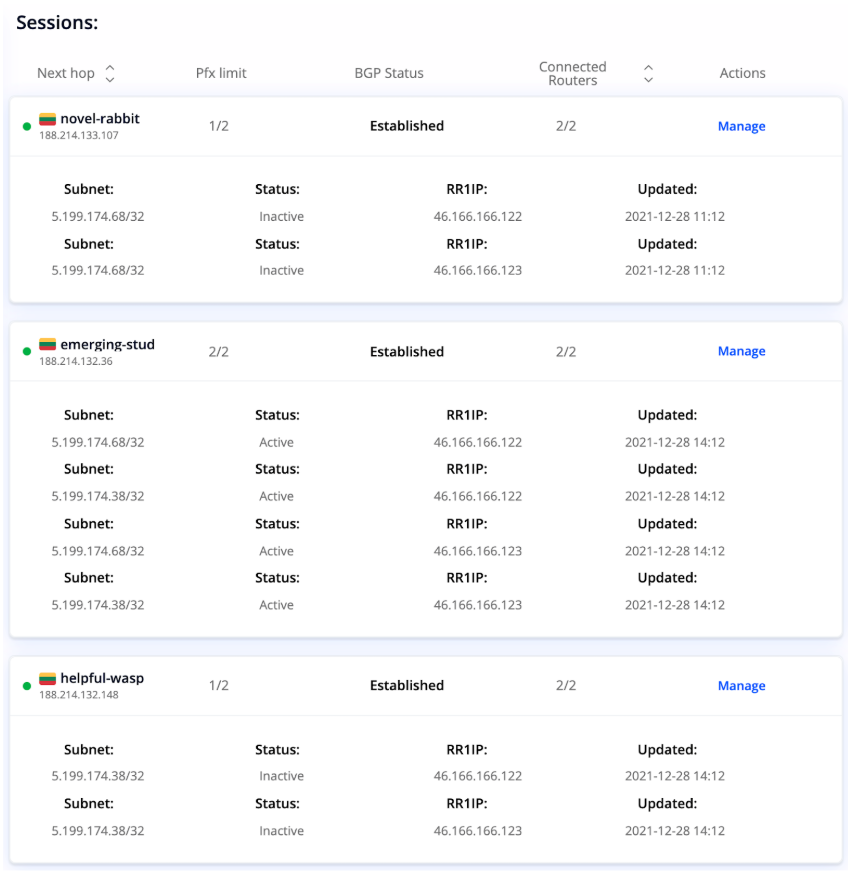
At the top of the page, you can find general information about BGP variables and session data. A well-established BGP configuration is shown in the image below:

Once Local BGP has been configured, the “BGP status” will be listed as “Established” and you will be able to expand the session box in the Local BGP menu to see detailed information about the IP addresses and status for each route reflector.
#Windows
Cherry Servers does not provide configuration instructions for Windows operating systems. Clients may configure local BGP for Windows OS servers manually, or contact our dedicated technical support team for assistance.
#Using Your Own Public ASN and Prefixes
You may use your own public ASN and prefixes to be used with Local BGP if you wish. Please read the following article for instructions on how to bring your own ASN and IP prefix to Cherry Servers. How to bring your own ASN with IP prefix to Cherry Servers.
#How to Manage Your Local BGP Service
-
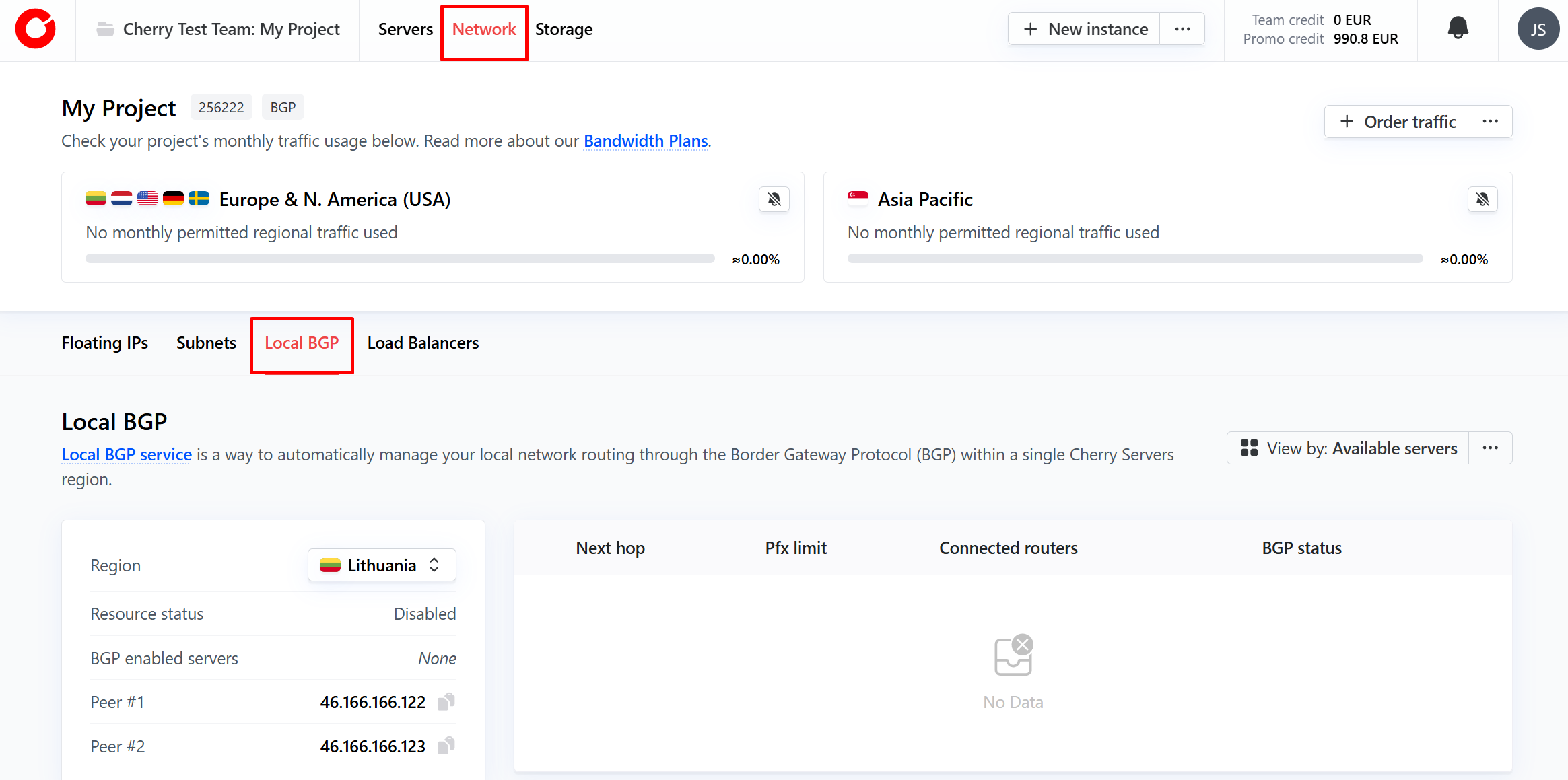
You may view your local BGP service overview by navigating to “Network” from the client portal homepage, and clicking the “Local BGP” tab.

A full breakdown will be visible in the local BGP service overview, detailing core information about each server, floating IP, and public IP subnet configuration.

-
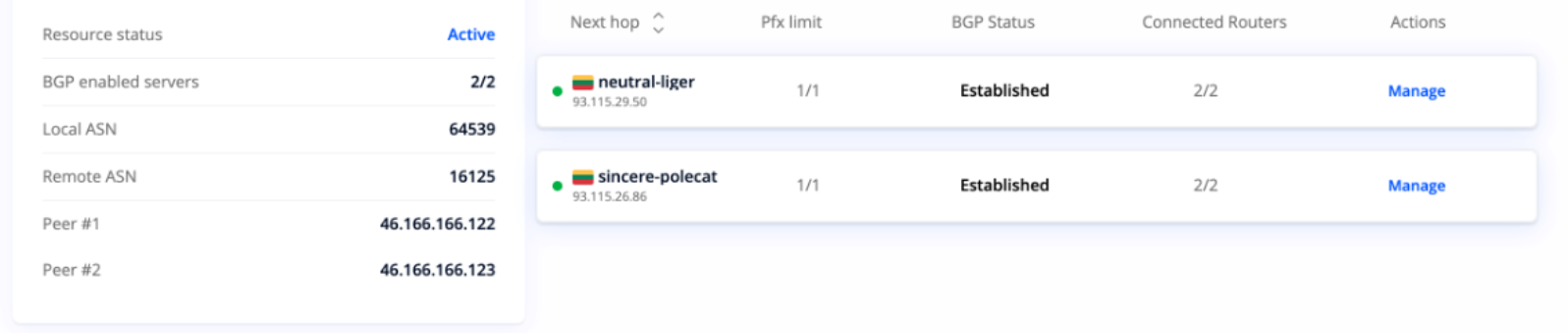
To view individual server configurations, simply click the server you would like to view, and an expanded view will open, showing the server’s local BGP status, as well as which IP addresses and routes are currently active.

Below, you can find a full explanation of the terms found in the tables.
Glossary
- Next hop - the server hostname and its IP address.
- Pfx limit - the number of announced IP addresses that the routers expect. For instance, if you have two Floating IP addresses in the project, you will see 2/2 are expected.
- BGP status - displays the status of your BGP service session
- Idle - the session has been initiated
- Connect - the session has started
- Active - the session is active
- Established - the session established with data being transferred
- Degraded - the session is only established with one out of two Cherry Servers BGP routers
The tables also show the local ASN, remote ASN and peer address variables listed for BIRD service configuration.