Team Membership Roles
#What Are the Team Roles?
Through the Cherry Servers client portal, clients can manage their teams and team members to invite new people to the team, and assign permissions. Team roles and their respective permissions can be assigned across any projects linked to that team.
The roles and their permission are explained below.
Owner
The Owner is assigned by default as the person who created the team. They have all permissions, and may make any changes needed. The team Owner can:
- Create new projects,
- Invite new team members,
- Manage team member roles,
- Order new services,
- Edit billing information,
- Pay invoices,
- Top-up the team’s credit balance.
Admin
A team Admin can manage the team’s projects and team members. Their permissions are:
- Create new projects,
- Invite new team members,
- Manage team member roles,
- Order new services.
Collaborating
Collaborators are team members that have no administration rights, and are intended to have access to the team’s project services for collaborative work. Collaborators can:
- Order new services.
Billing
Users with the Billing role can manage the team’s payment options, but have no administrative privileges. Their permissions are:
- Edit billing information,
- Pay invoices,
- Top-up the team’s credit balance.
Users can be assigned multiple roles, and permissions can be changed or revoked at any time.
#How to Manage Your Team
Team Owners and Admins can manage their teams at any time from the client portal. To get started, on the client portal home page, click your profile icon in the top right-hand corner and select the team you would like to manage.
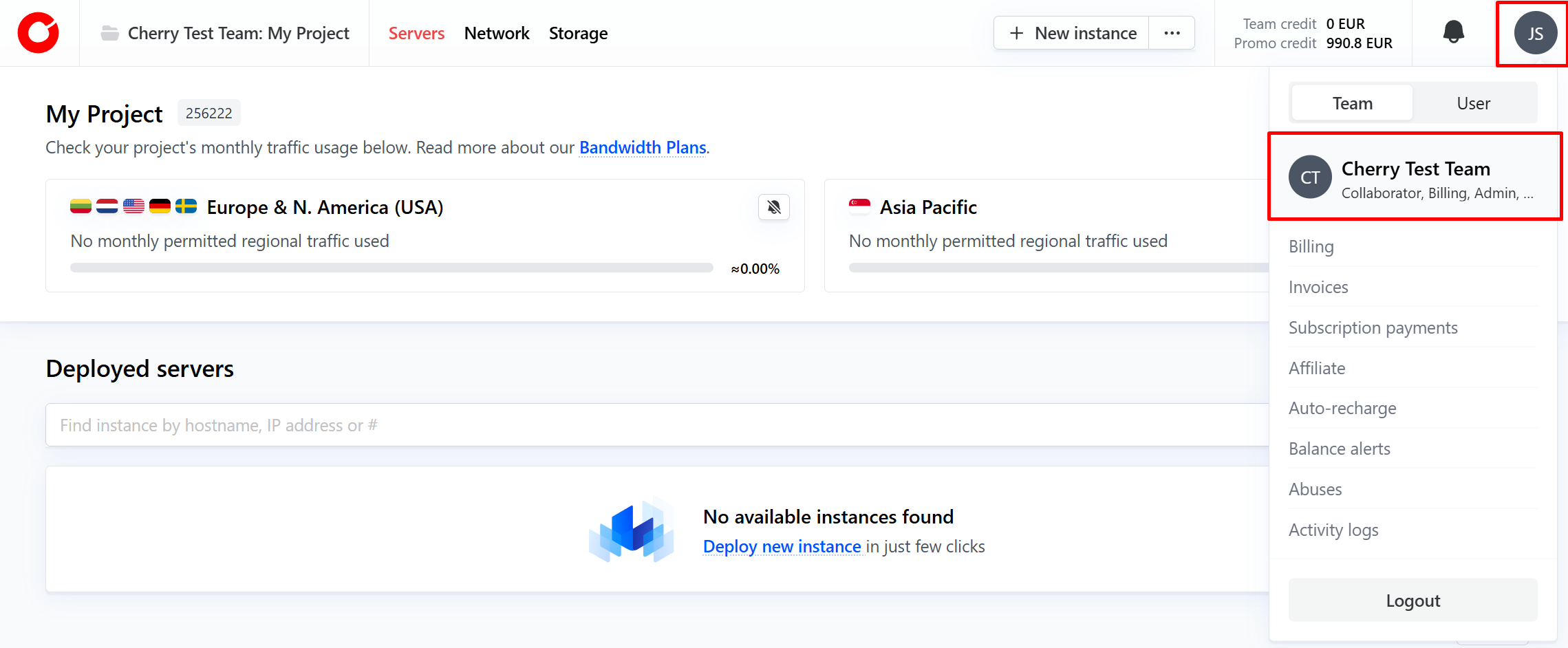
From here, you can invite new team members and manage their permissions.
#Invite New Members
-
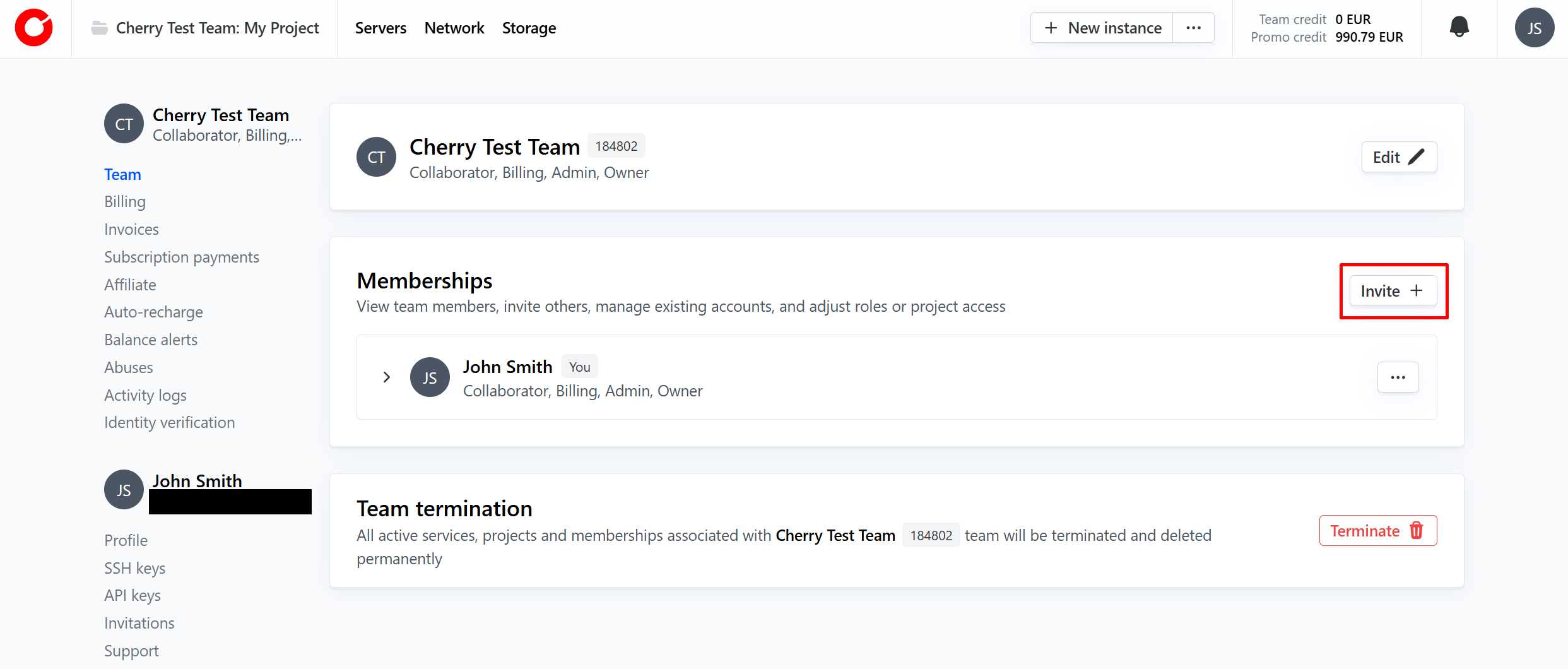
On the team tab, click the “Invite +” button at the top of the “Memberships” box.

-
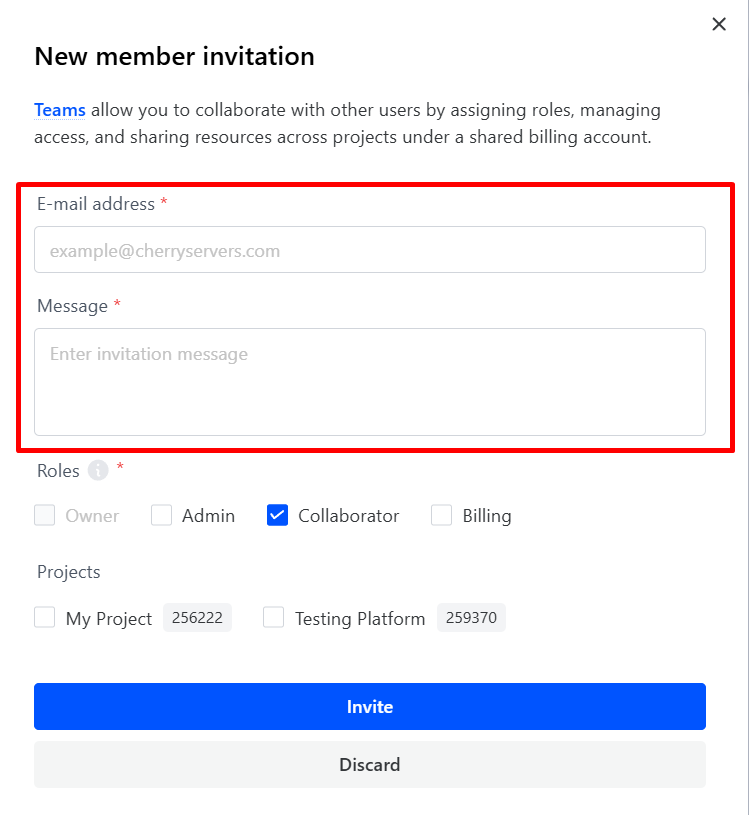
In the pop-up window, write the email address of the person you would like to invite, and include a personalized invitation message if you wish.

-
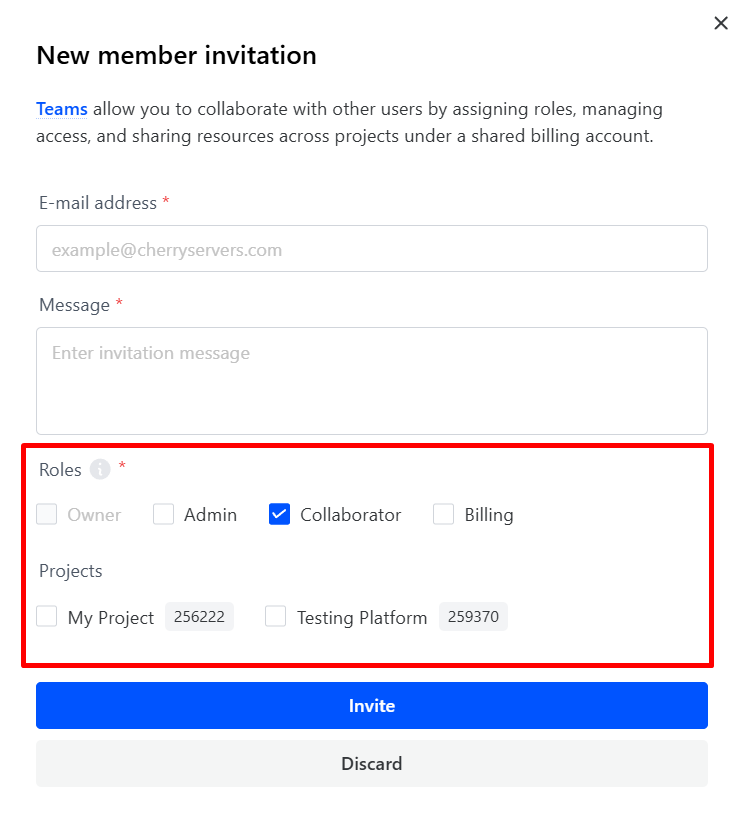
Select the initial team roles you would like to grant, and the projects you would like the new team member to work on and press “Invite”.

#Manage Permissions
-
All active team members are listed under the “Membership” box. To change a user’s role within your team, click the three dots next to their name and select “Edit”.

-
Select, or unselect, the roles you would like to alter, and the projects you would like the team member to be able to work on, and press “Update”.


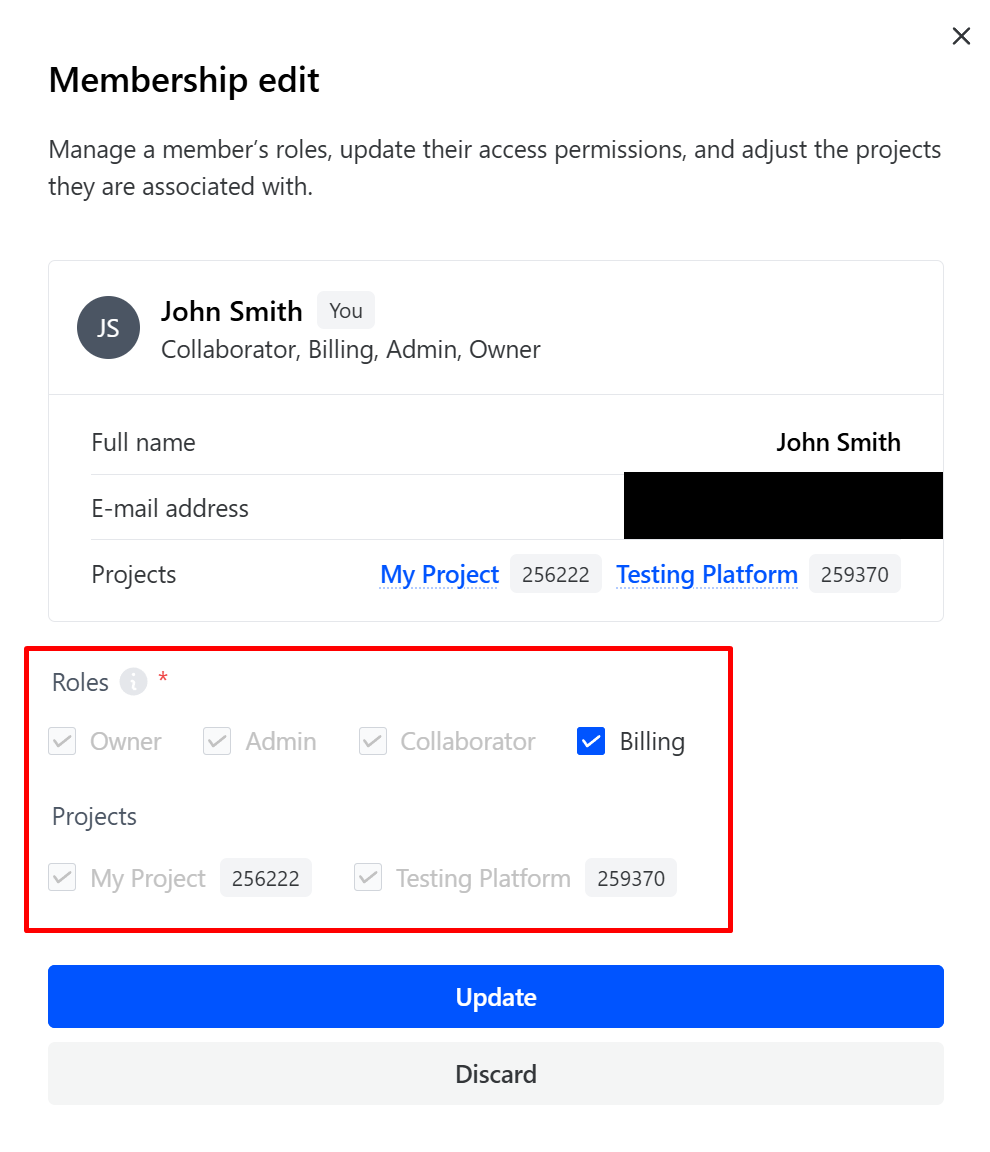
Changes to user permissions are reflected immediately upon updating.