Backup Storage
#What Is Backup Storage?
Cherry Servers backup storage is a decoupled file storage space that is independent from your server, used for data recovery in emergency situations. Backup storage operates via a network-attached file storage space that clients can associate with their selected servers and access via the Cherry Servers network.
#What Backup Storage Volumes Plans Are Available?
Backup storage is available for all bare metal dedicated servers, virtual dedicated servers (VDS) and Cloud virtual private server (VPS) instances. Backup storage can be linked to servers located in any region, however the storage spaces themselves are provisioned in the following data center locations:
- Lithuania - Siauliai,
- Sweden - Stockholm,
- Germany - Frankfurt.
All dedicated servers may activate 100GB of backup storage free of charge, while all VDS instances can activate a free 50GB of backup storage. All plans, including additional backup storage for dedicated and VDS servers, can be acquired at the following prices:
- 50GB - €2.99 per month,
- 100GB - €3.99 per month,
- 500GB - €9.99 per month,
- 1 TB - €19.99 per month,
- 2 TB - €29.99 per month.
All paid backup storage plans will be billed according to the billing cycle of the connected server.
#How to Order
In order to deploy backup storage, you must already have an active Cherry Servers server.
-
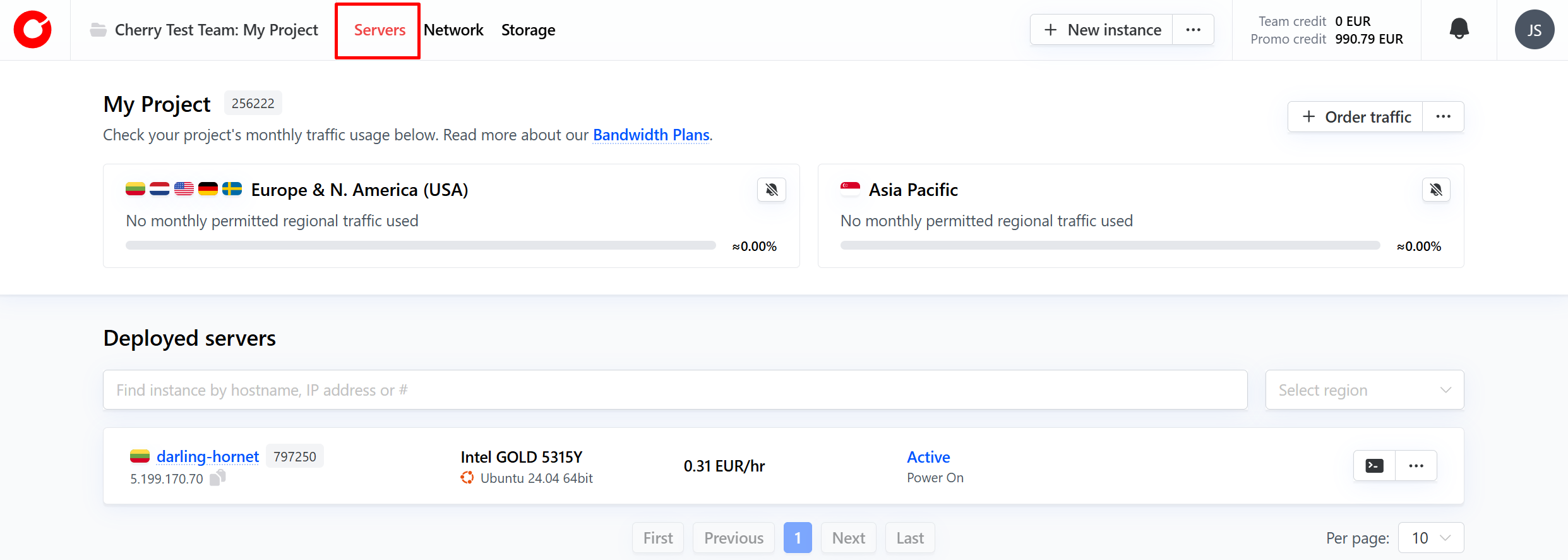
To activate a backup storage space from the client portal, navigate to the server tab at the top of the page.

-
Select the server to which you would like to attach backup storage space.
-
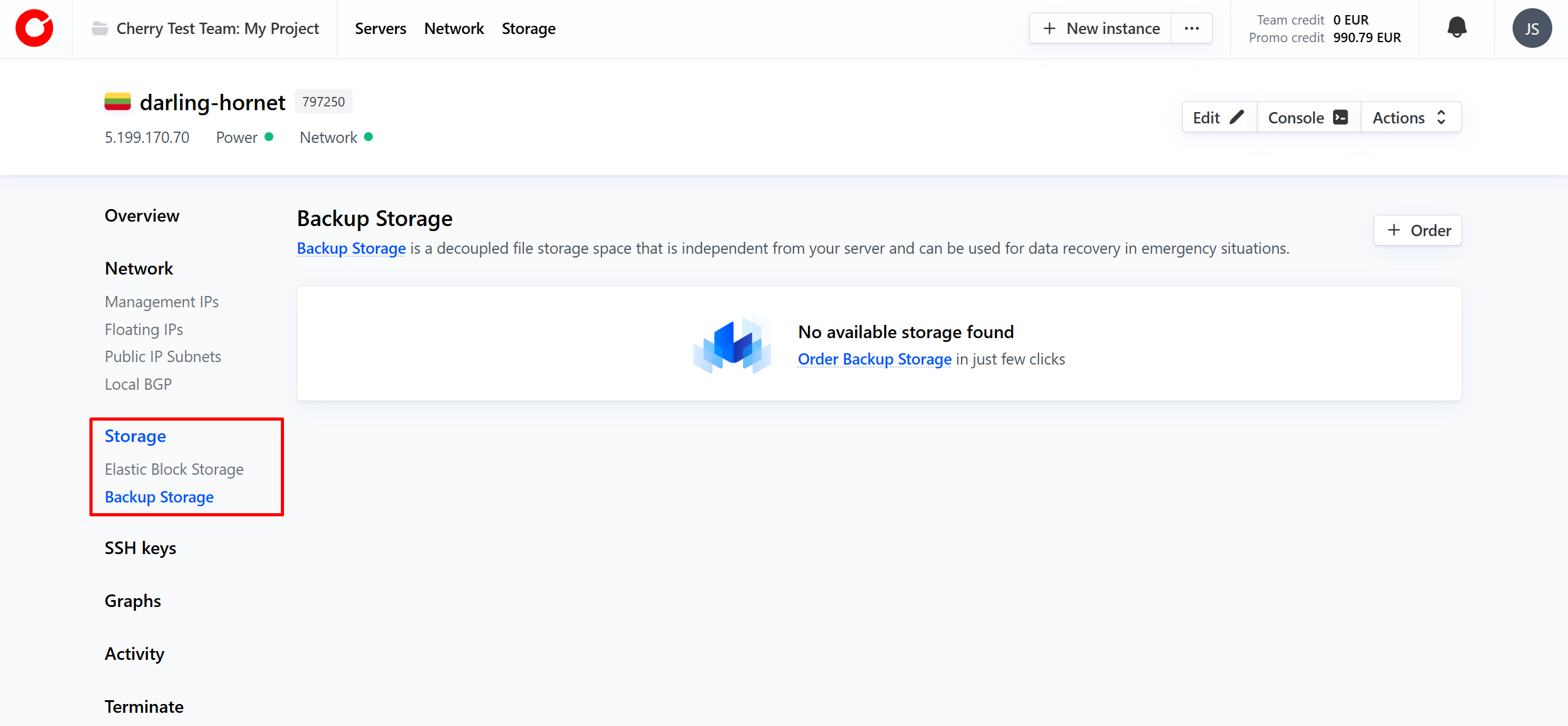
On the server overview, open the “Storage” tab from the list on the left side and select “Backup Storage”.
-
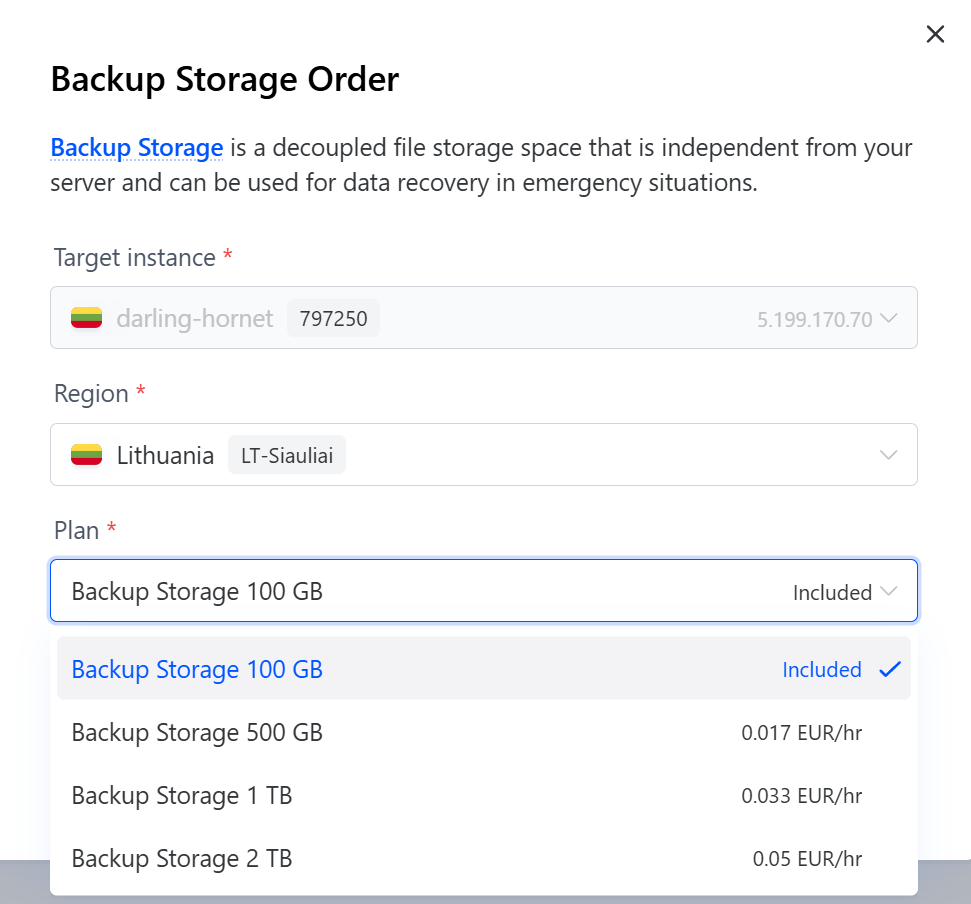
Click "Activate Backup Storage and select which storage plan best suits your needs.

-
Your backup storage space will be initialized within 3 - 5 minutes.
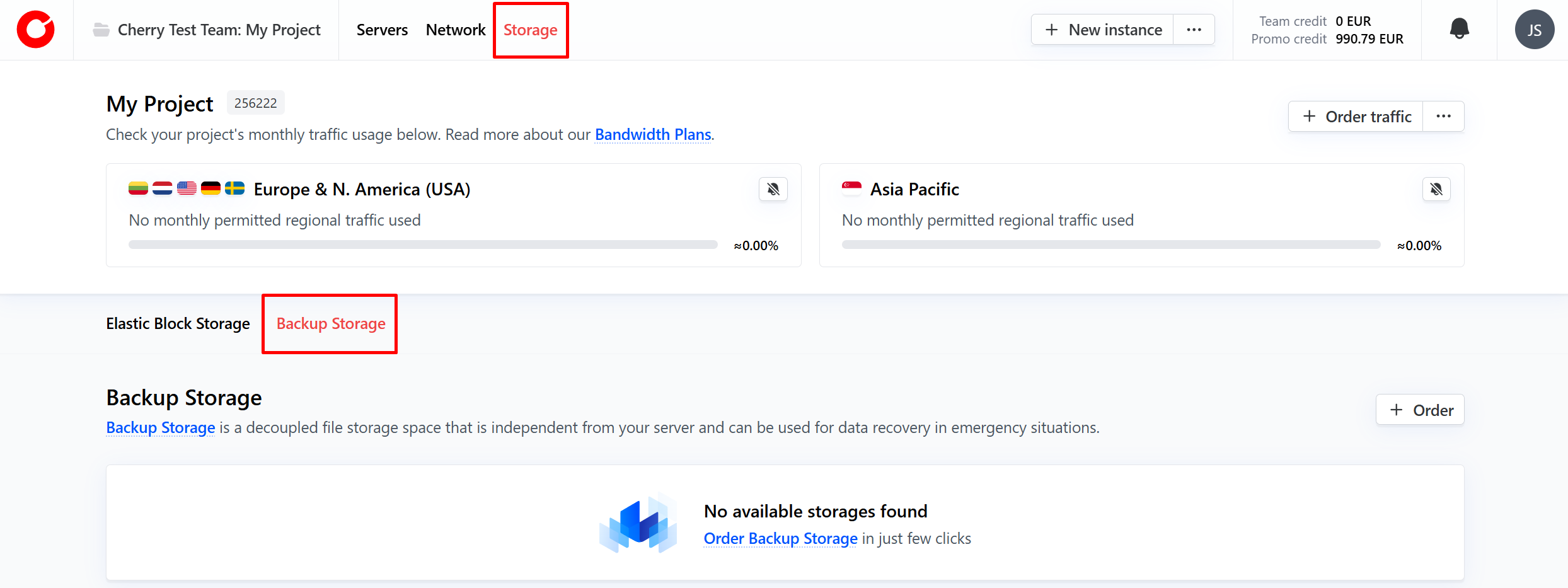
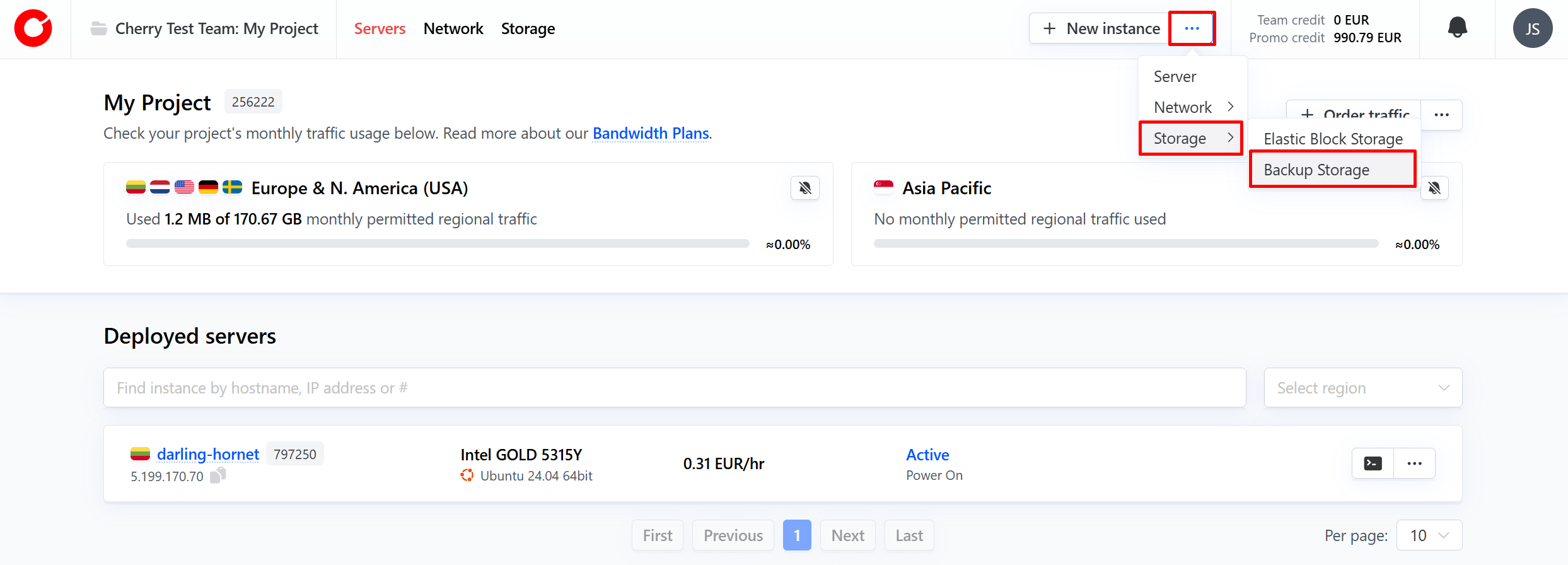
You may also order backup storage from the client portal home page by selecting “Storages” from the tabs at the top, and then selecting “backup storage”;

Or by clicking the three dots next to “New Instance” in the top right hand corner, selecting “Storage” from the drop down menu, and “Backup Storage”.
#Backup Storage Dashboard
Once your backup storage space has been linked to your Cherry Servers instance, you can manage and view detailed information in the “Backup Storage” tab of your server overview.
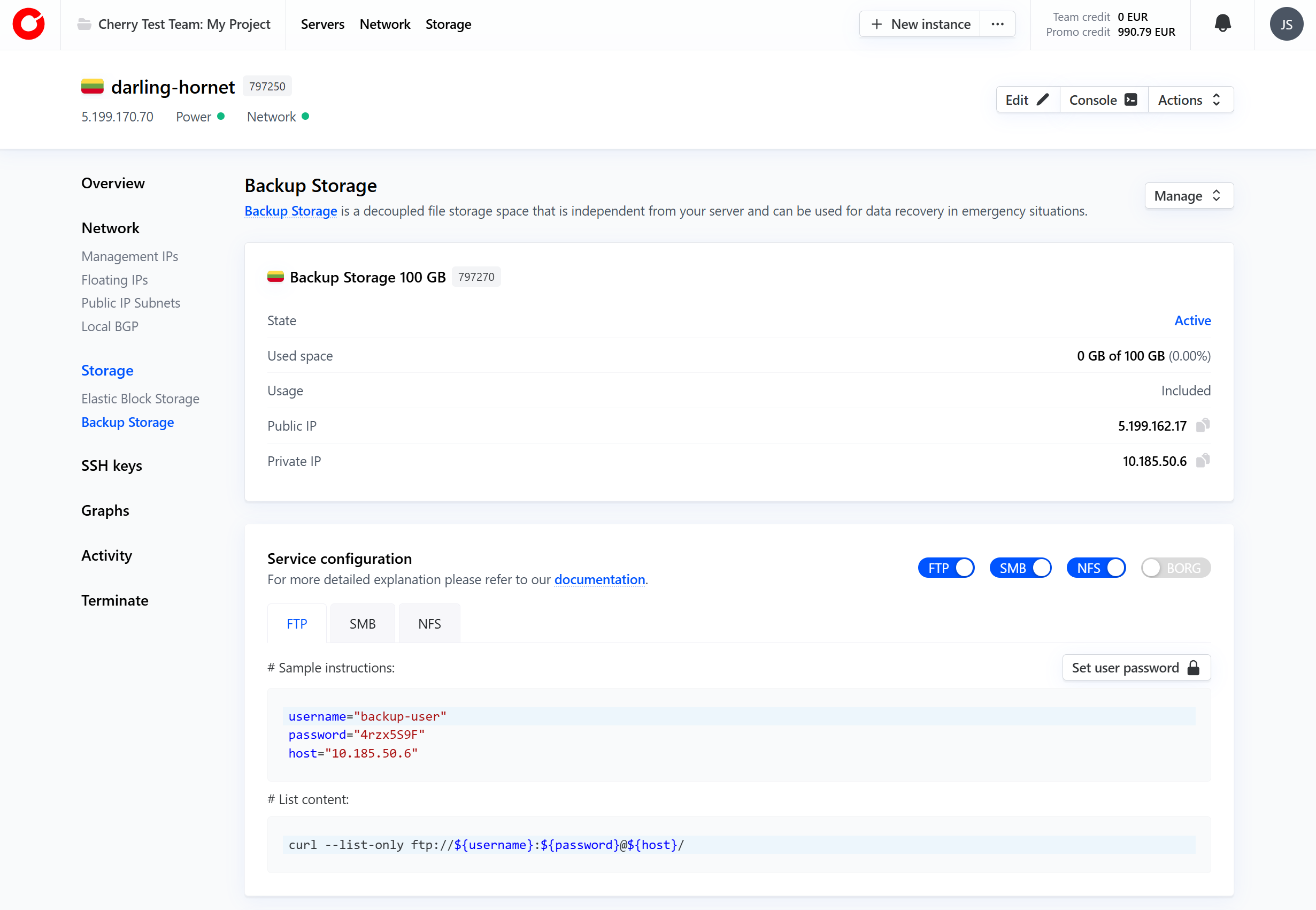
On the backup storage dashboard, you can view the following information:
- Backup storage space location,
- Service state,
- Used storage space (checked every 5 minutes),
- Backup storage space public IP address,
- Backup storage space private IP address,
- Usage guides for selected protocols,
- Access Control List (ACL) with specific firewall rules for your storage space.
#Upgrading your Backup Storage Space
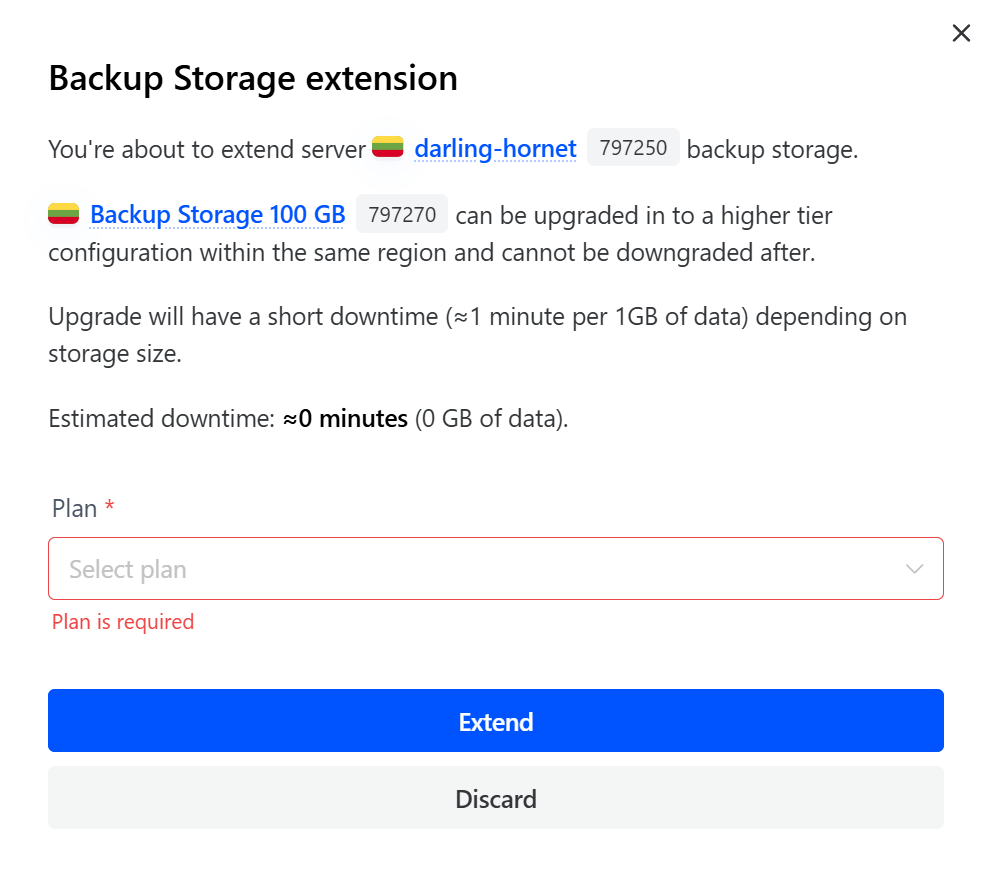
You may extend a backup storage space to a larger volume, however this can only be done once.
-
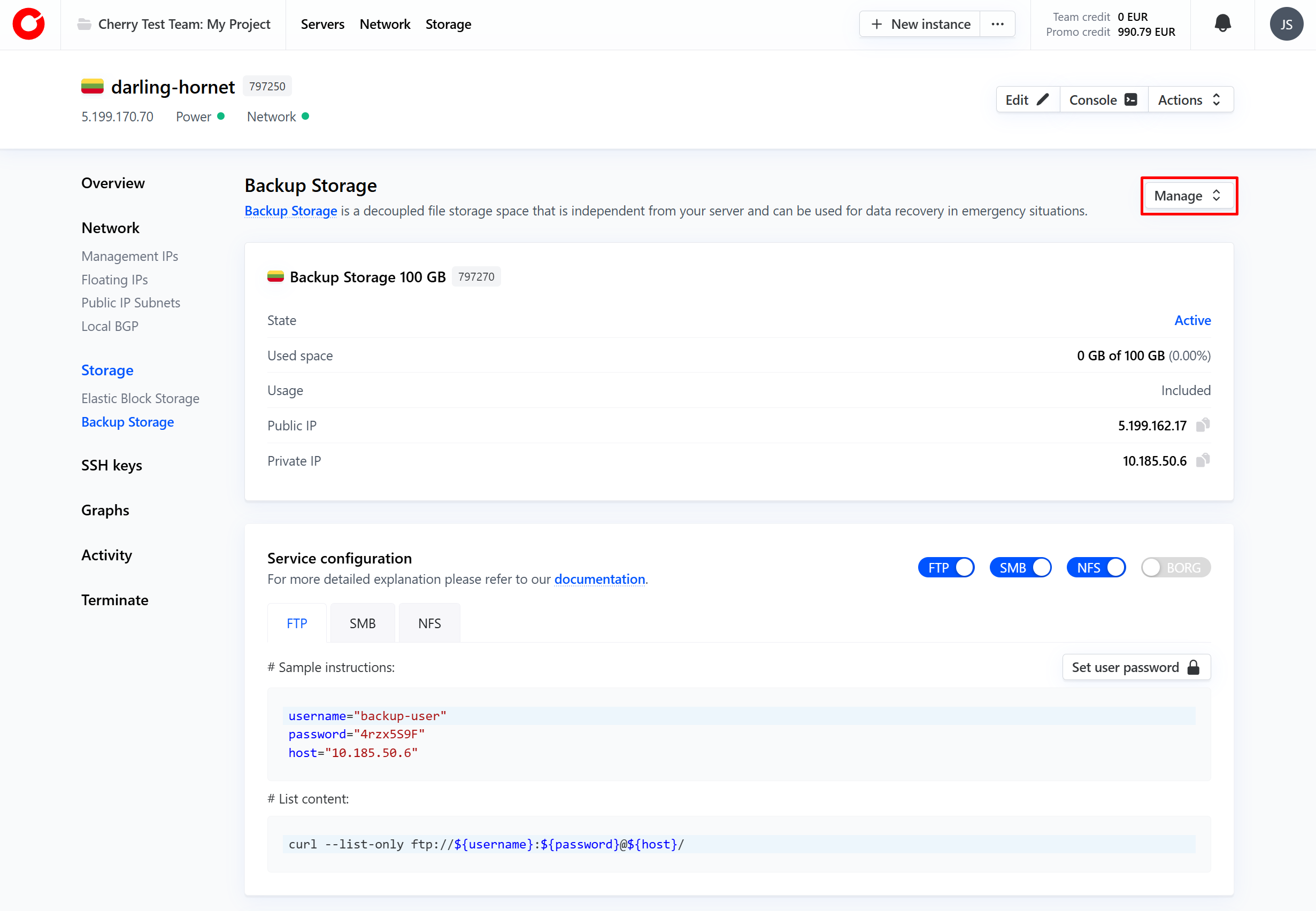
To upgrade your backup storage, navigate to the backup storage dashboard, found in your server overview, and click the “Backup Action” button in the top right-hand corner.

-
Select “Extend Backup Storage” from the dropdown menu and select your new backup storage plan.

-
Your new backup storage volume will initialize within 3 - 5 minutes, on average.
#Backup Storage Termination
Backup storage space is intrinsically linked to the server it is attached to. If you retire a server with an associated backup storage, that backup will be deleted at the same time.
#How to Connect
Cherry Servers backup storage spaces cannot be accessed from the public internet, it can only be reached through Cherry Servers IP addresses that you own.
By default, backup storage can be accessed only using the IP addresses of its assigned server, however new ACL rules can be added to whitelist any other Cherry Servers IP address that you own.
If your server is located in the Lithuania - Siauliai, Sweden - Stockholm, or Germany - Frankfurt regions, you can connect to its assigned backup storage via a private IP address.
If your server is located in any of our other regions, you can only connect to its backup storage space via a public IP address.
We recognize the importance of flexibility in using critical services, so Cherry Servers also enables connection to backup storage spaces through various other network protocols.
#FTP and SMB Protocols
File Transfer Protocol (FTP) is among the most popular file sharing protocols widely used on both Linux and Windows operating systems. It is recommended to use a private IP address to connect to your backup storage space via FTP because FTP traffic is encrypted.
Server Message Block (SMB), also known as SAMBA or CIFS, is typically used on Windows operating systems. It is considered good practice to use a private IP address to connect to your Backup Storage space via SMB.
You can log-in to your Backup Storage space via FTP and SMB protocols by using the username, password and IP address of your storage space. There are a range of client software to enable these connections, including NcFTP (CLI) and FileZilla (GUI) for FTP, or Samba for SMB.
#NFS Protocol
NFS is a protocol typically used in Linux operating systems which allows users to access files located on a remote server as if they were local.
NFS does not have authentication or traffic encryption, and is only secured by a firewall. For this reason, it is highly recommended to use a private IP address to connect to your Backup Storage space when using NFS protocol.
#BorgBackup (BORG)
BORG, also known as BorgBackup, is a deduplicating backup program that supports compression and authenticated encryption with the sole purpose of providing an efficient and secure means of storing backup data. BorgBackup is disabled by default and requires initial configuration.
Core BORG features include:
- Deduplication - All files are divided into variable length chunks and copied to the repository, while any and all duplicate chunks are ignored;
- Compression - Data can be compressed at various processing speeds and compression magnitudes, according to the selected compression algorithm;
- Performance - Performance-critical code is implemented in a low-level programming language (C/Cython), and chunk index data is cached locally;
- SSH Access - You can connect to your Backup Storage space through SSH, providing SSL encryption as an additional layer of security;
- Backup rotation schemes - You may opt to keep a certain number of historical backups (e.g. daily, weekly, monthly)which can be used in the event your system is compromised and you wish to revert to a specified snapshot instance in the past.
Some further BORG specifications when using backup storage are:
- BORG uses a 2223 port to connect to your Backup Storage space;
- Password authentication is disabled, therefore, only SSH authentication should be used to connect to your Backup Storage space;
- Only a single backup-user can connect to your Backup Storage space using BORG;
- Backup Storage space is treated as a single BORG repository.
How to Set up BorgBackup
BorgBackup can be set up by first generating a secure shell (SSH) key pair on your server. For more information on generating an SSH Key with Cherry Servers, please view our SSH Generation Guide. Pass the public SSH key to the Backup Storage space though the pop-up window.
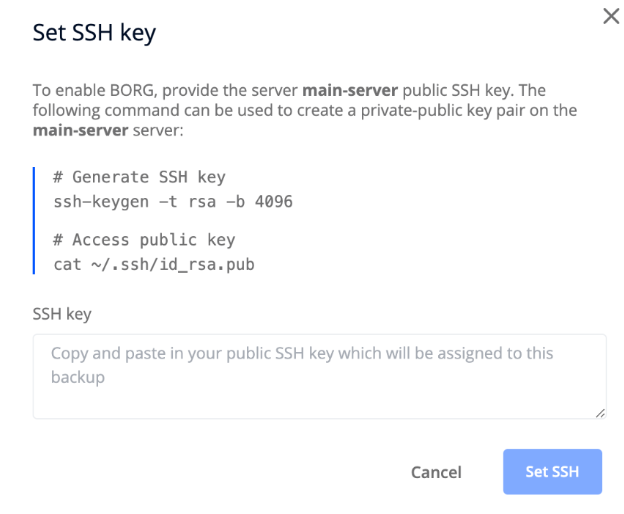
After successfully passing the public SSH key to your Backup Storage space, BORG will become active. You will then be provided with sample instructions to get started:
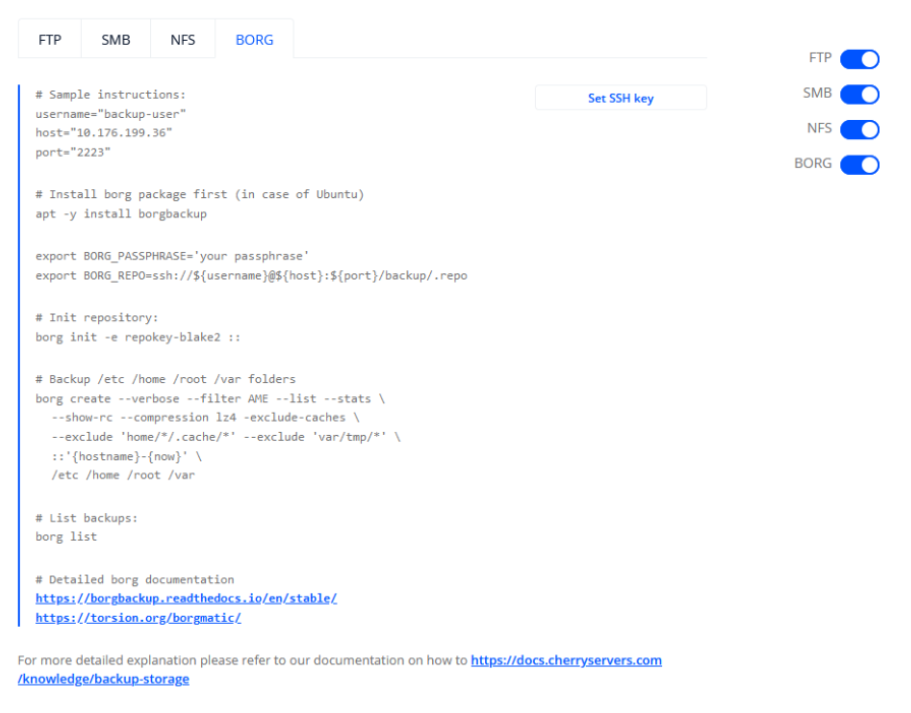
Borgmatic
Borgmatic is a front-end interface to BORG which uses a single YAML configuration file to simplify complex Borg commands and define your BORG setup. Following setup, you will be able to automatically run Borgmatic with a selected configuration file by using a job scheduling software, such as Cron.