#What Are VM Backups?
VM backups are a managed backup service that creates point-in-time copies of your virtual server. These copies are stored on separate infrastructure nodes, ensuring redundancy and isolation from your primary server’s environment. Cherry Servers clients can use VM Backups to recover your server to a prior state in case of data loss or corruption.
Currently, the VM Backups service are only available for Cloud VPS, Cloud VDS, and Performance VDS servers operating in the Lithuania data center region.
#How Do VM Backups Work?
The VM Backups service automatically creates copies every day, and retains the data for 7 days. Users can manually assign a two-hour daily backup window during which the backup copies will be made, allowing you to select a time when server loads are minimal, and thereby avoid any unnecessary slow downs in service, or unexpected downtime. In addition to automatic copies, clients can also trigger one manual backup copy per hour, and retain up to 3 such backup copies at any time. Backup copies are stored in a separate infrastructure node than your server’s primary storage, providing improved data isolation and protection from local issues. Backup copy sizes may differ depending on your filesystem size due to block-level fragmentation, especially if your server has been running for a long time.
#How to Set up VM Backups
You may set-up VM Backups upon server deployment, or later after the server has already been deployed.
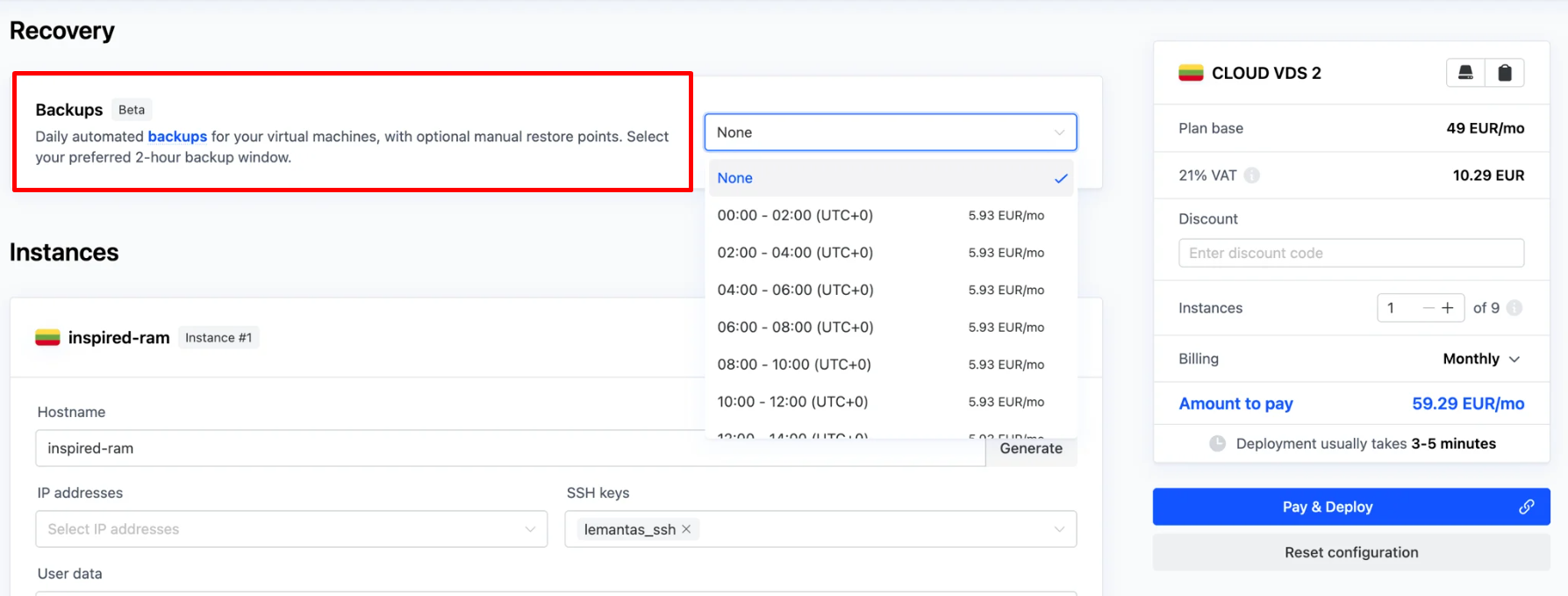
- During Server deployment, once you have selected your ideal server, you can find the option to enable VM Backups by scrolling down to the "Recovery" section. Simply select the time you would like backups to be automatically created from the dropdown list, and click “Pay and Deploy”.

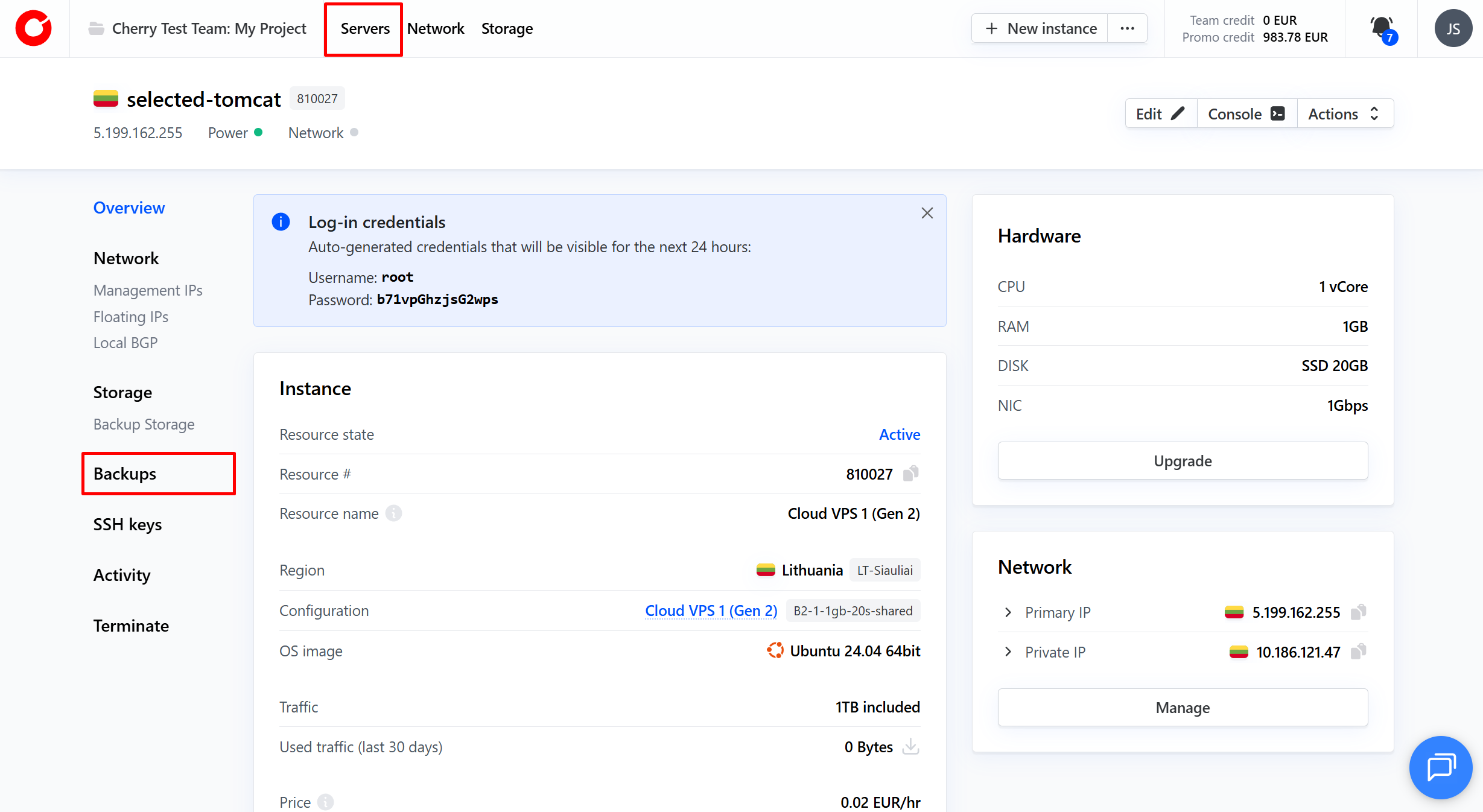
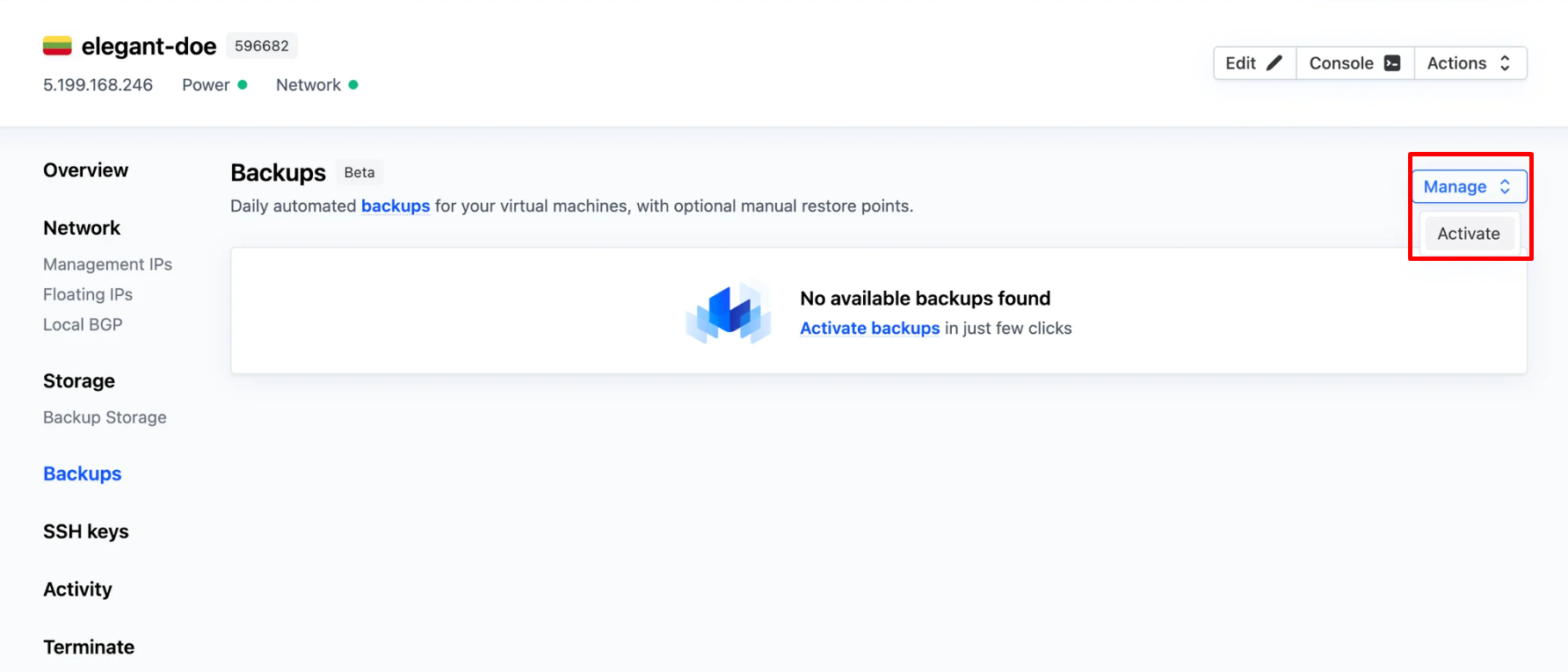
- You may also activate VM Backups after your server has been deployed. You can do this choosing the server you would like to create backups for from the Server tab, and navigating to “Backups”.

- Click “Manage” in the top right-hand corner of the tab, and press “Activate”.

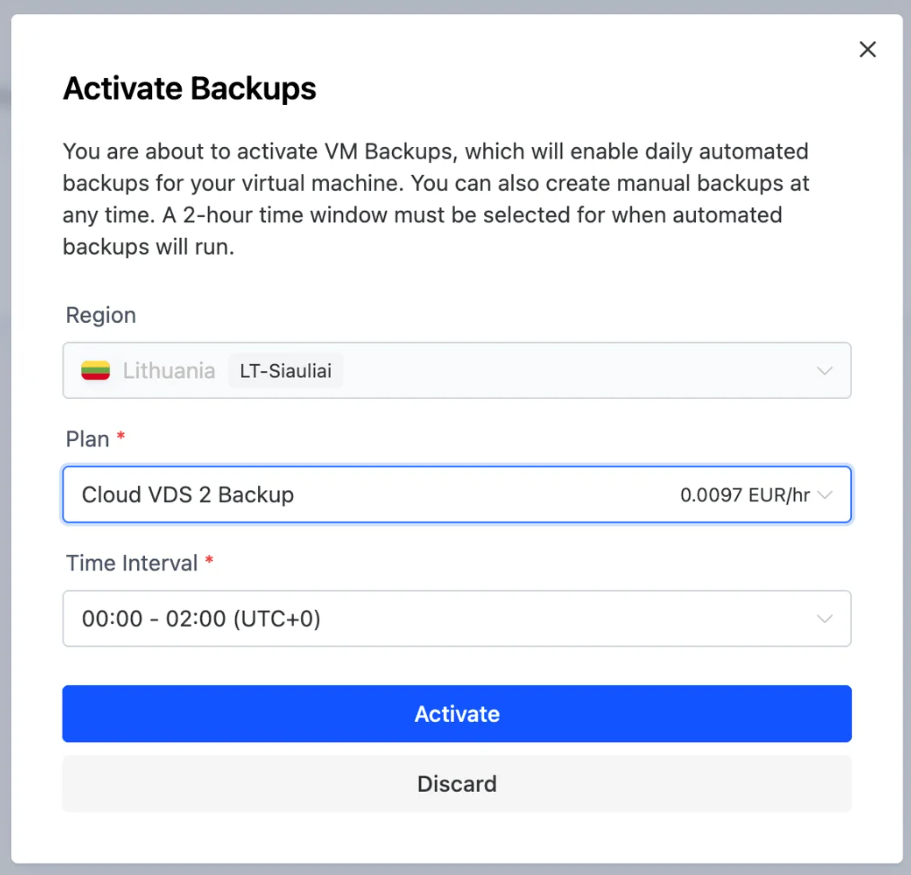
- From the pop-up window that appears select the two hour window during which automatic backups should be created, and click the “Activate” button:
 The time required to create a backup depends on the amount of used storage, as well as current server load.
#How to Manage VM Backups
Once your VM Backup service has been activated, the Backups dashboard will have the option to create manual backups, change the automatic backup window, view restore points, and see restore action history:
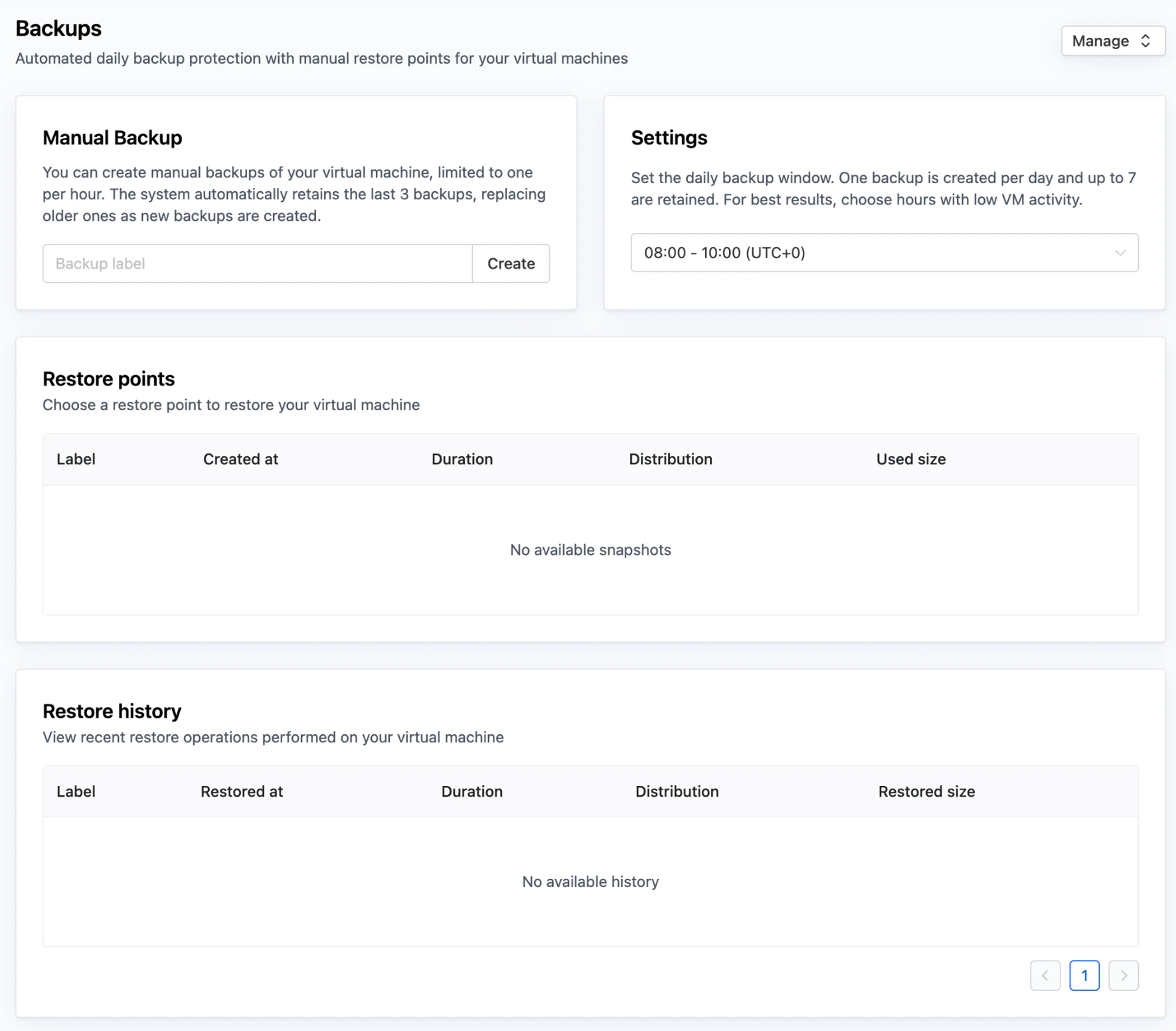 Here you may perform the following actions:
- Create a manual backup copy.
- Change your daily backup copy creation time.
- View all automatic and manual backup copies with timestamps.
- Select a backup copy and restore your server to that point in time.
- See your latest restore history and its outcomes.
#Common Errors & Troubleshooting
When using VM Backups service you may face some errors. The most commonly encountered errors, and the steps to take, are as follows:
-
Too many manual copies
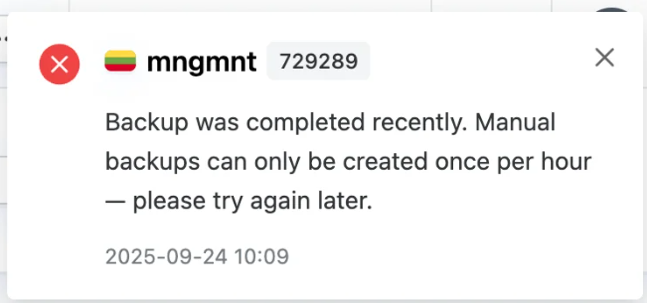
 “You can only create one manual backup copy per hour.” Wait until the next hour before trying again.
 -
Backup copy creation failed
 “Backup copy creation failed due to high server load or another issue.” Retry after 15 minutes when the server load is lower.
 -
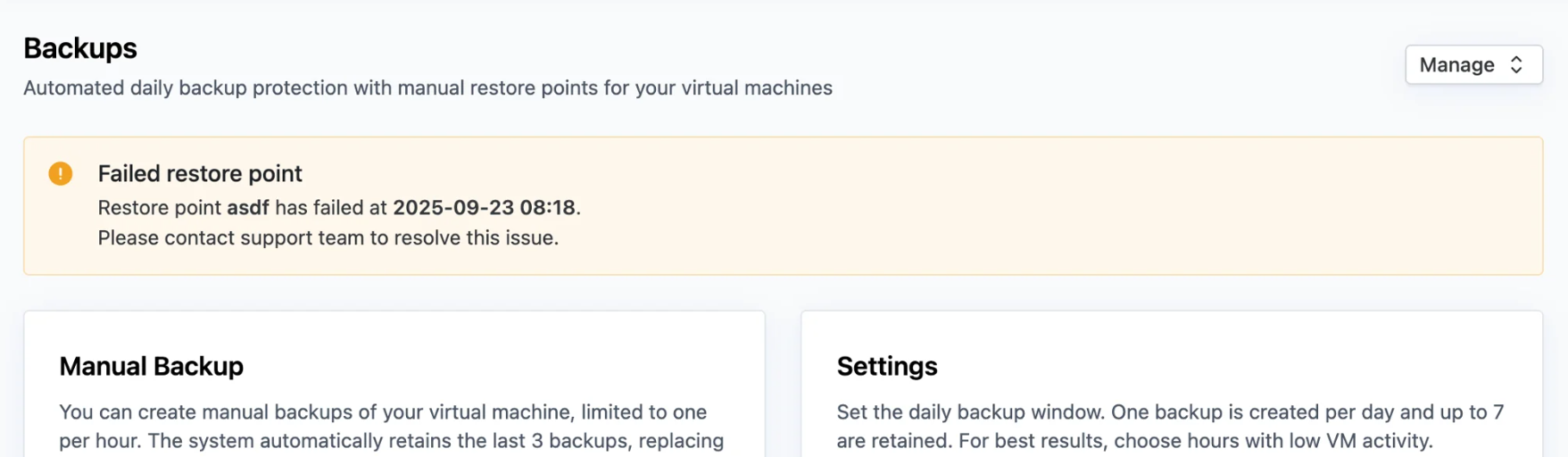
Restore failure
 “Server cannot be restored using this backup copy.” Please contact our dedicated technical support engineer team with the backup copy ID and error details, and we will be more than happy to assist you.