Accounts, Teams, Projects
With Cherry Servers, you can manage your entire workflow through the client portal. Accounts, teams and projects are the three main segments that help you keep everything organized in separate, clear, and easy to understand groups. When you create an account at Cherry Servers, a single team and a single project are created and linked to the account by default. All new services you order are assigned automatically to this default project. Each user account can create and be linked to any number of teams, while a team can be connected to any number of projects, but each project may only connect to one team.
#Accounts
When you register with Cherry Servers a new user account is created. These accounts are primarily used to store and verify personal identifiable information for user authentication purposes to ensure your servers and workflows remain in safe hands.
On a user account, you can carry out organizational tasks related to security and general operations. These operations are:
- Profile - change personal and account security information
- Add and change your name and contact information;
- Link your Google, GitHub, and Facebook accounts;
- Set up Two-Factor Authentication (2FA);
- Change your password;
- SSH Keys - add and manage your SSH keys to assign to servers;
- API Keys - create and manage API keys to manage your services through Cherry Server API and CLI;
- Invitations - view and manage your team and project invitations;
- Support - open and track tickets with our dedicated support engineer team.
An account can create new teams at any time.
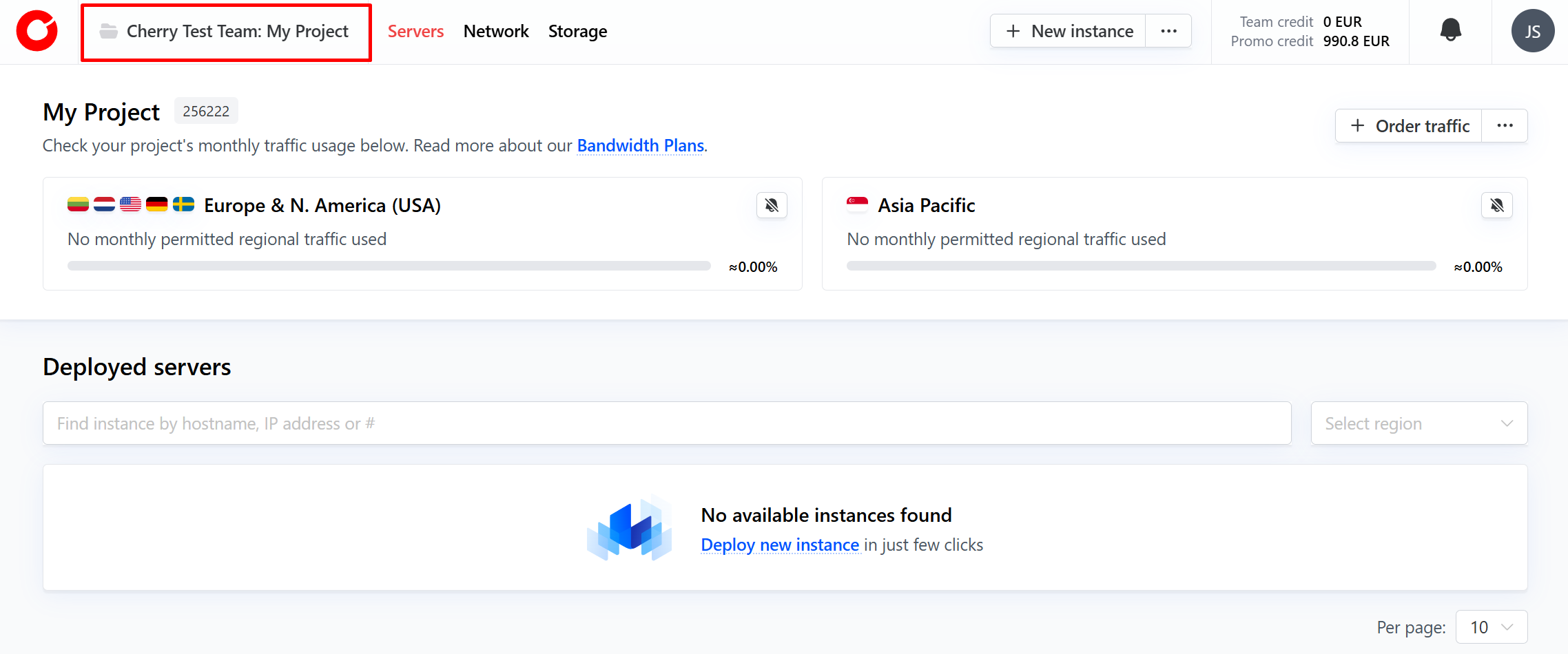
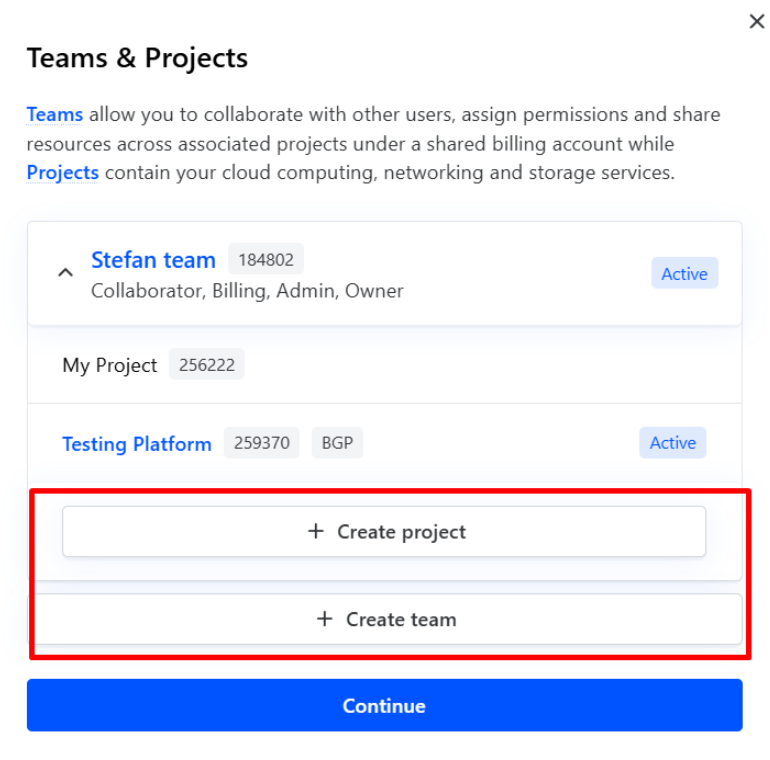
- To do so, click the name of your project in the top left-hand corner of the client portal.

- In the pop-up window, simply click “New Team”, assign a name, and click “Create”.
 The account that created the team will be assigned the team’s “Owner” role.
#Teams
Teams allow you to collaborate with other users to ensure smooth operations of your projects. In the teams section, you can manage user permissions, billing information, and server activity. The full list of team options is as follows:
- Team - Invite and manage team members, or delete the team;
- Billing;
- View your team balance: this is used to pay any incurred charges from your projects at the end of the billing cycle;
- Top-up your balance with a one-time payment;
- Change your billing information;
- Add a credit or debit card that can be set-up to auto-renew your balance;
- Note: Your billing information will remain private to you.
- Invoices - view your outstanding and fulfilled invoices;
- Subscription payments - manage your fixed term services, as well as the payment method for these services;
- Referral - view our referral service;
- Auto-recharge - add and manage auto-recharge settings using a credit or debit card to keep your team balance topped-up;
- Balance alerts - set up alerts to notify you when your team balance requires attention;
- Abuses - information about abuse notices issued to your team;
- Activity logs - view full activity history of your team;
- Identify verification - required for credit and debit card payments.
Additional projects can be created within a team at any time.
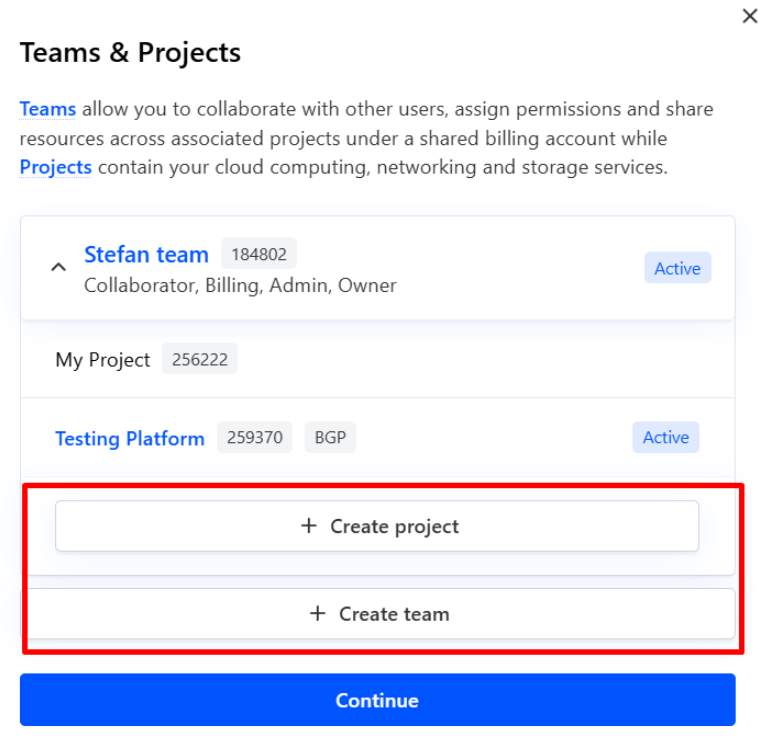
- To do so, click the name of your project in the top left-hand corner of the client portal.
- In the pop-up window, simply click “New Project”, assign a name, and click “Create”.

For more information about team roles, please visit our dedicated Team Membership Roles page.
#Projects
A project is a container that groups your computing, network, and storage services. On a Project level you can deploy new servers, manage your IP addresses, add storage volumes, and configure networking features. Compute resources are isolated to the project they are activated within, and are not connected to any networking features of any other projects operated by the same team or account. This ensures high security and predictable performance.
Full information about our services can be found in our knowledge base.