Client Portal Tour
The Cherry Servers client portal is your home for managing every detail of your deployments, services and teams with us. From adding new servers to integrating colleagues, you’ll find everything you need in just a few clicks.
#Dashboard Options
On the client portal home page, you can quickly and easily navigate to a series of dashboards for detailed information about your project’s active servers, network features, and storage services.
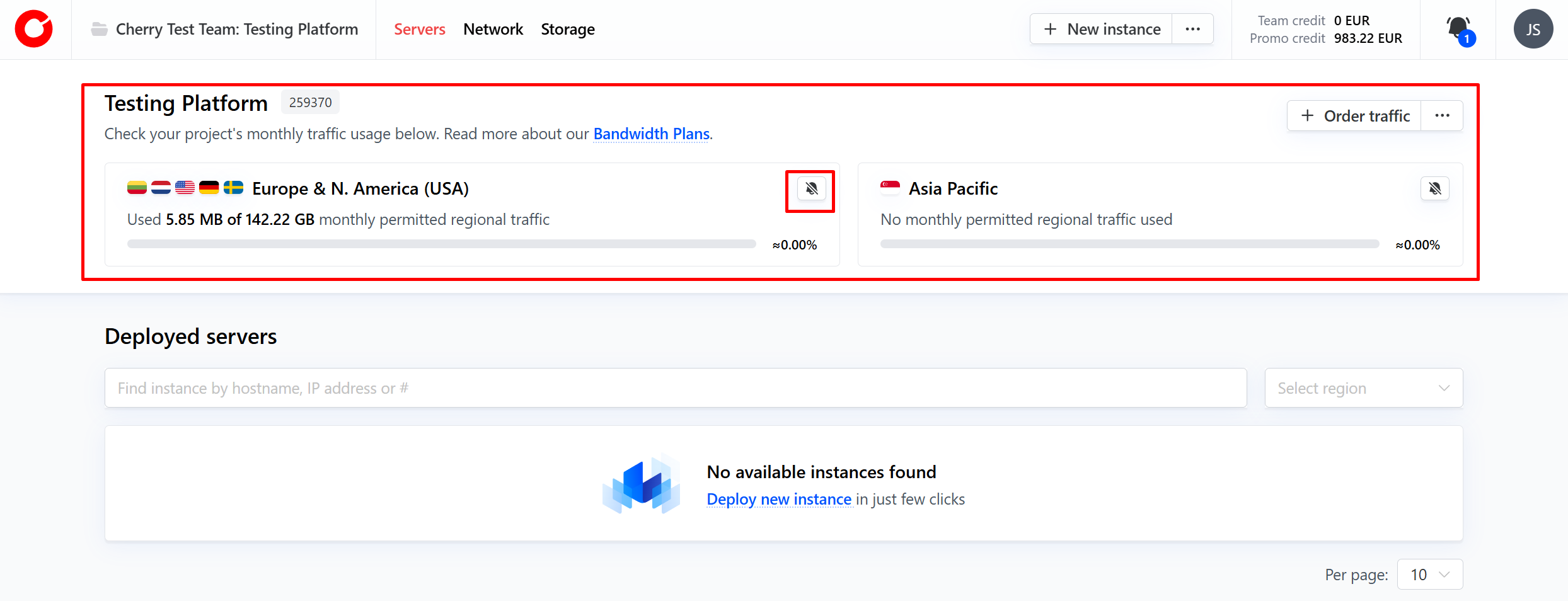
At the top of the page in any of these dashboards, you’ll find a banner that displays the current traffic usage of your project as a whole for the current month, keeping you clearly informed of your current status. To further ensure you never run out of bandwidth, you can opt to enable notifications for when usage exceeds a limit of your choosing.
#Servers
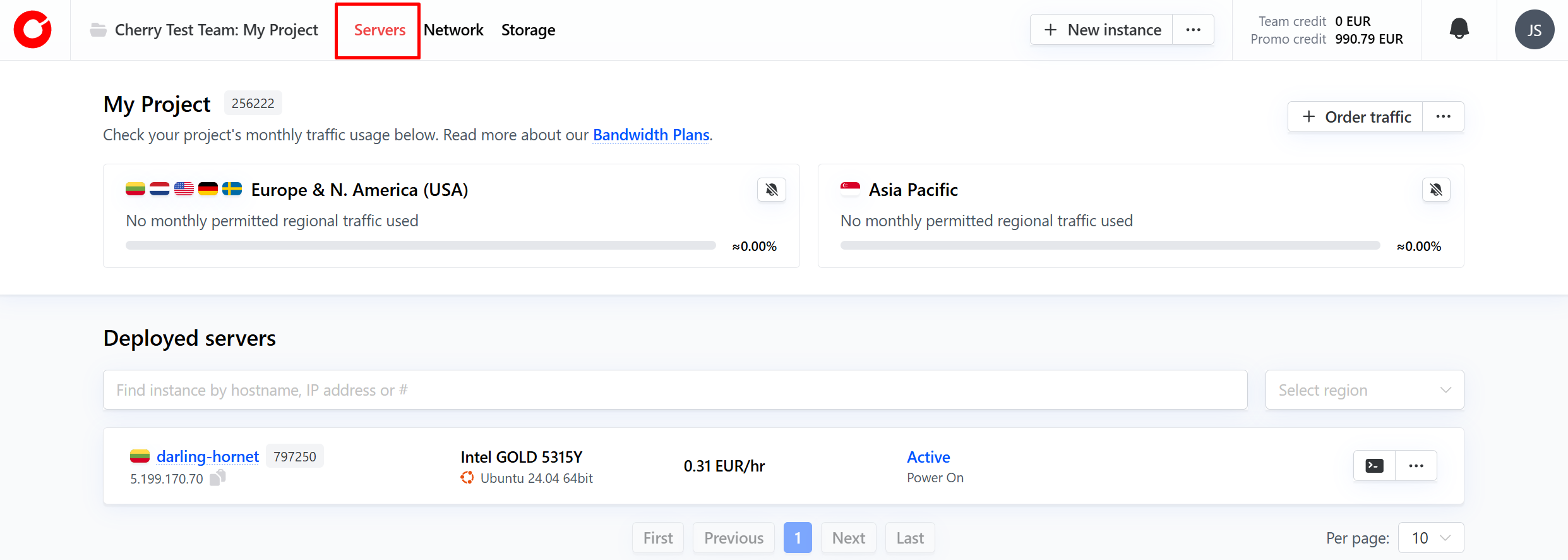
The “Server” button at the top of the page will direct you to a dashboard overview of all servers you currently own.
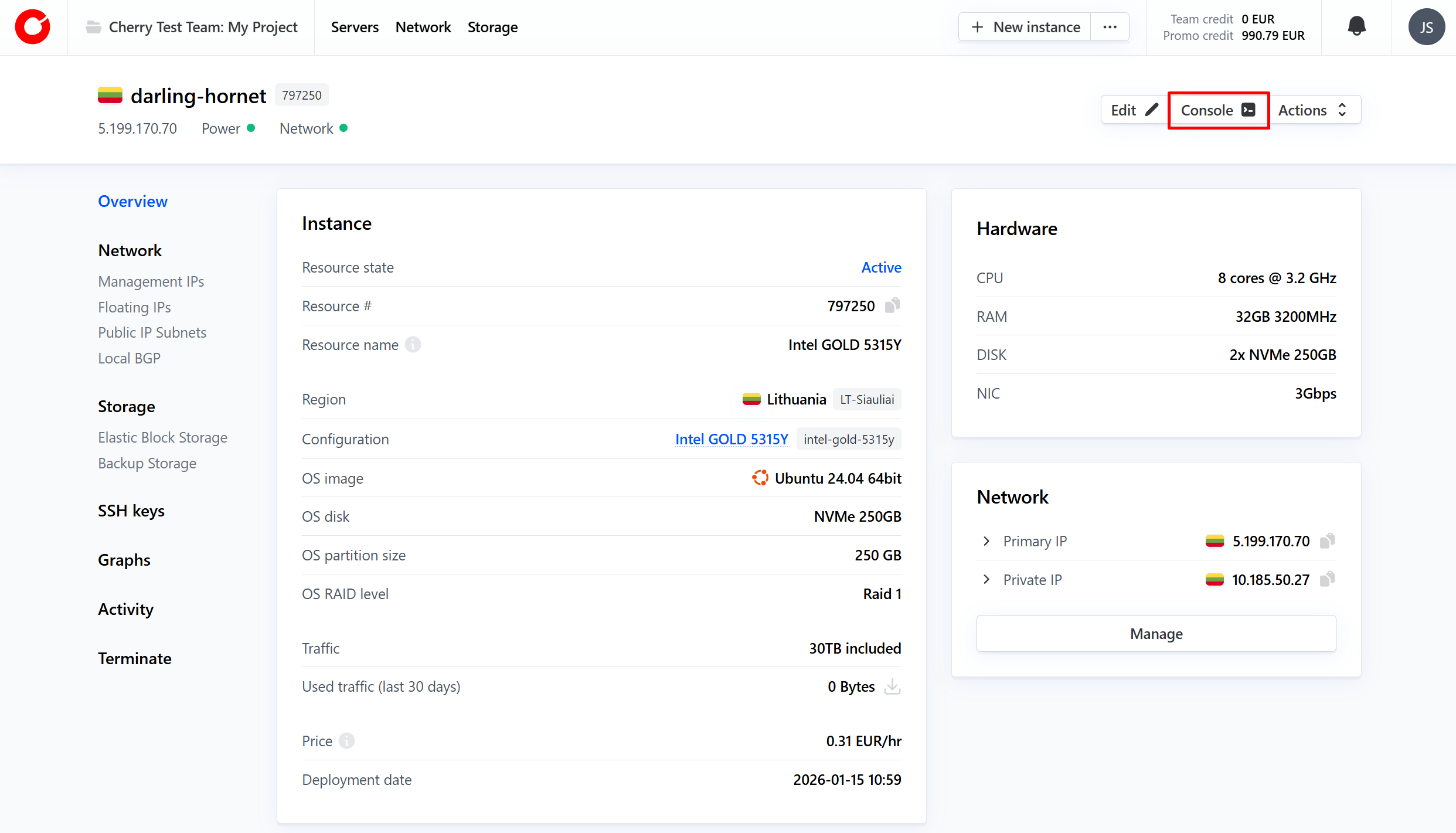
By clicking on any of the active deployments, you can view detailed information related to the hardware, configuration, storage, networking services and more. Each server dashboard allows you to make changes directly to your deployment, and you can even access a direct console.
For more information about servers, please visit the Compute category of our knowledge base.
#Network
The “Network” button at the top of the page will direct you to a dashboard overview of all networking services you currently have running.
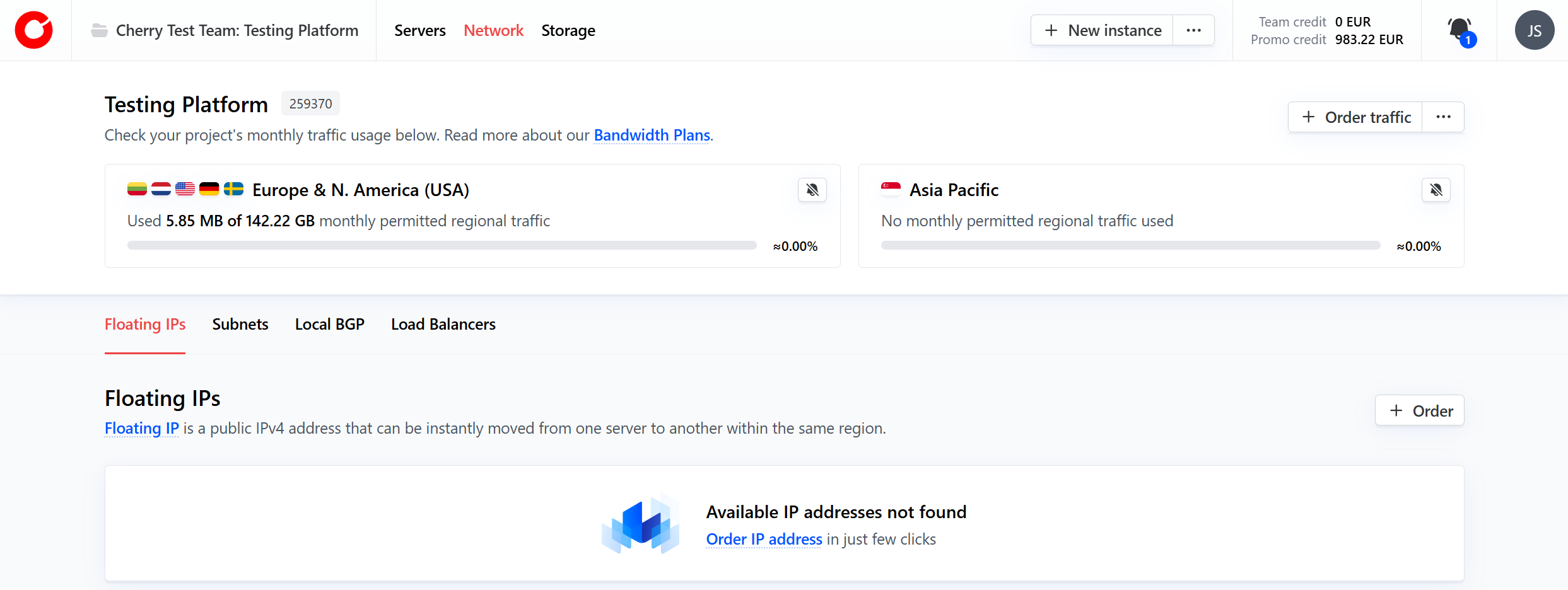
All information related to your IP routing, Local BGP, and Load Balancer services can be found here, and you can order additional tools at any time.
For more information about these services, please visit the Networking category of our knowledge base.
#Storage
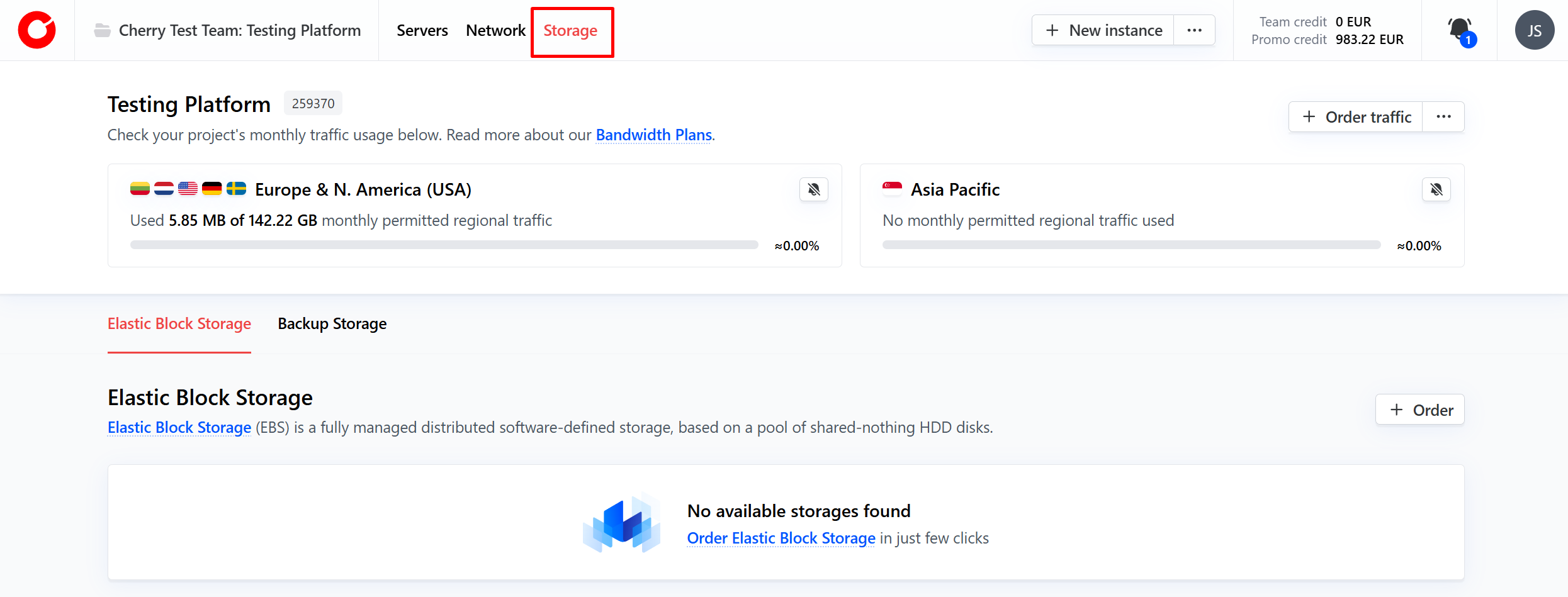
The “Storage” button at the top of the page will direct you to a dashboard overview of additional storage services that you have running. This tab provides information and configuration for all elastic block storage and backup storage services. Directly attached storage for dedicated server information can be found in the Server tab.
#Add or Switch Projects
In the top left corner of the client portal home page, you’ll see the name of your team and the current project you are viewing.
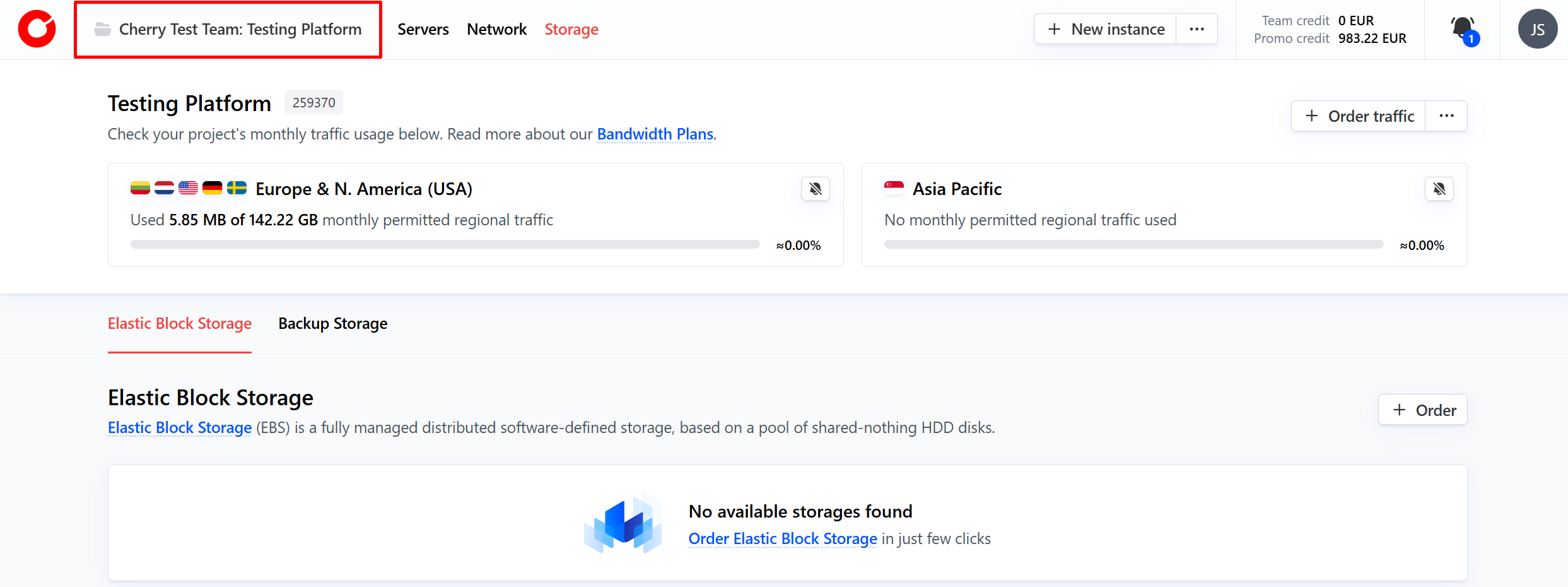
By clicking this, you can quickly switch between your teams and projects, or even create new entries. This enables you to swiftly manage multiple workloads at your convenience.
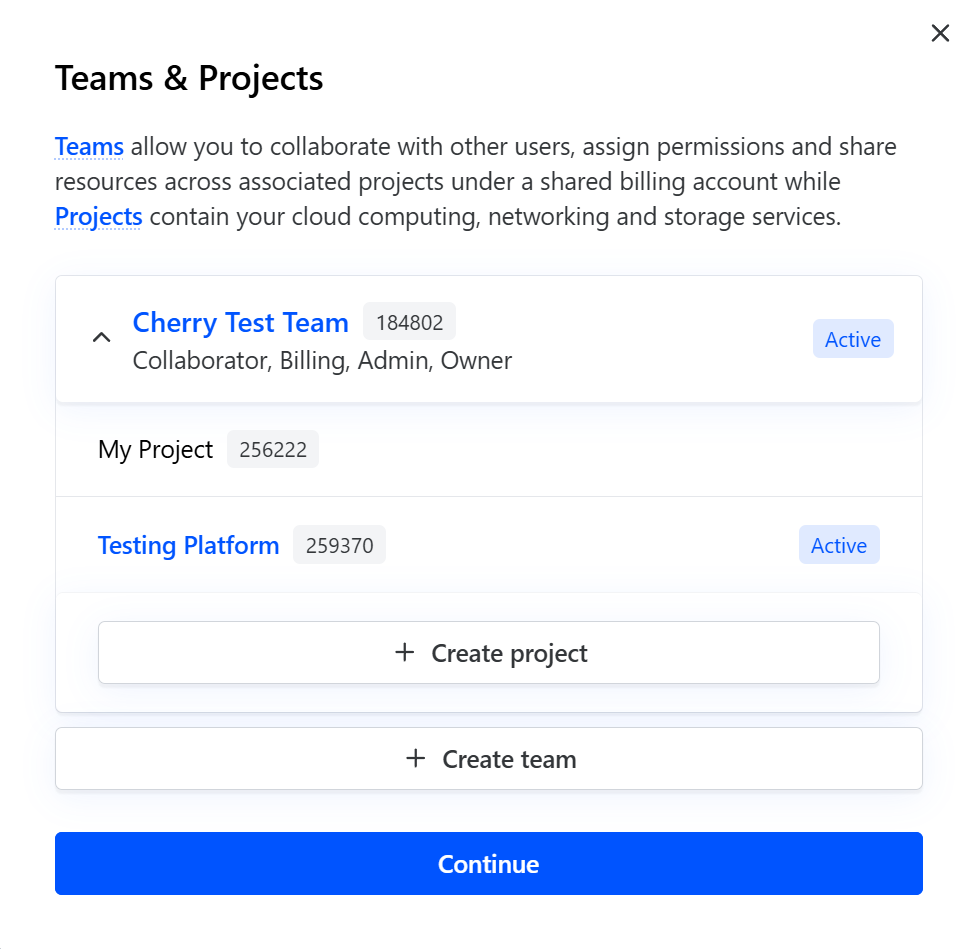
For more information about teams and projects, please visit our dedicated article.
#Make Orders
The Cherry Servers client portal offers a convenient way to order new deployments and services in one centrally controlled hub.
#New Instances
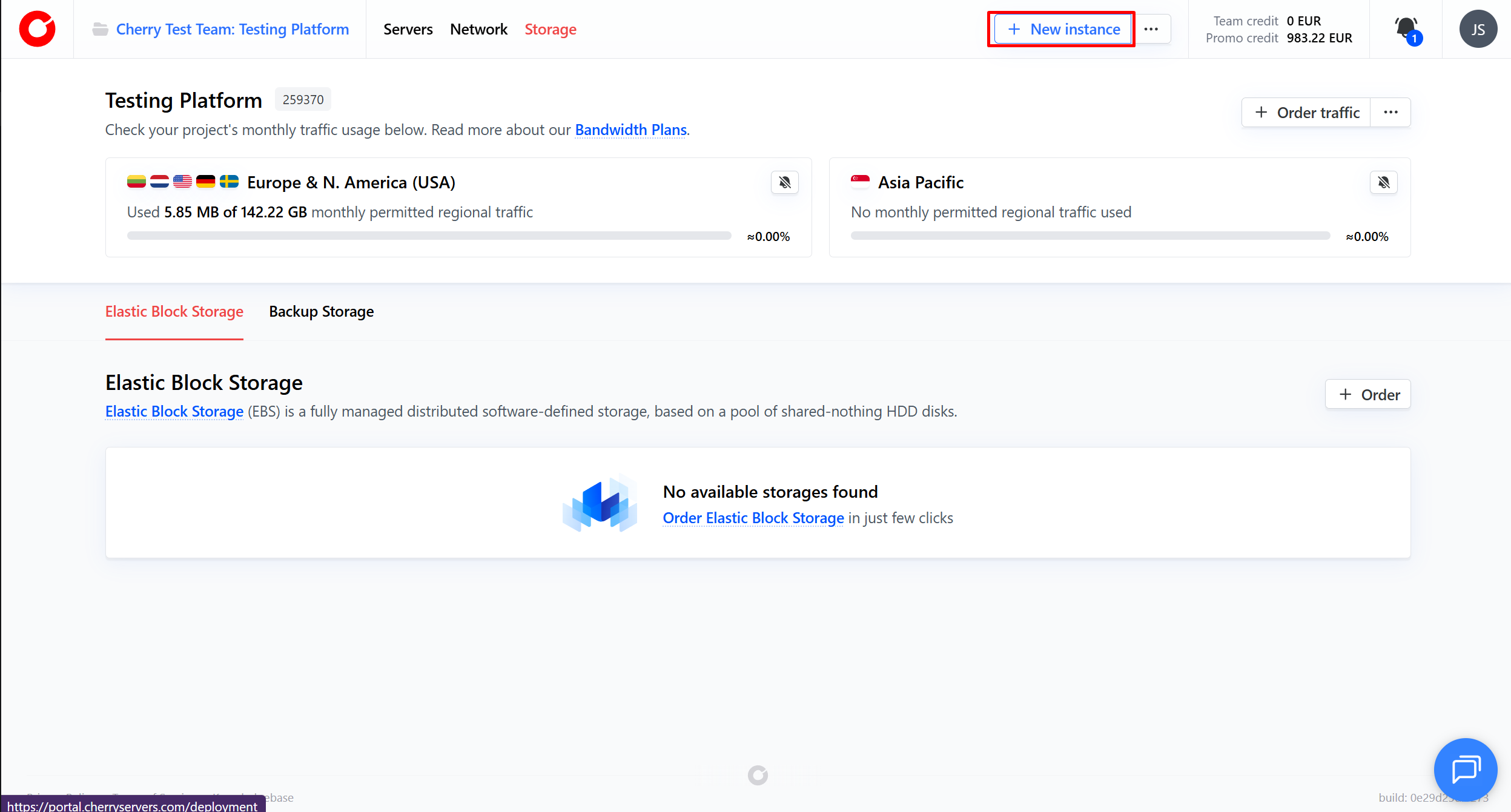
In the top right hand corner, you can click the “New Instance” button to quickly access our deployments page. You can select whichever configuration you would like and deploy a new server within 15 minutes.
#New Services
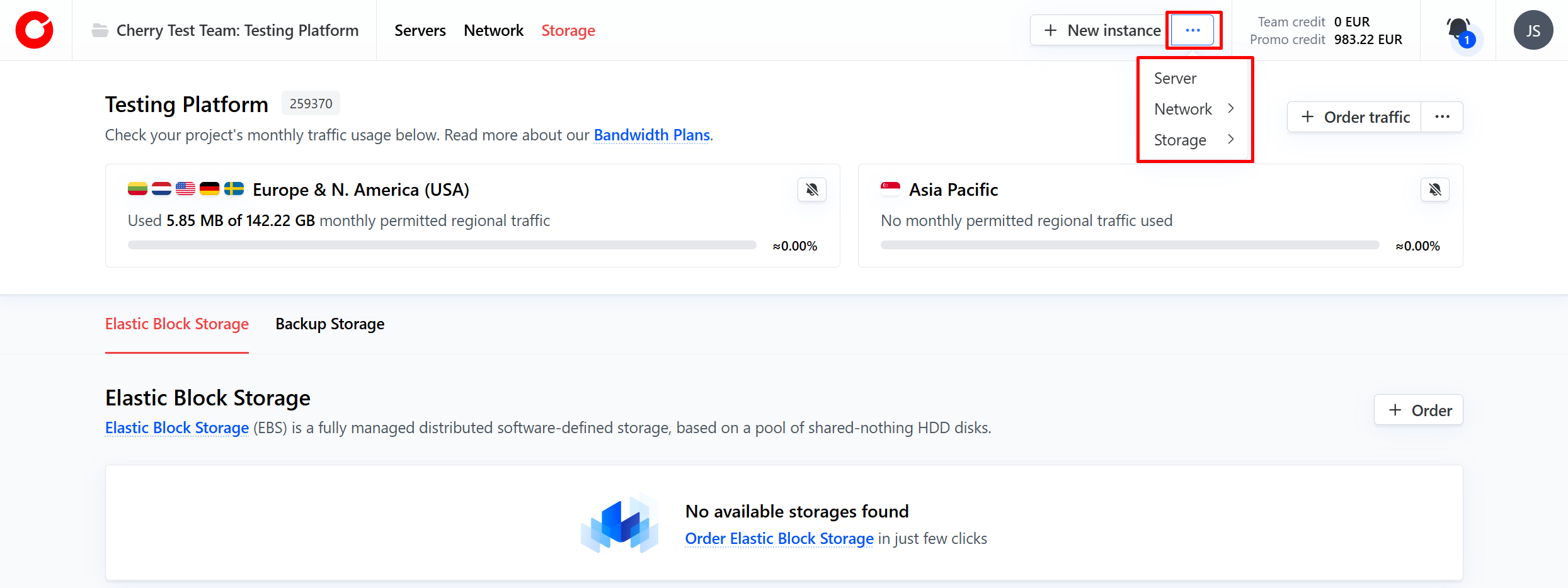
Next to the “New Instance” button, you can click the three dots to access a dropdown menu. From here, you can easily order additional networking and storage services to supplement your projects and servers, according to your needs.
#Notifications
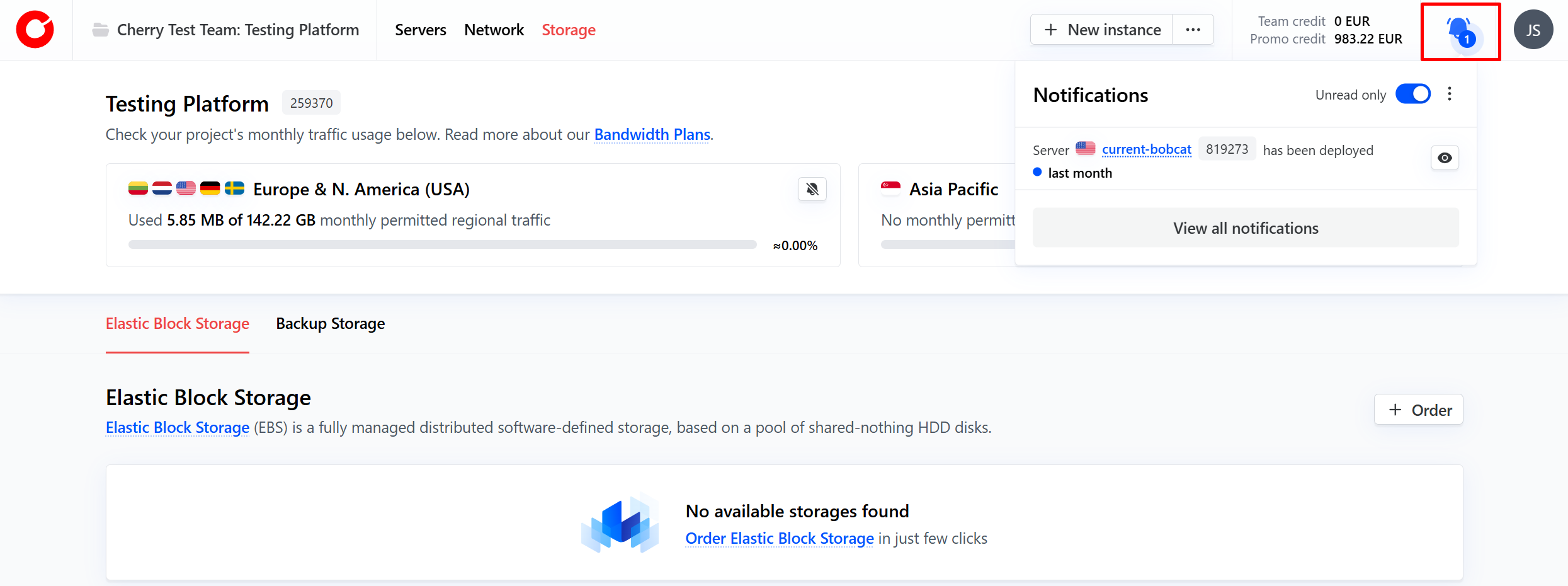
The client portal provides a live notification service to keep you up to date with all changes to your projects and deployments that can be viewed via the bell on the home page. Cherry Servers will notify you of all service launches, cancelations, and balance changes by default, and offers a variety of custom notifications that you can set up.
#Team & User Management
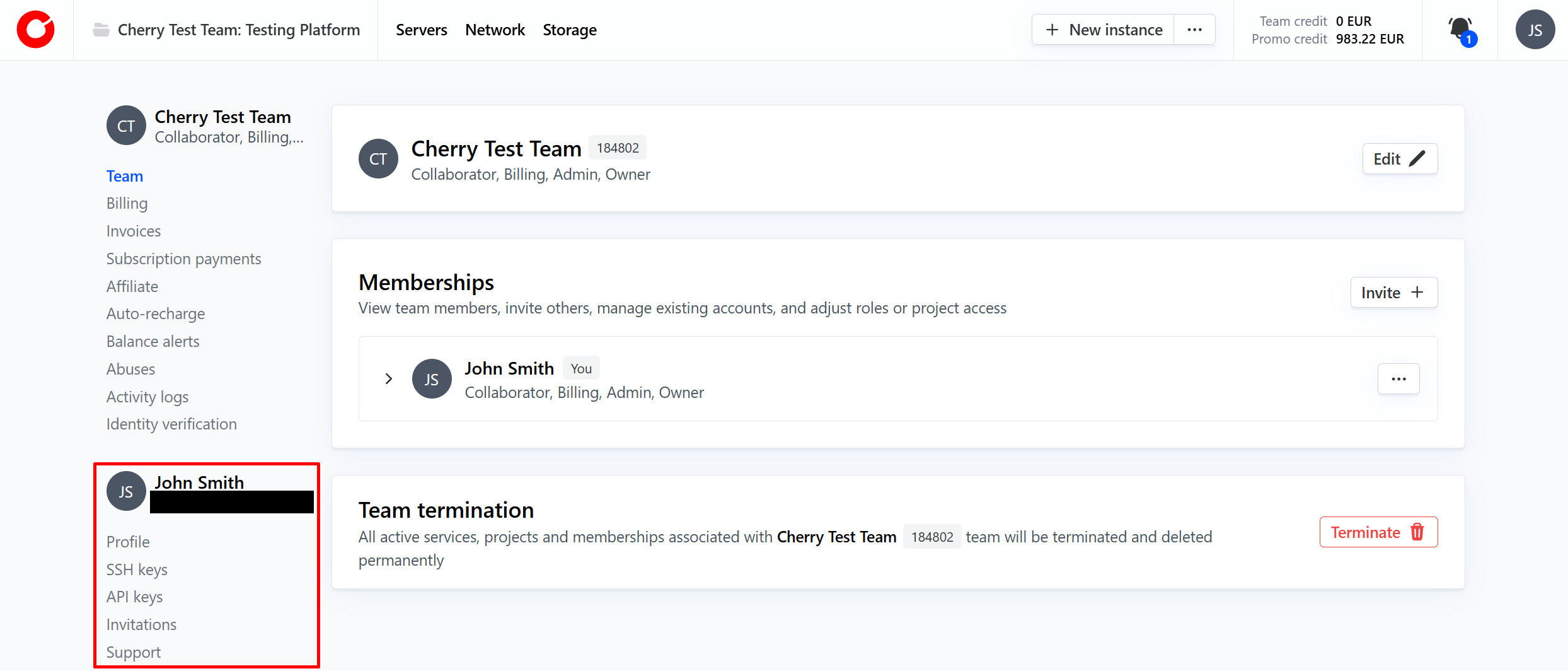
By clicking your user image in the top right hand corner, you can access a dropdown menu to quickly manage both your team and user accounts. You can switch between these options at any time.
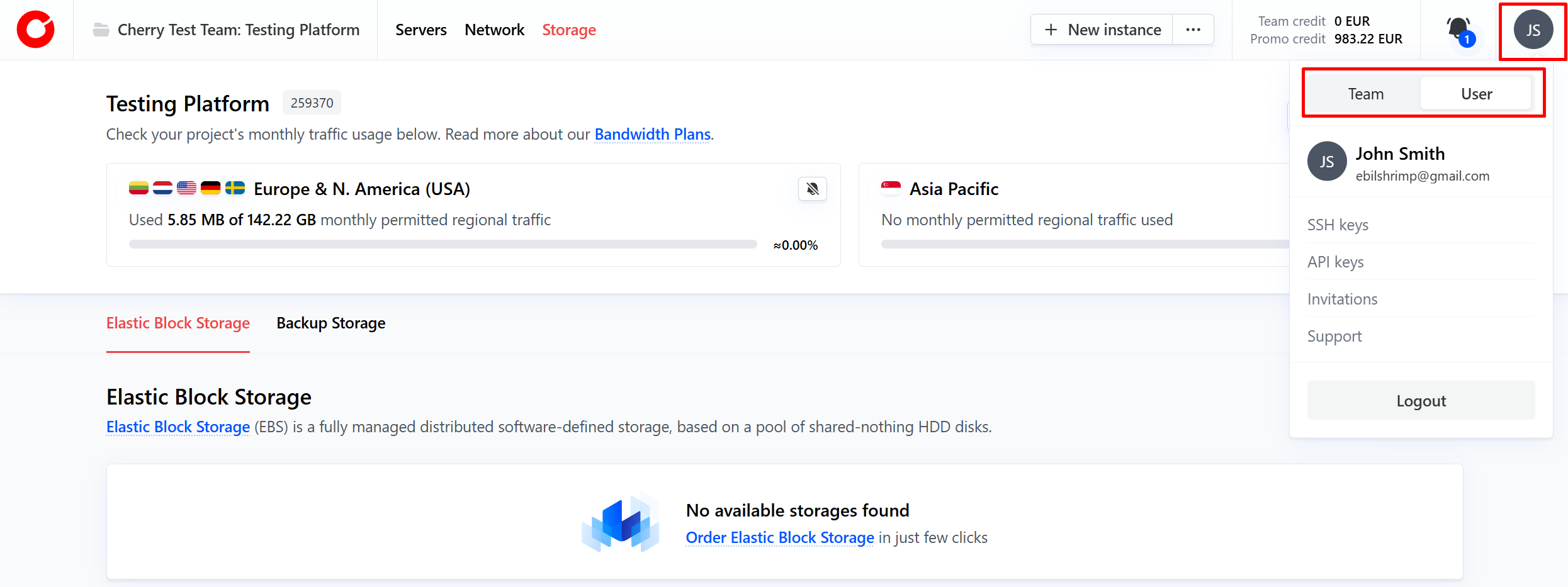
On the client portal, you can view your team’s activity, billing information and current services, as well as manage your team balance if you have the required permissions.
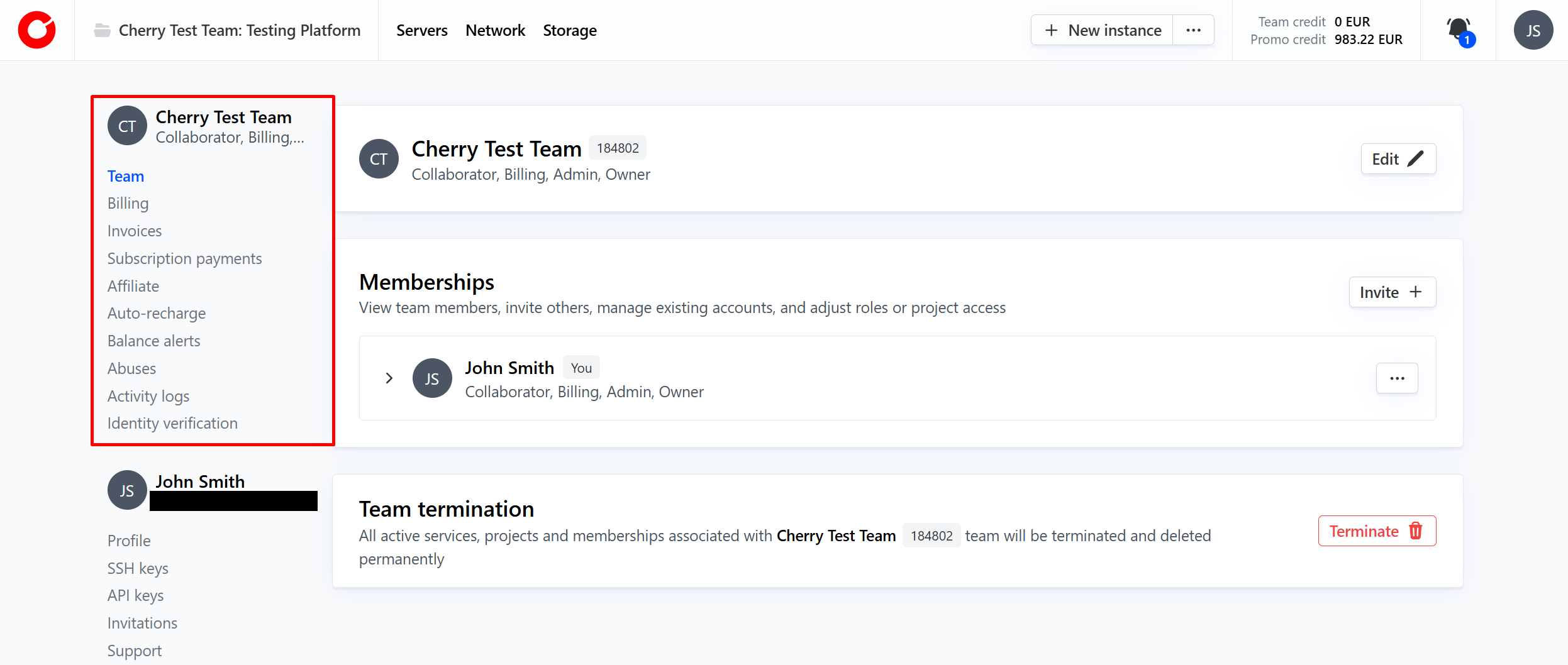
Your user settings allow you to adjust your personal and contact information, set up keys to manage your server, send invitations to colleagues, and access our dedicated customer support team at any time.